Start
What is a ByeByeDPI?
ByeByeDPI is an Android application that locally runs ByeDPI and routes all traffic through it.
The app requires Android 6 or newer. It works only on Android devices, Android TV, and some firmware based on Android.
There is no version for iOS, TizenOS, WebOS, Windows, macOS, Linux, FreeBSD, etc.
If you have a system that is not suitable for installing ByeByeDPI and you don’t want to use a VPN or proxy for some reason, consider the other options in the Others (section (this section also contains an option to install zapret as a Magisk module).
Important
The app is not a VPN! While ByeByeDPI uses VPN mode on Android to route traffic, the application does not transmit data to a remote server. The app does not encrypt traffic and does not hide your IP address.
You can learn more about blocking mechanisms here:
How to use ByeByeDPI?
To get started, you need to download the app. The application uses the standard filename extension apk.
Note
The releases contain files for different architectures. If you do not know your processor architecture, download universal.
Warning
The application is completely free. The author is not responsible if you transfer money to third parties for the application. The developer is also not responsible for versions downloaded from unofficial sources.
You should download the application only from the official repository:
The latest available version is here.
Since ByeByeDPI operates differently from VPNs, the application requires some configuration.
Before adjusting the settings
ISPs may hijack DNS requests, so you need to configure DNS request encryption on your system. Starting with version 9, Android supports only DNS over TLS (DoT) at the system level. at the system level. To use DNS over HTTPS (DoH), DNS over Quic (DoQ), or other methods, third-party solutions are required.
Tip
It’s recommended to test DNS using tools like DNS Jumper and GRC’s DNS Benchmark.
Note
Be cautious when choosing a DNS, as some DNS services may block access to websites considered to contain ads or adult content.
Proven DNS over TLS:
To configure a private DNS in your system:
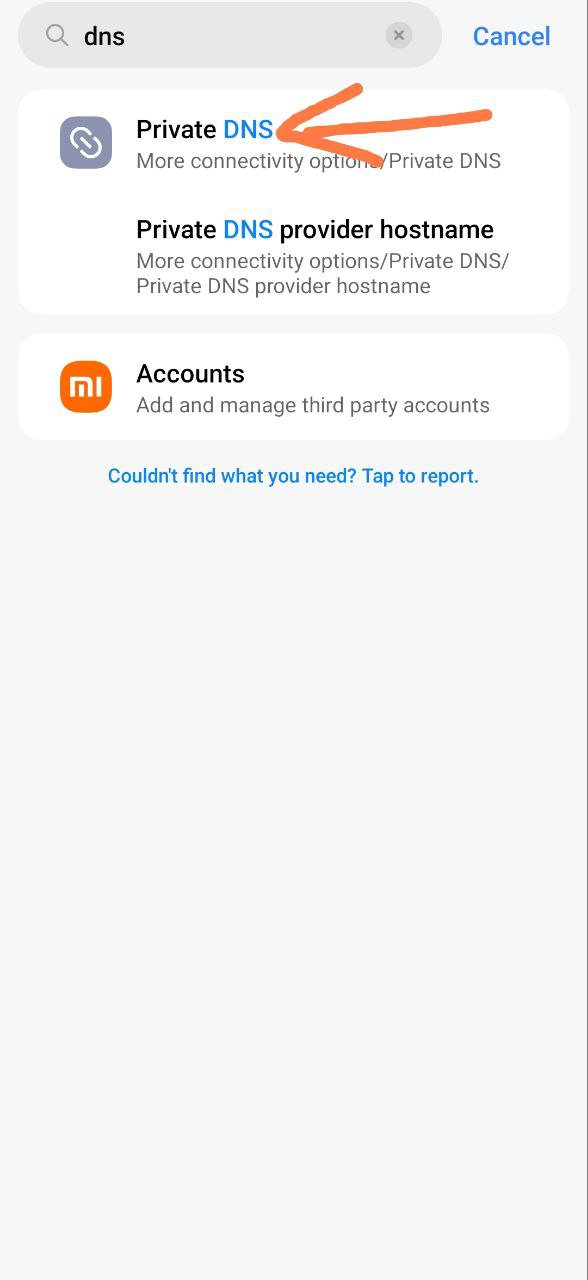
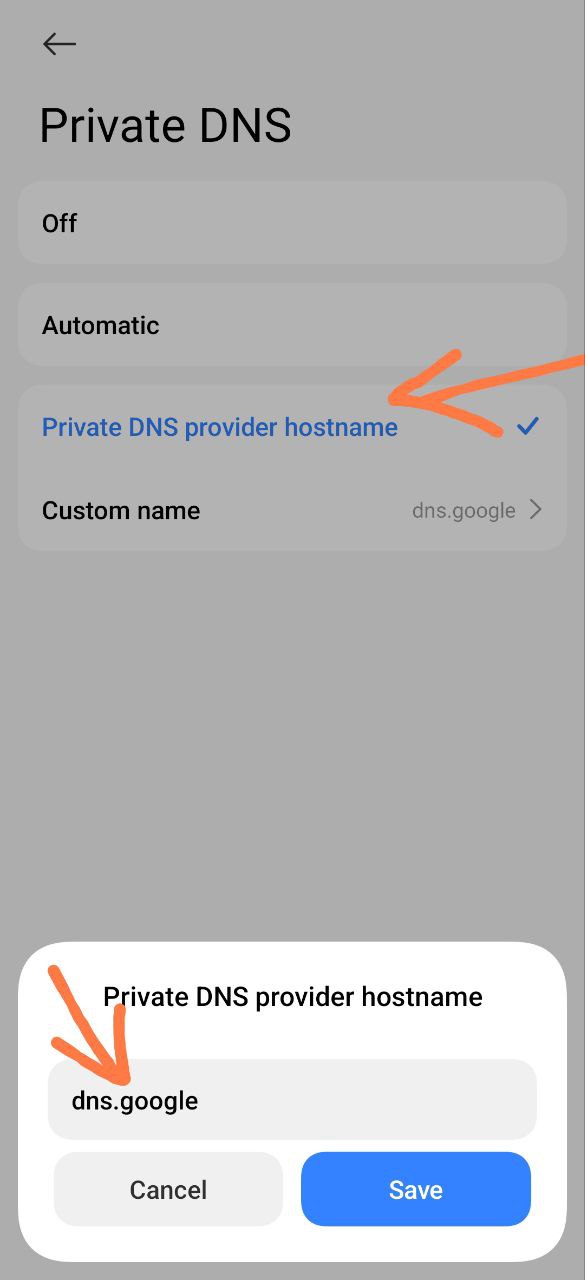
DNS over HTTPS services can be found here or here. However, be aware that DoH is not supported at the Android system level.
Adjusting the settings
Proper settings are required for ByeByeDPI to work effectively:
Allow notifications to be displayed.
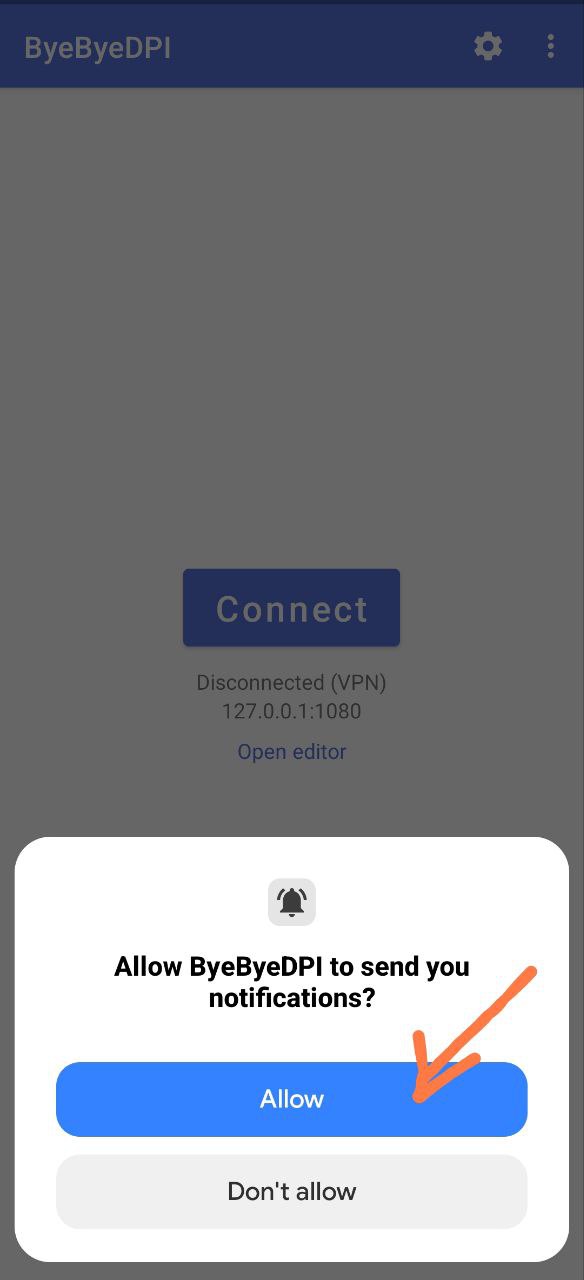
Before clicking Connect, go to the main settings in ByeByeDPI (the gear icon in the top right).
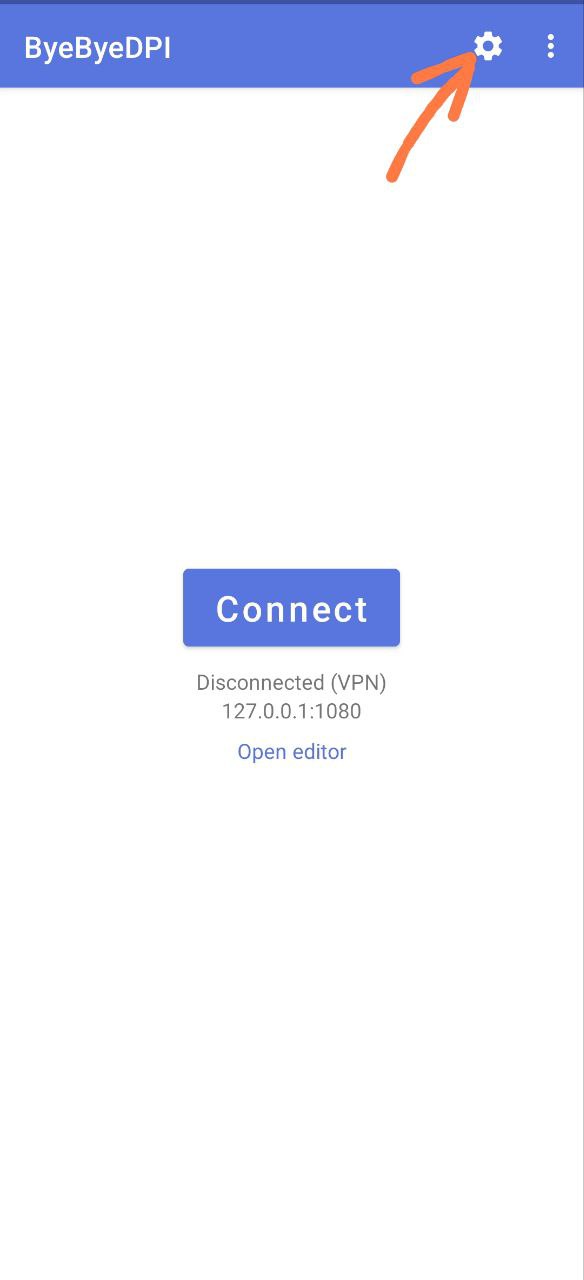
Activate the ‘Use command line settings’ toggle.
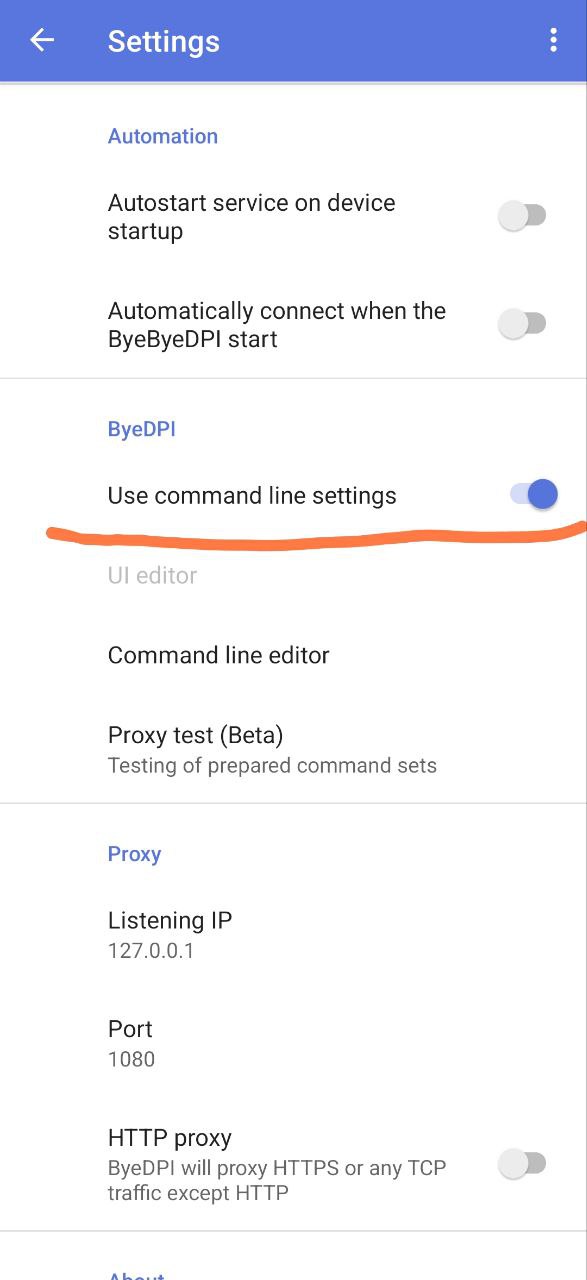
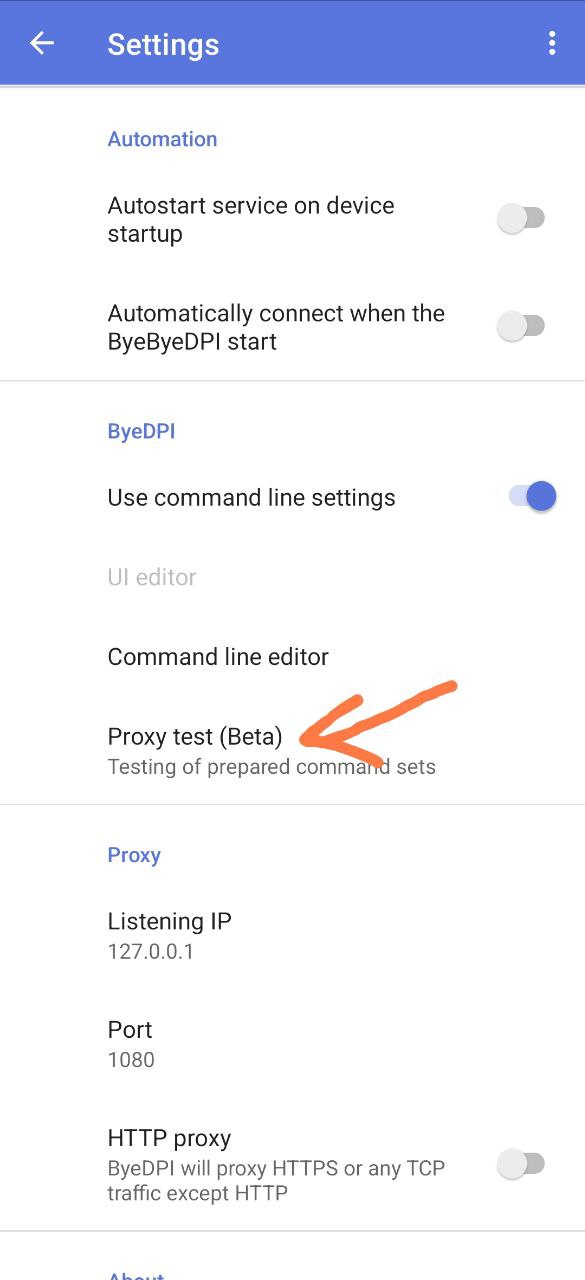
Go to Proxy test (Beta)1
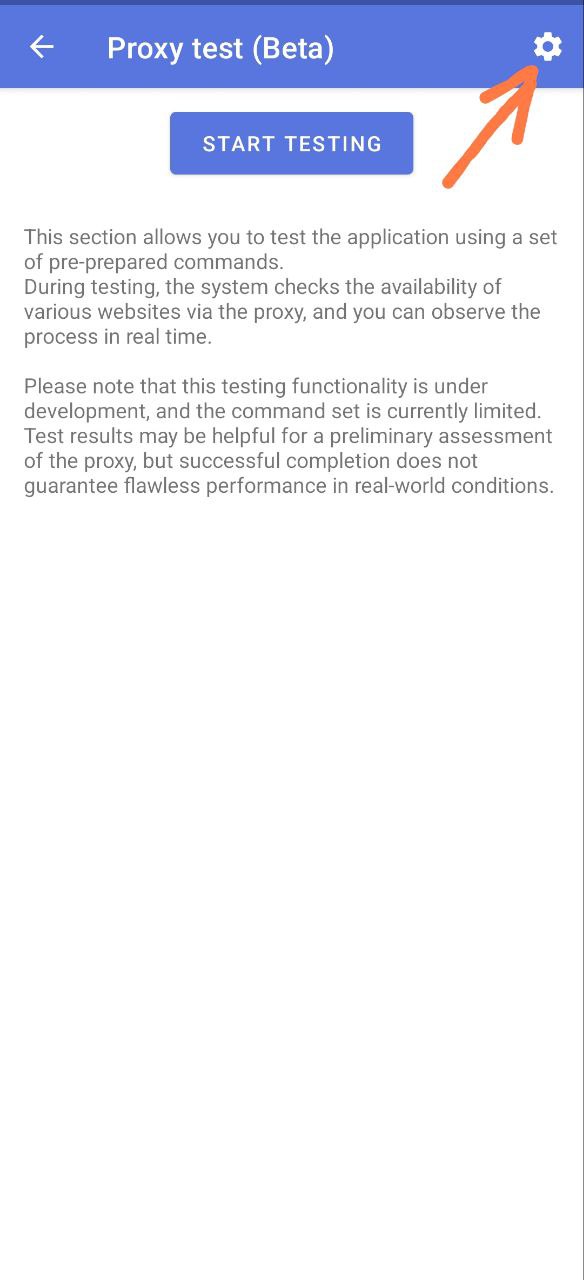
Go to the Selection Settings (gear icon in the top right).
Change Number of queries to domain to 5.
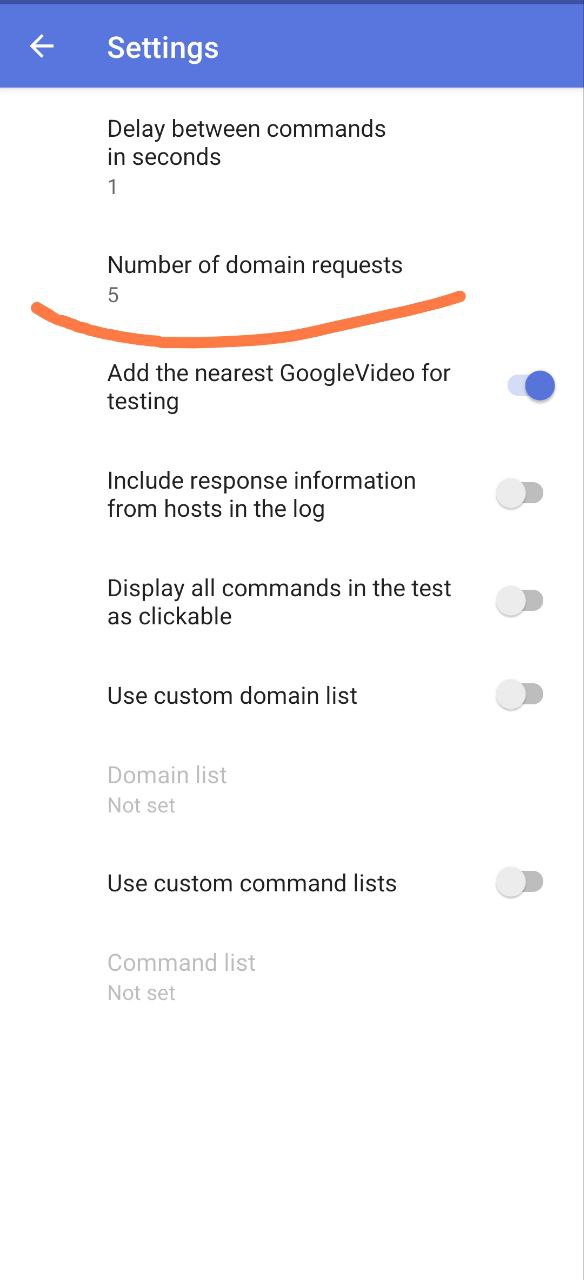
Remove the ‘Add the nearest GoogleVideo for testing’ toggle.
Add a list of domains to be tested.
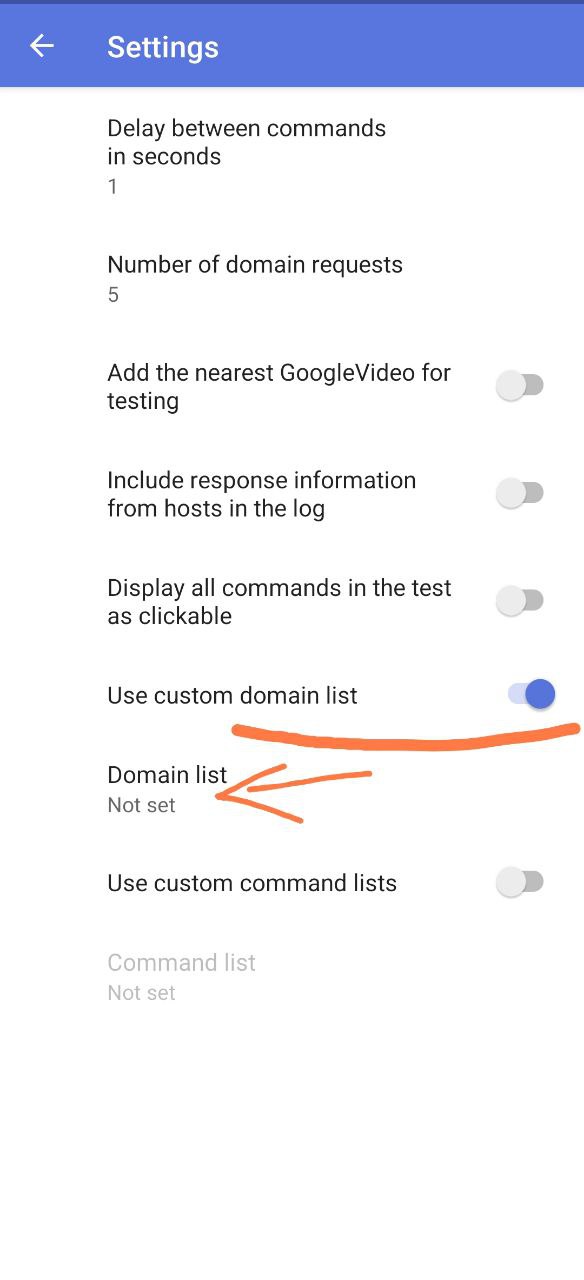
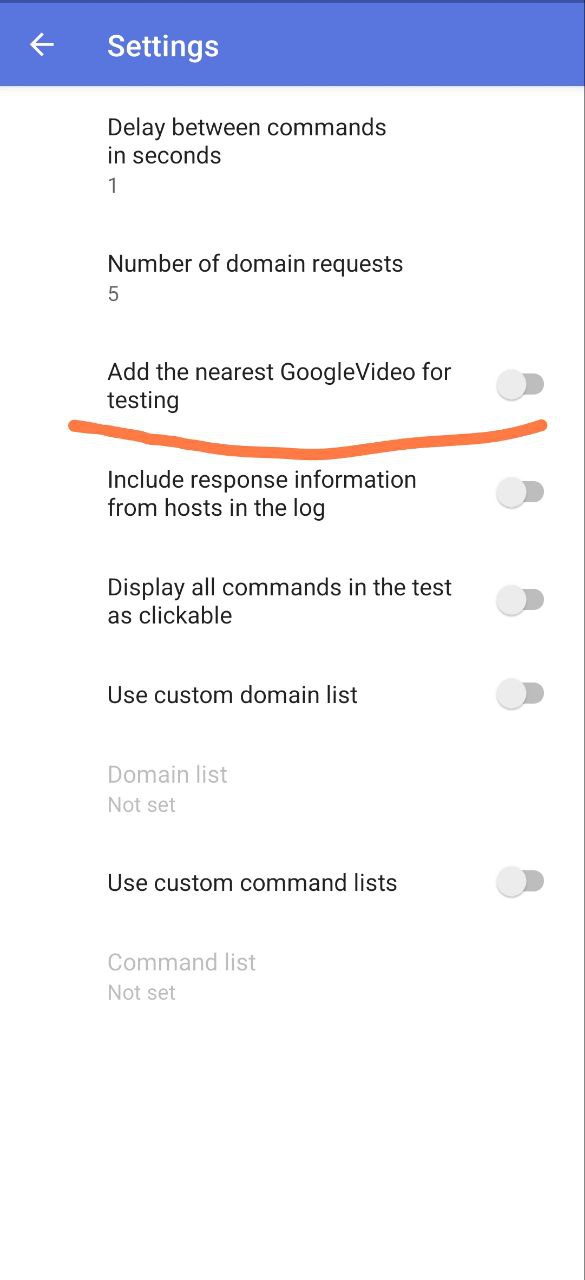
Warning
If you need to test a list of domains, write each domain on a new line. Do NOT separate the list with commas or other characters. Domains should be separated by NEW LINES only.
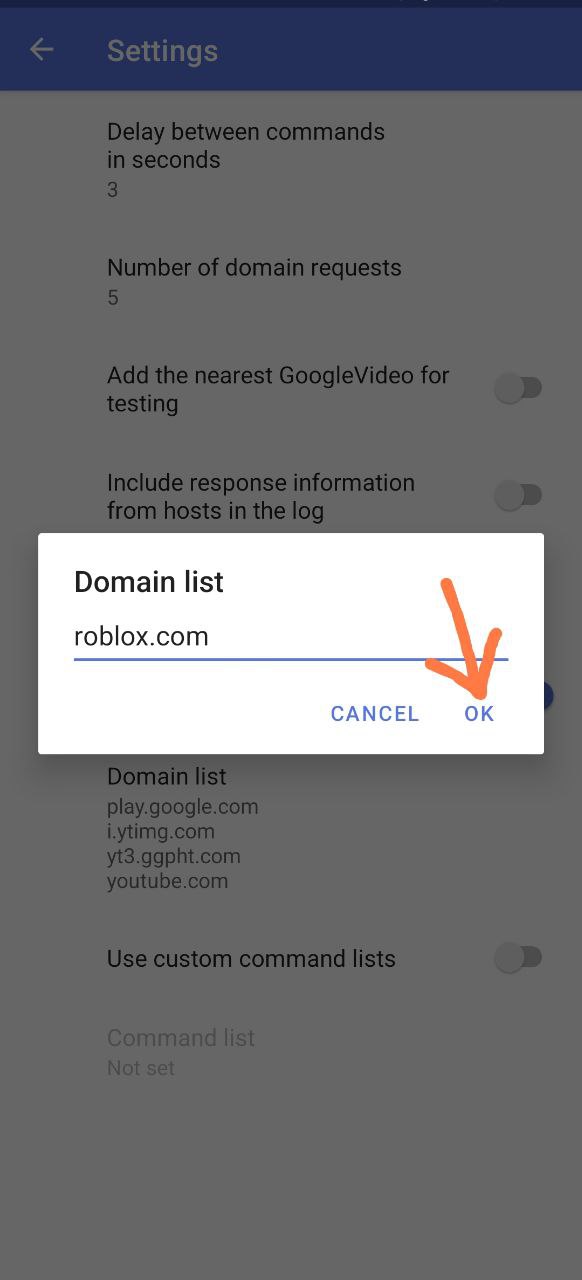
Go back to Proxy Test (Beta) and click the ‘Start Testing’ button.
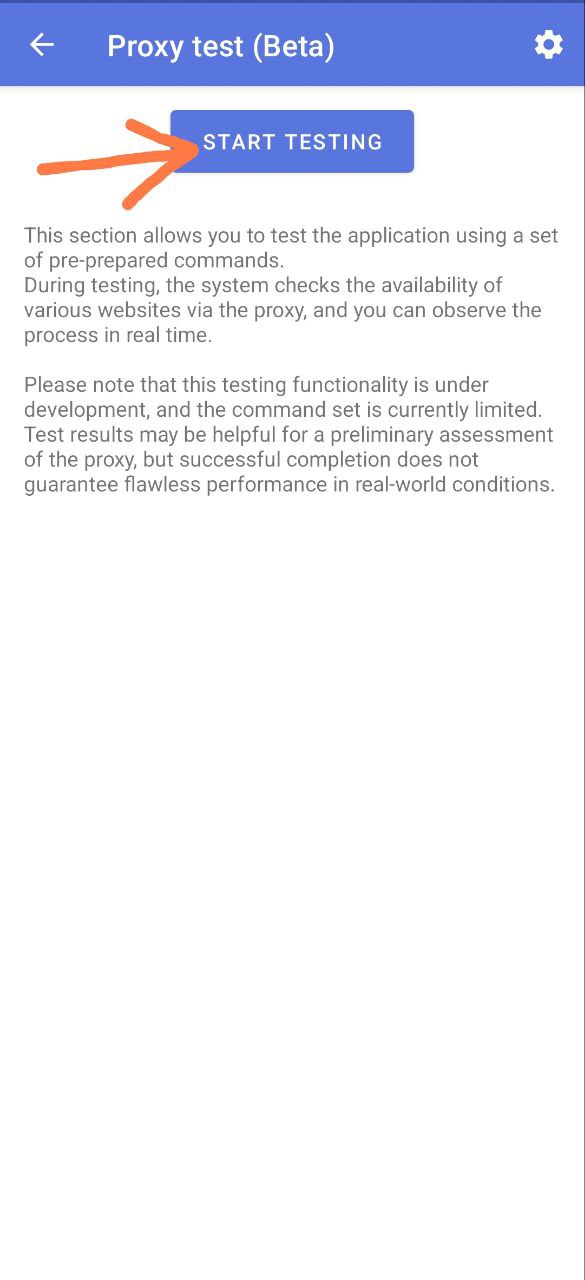
Wait for the selection to complete. If successful, a list called ‘Commands with more than 50% success probability’2. If the test fails, the solution can be found here.
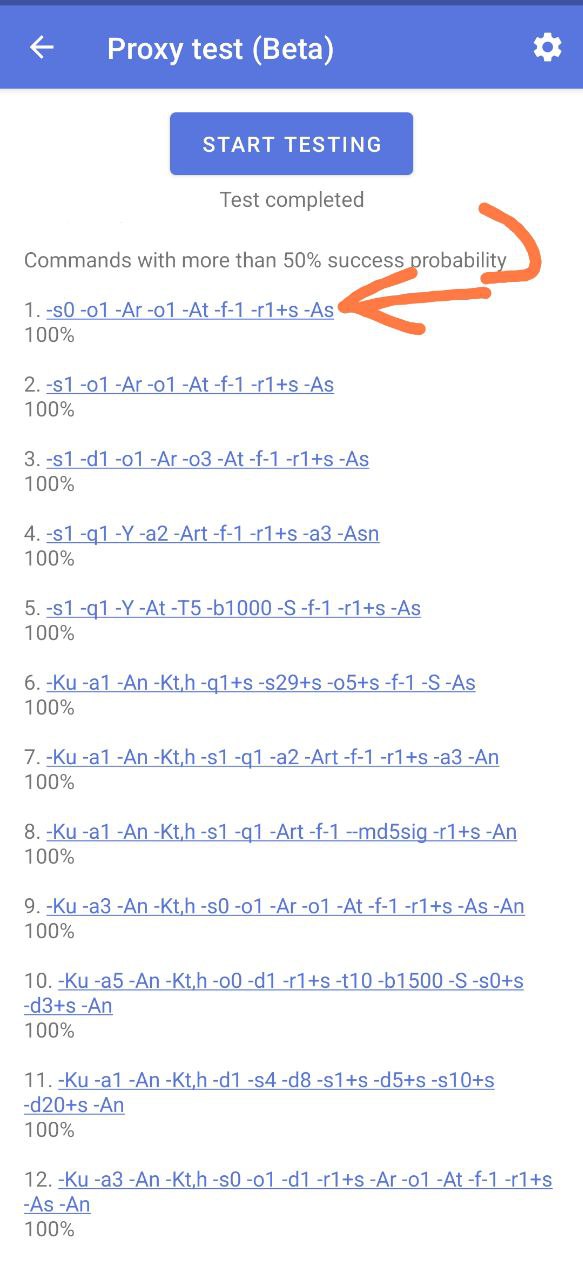
Click on the strategy with the highest percentage (numbered 1), and select ‘Apply’ from the menu that appears.
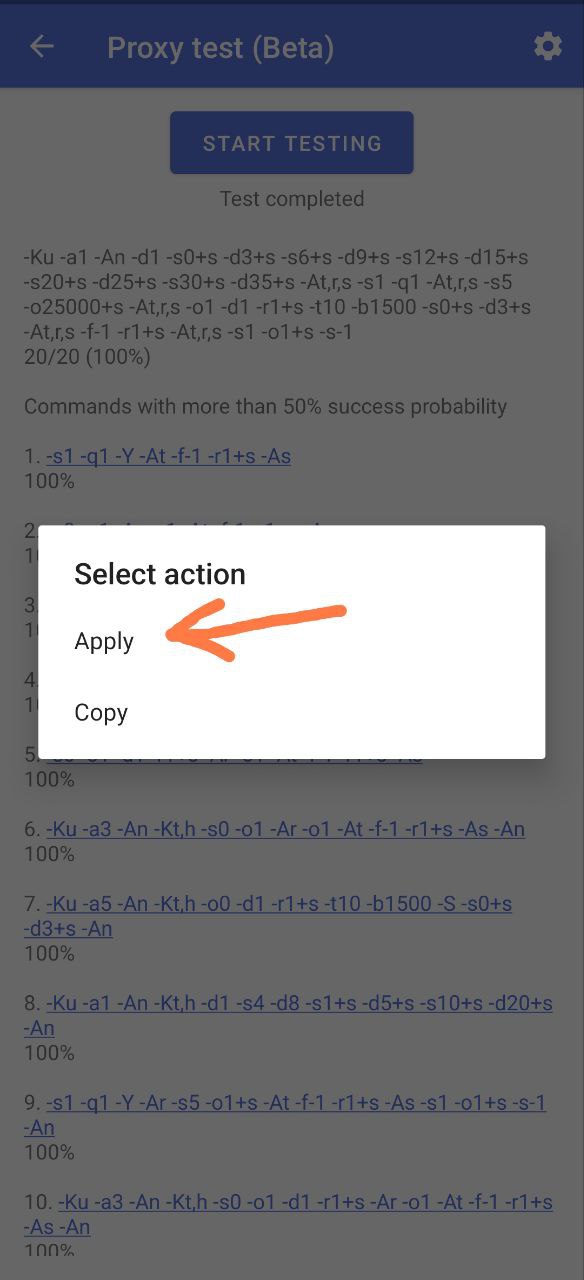
Return to the main settings in ByeByeDPI.
Under Application Filter, select White List mode(more about lists)
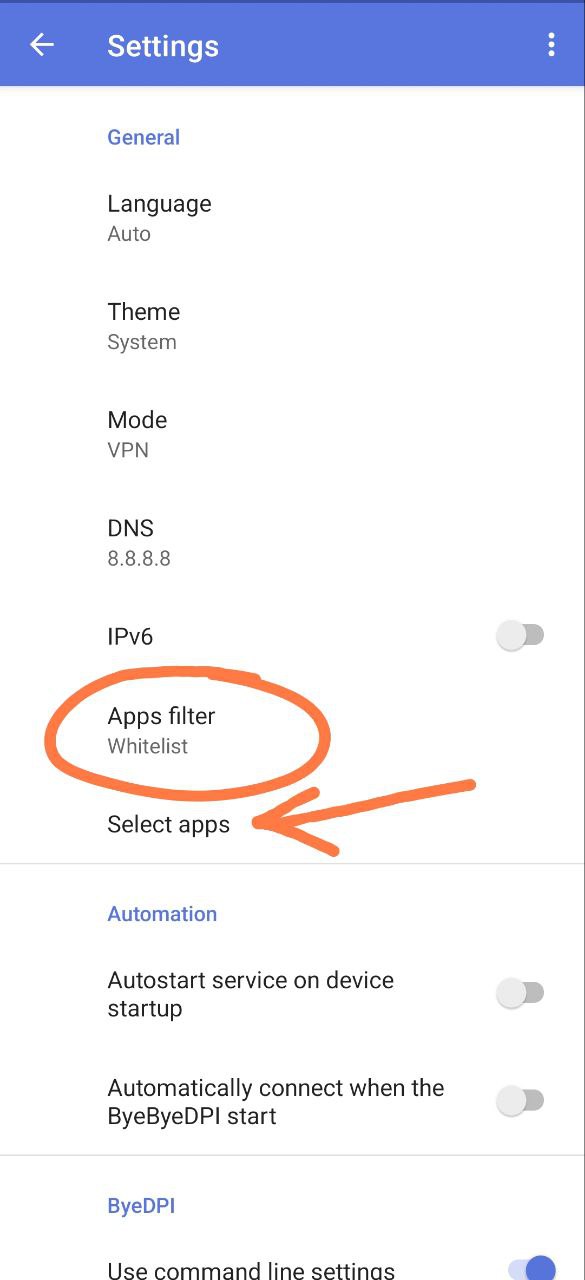
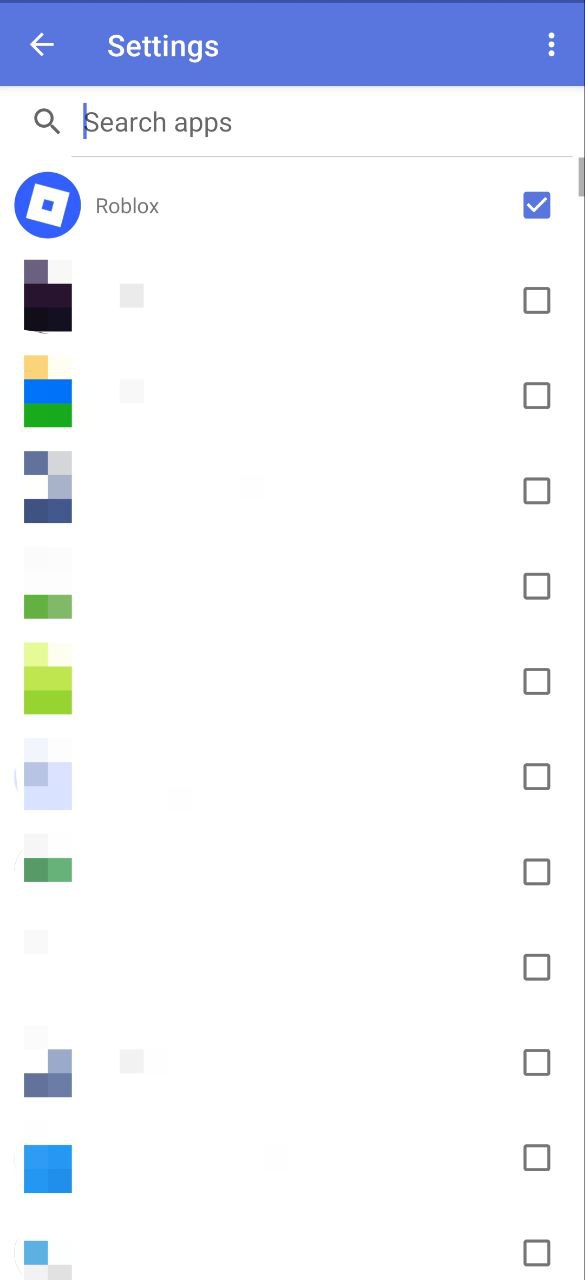
Under Select Applications, check the boxes for the applications that should work via ByeByeDPI (those whose domains you tested in the Proxy Test).
Go to the main screen and press the Connect button.
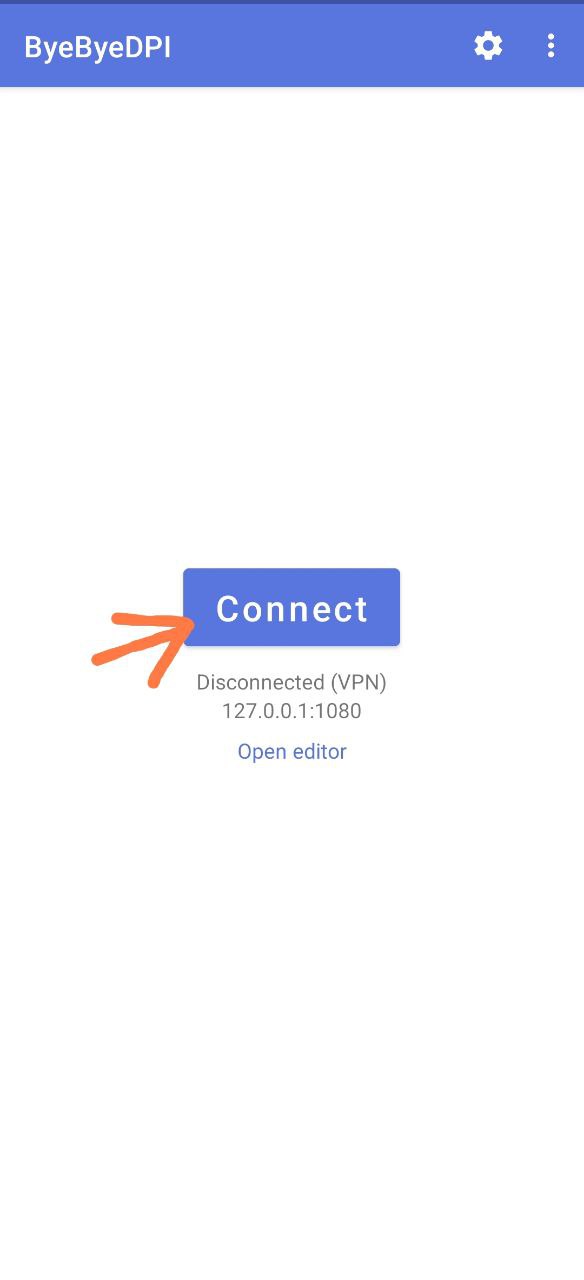
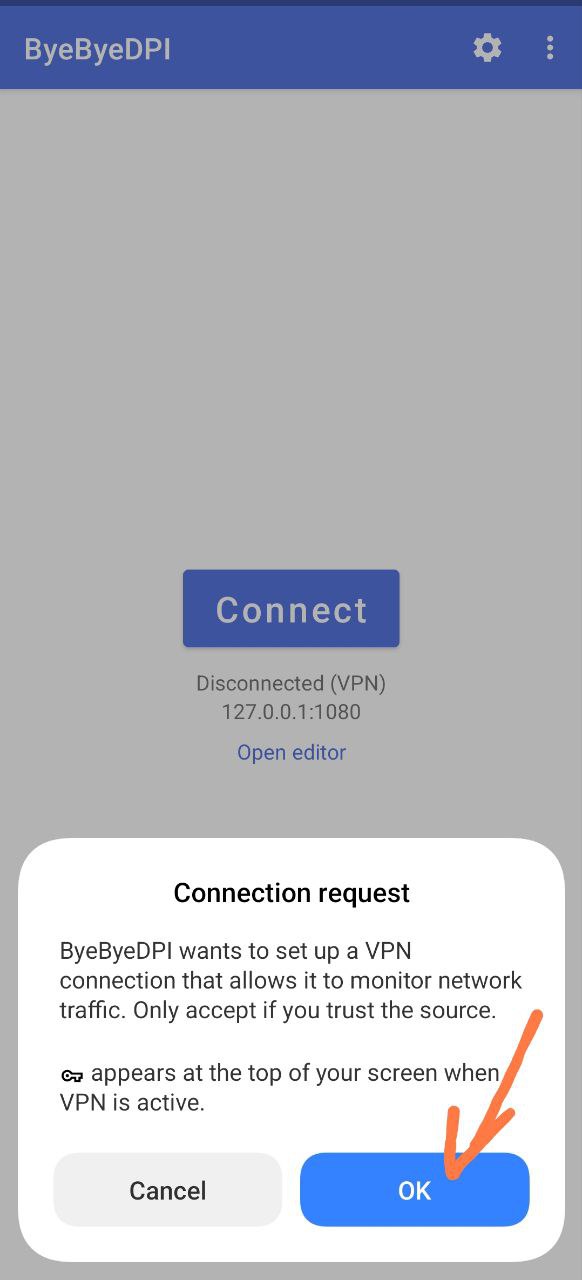
After clicking Connect, give the application permission to connect.
Run the required application and check its functionality.
If everything works well, the setup is complete.
If there are any issues with the operation of the desired application: go to Proxy test (Beta)
It should store the result of the previous test.
Click on strategy number 2 and select ‘Apply’ from the menu that appears.
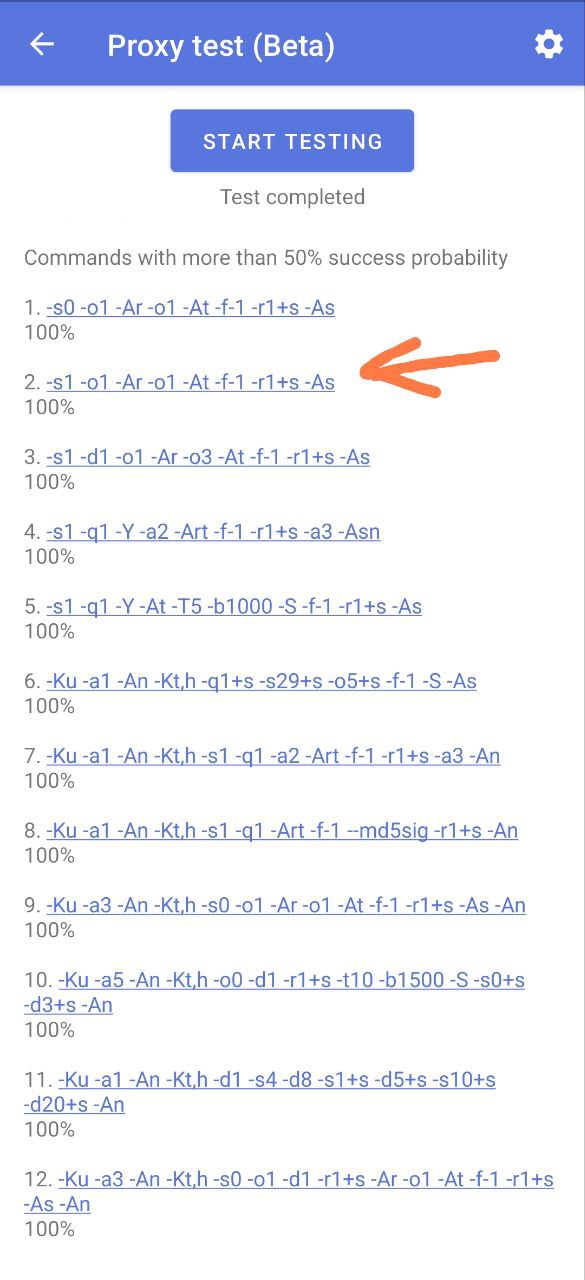
Tap the Connect button again and test the application.
Go through the strategies in order of increasing number (or decreasing percentages) until you’re satisfied with the application’s performance.
Proxy Test is still in development. There may be errors. Strategies are not generated automatically — they are always the same. In the current implementation, the selection process does not actually choose anything. It merely checks the performance of a set of strategies that have been preconfigured by the developer. ↩︎
The percentages shown in the strategy test are not a direct indicator of performance; they reflect the number of successful responses from domains. You can enable their display in the test settings. Even if a strategy doesn’t show 100% success, it may still work (e.g., 30% success). Therefore, it’s worth testing strategies one by one, starting from the highest percentage. ↩︎