TV Settings
Warning
Before reading this section, you need to configure the application according to the standard instructions.
Sending ByeByeDPI to TV
To easily send ByeByeDPI to your device, you can use the Send Files To TV app or the Easy Fire Tools app.
Transferring settings
When setting up ByeByeDPI on a device controlled by a remote, you may ask: Can I transfer ByeByeDPI settings from a phone where the program was already configured in this local network?
The easiest way is to use the built-in export and import feature.
However, on some firmware, importing may not work: in this case, you can use an air mouse for more comfortable interaction with the application (e.g., copying and pasting command-line arguments).
If you don’t have a remote with an air mouse function - you can use the Zank Remote or Serverless Bluetooth Keyboard & Mouse applications.
Applications that may be useful for transferring settings: Android TV ADB Mouse Keyboard, GoogleTV remote, and Android TV Remote Control.
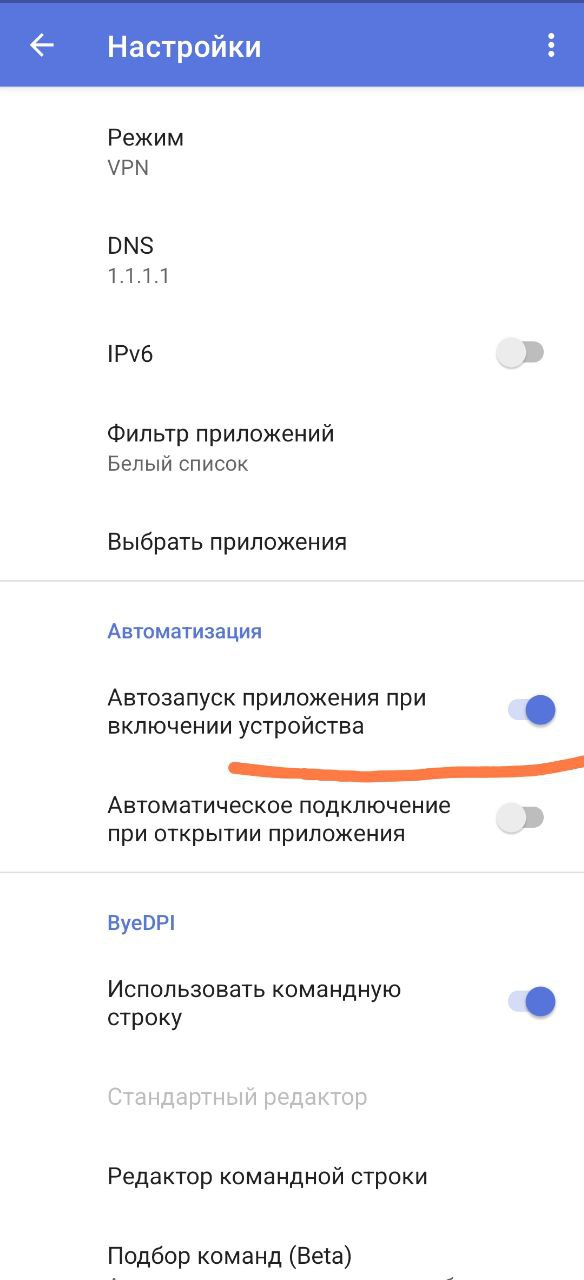
Autostart
Automatically runs ByeByeDPI when the device boots. This function should only be used in whitelist mode.
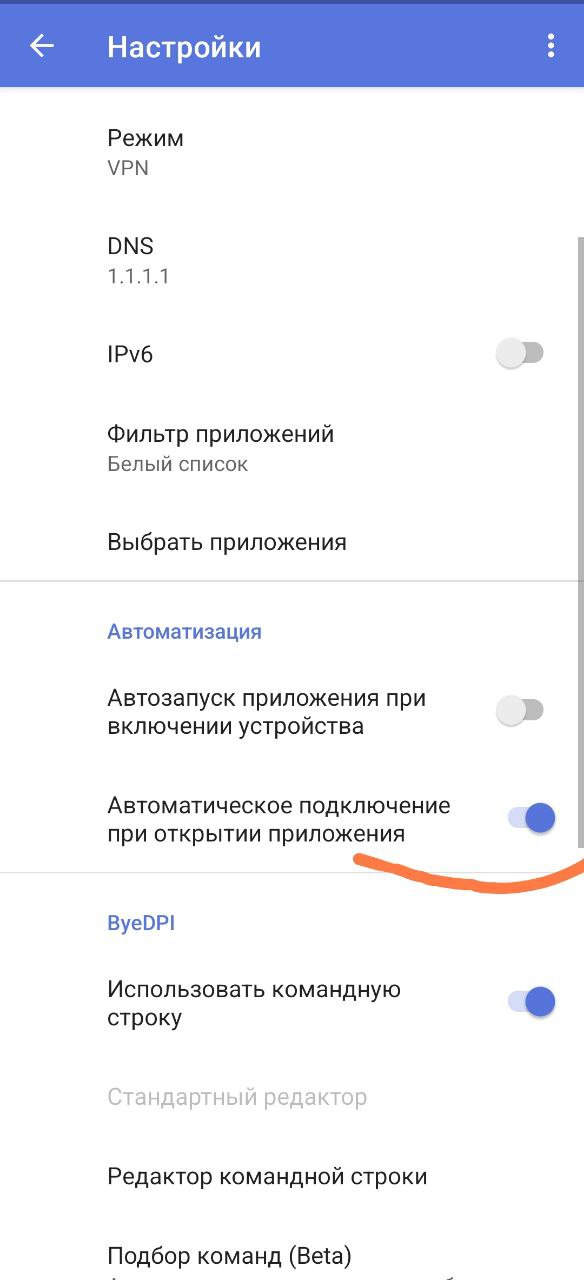
Auto-connect
Automatically runs ByeByeDPI when opening the application (ByeByeDPI itself).
SberBOX/SlimBox setup
Instructions here
TCL setup
Instructions prepared by @karlosu
If you have a TCL TV and an error appears when running VPN:
- Update the firmware to the latest official version via the device menu.
- In ByeByeDPI, select a strategy with a high pass percentage and apply it.
- In the command-line editor, add at the beginning of the strategy:
-i 127.0.0.1 -p 1080 (rest of the arguments)- Try to connect, if it doesn’t work, use this solution for devices with VPN restrictions