Problems and Solutions
Proxy selection crashes
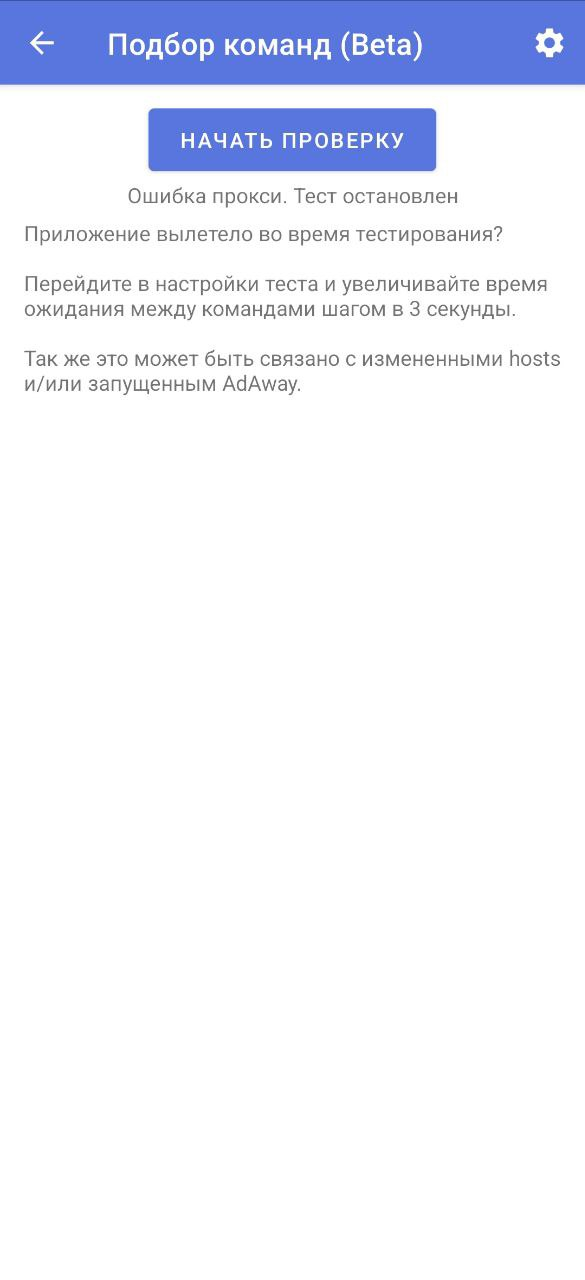
If the selection crashes during testing - update the application to version >1.5.2.
All strategies show 0% during testing
Set a different DNS over TLS.
Stop the application, clear its data and reboot the device. Try changing the port, for example to 1082. If nothing helps - try clearing all ByeByeDPI data, uninstalling the app and reinstalling it. Increase timeouts in the strategy selection settings.
Strategies have the same low percentage
Update ByeByeDPI to the latest version. If the problem persists - set a different DNS over TLS.
If Android version is 9 or below - this is normal: test on a newer Android version on the same network and transfer the strategy to a device with older Android.
If Android 10 or newer - there’s a chance that IP-based blocking and ByeByeDPI won’t help.
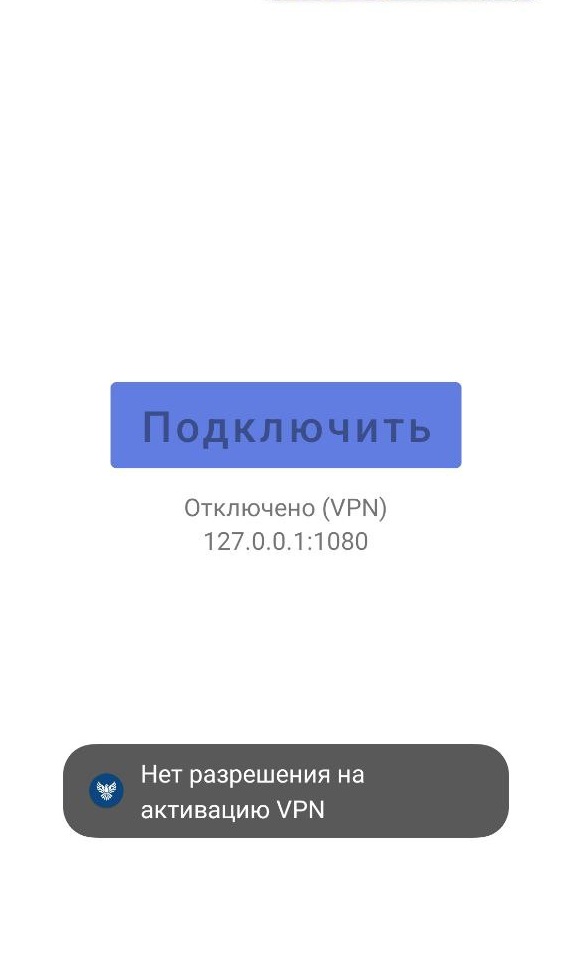
No permission to activate VPN
The problem is that ByeDPI gave an error.
If when trying to connect you see the message No permission to activate VPN:
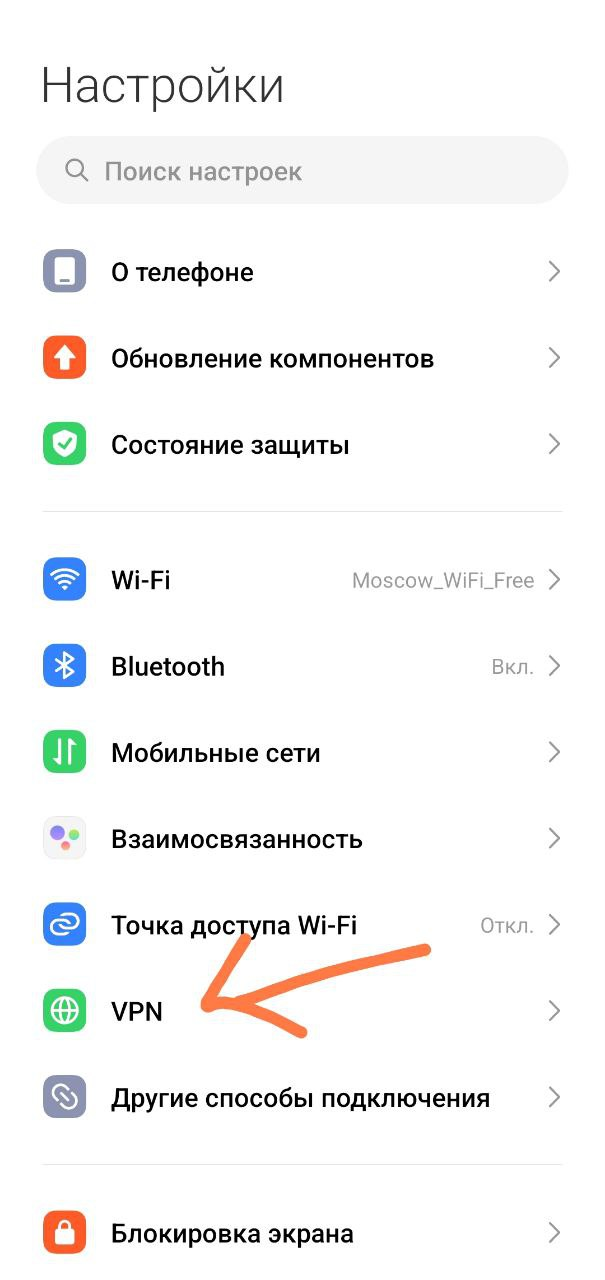
Go to device settings -> “Connections” -> “VPN”
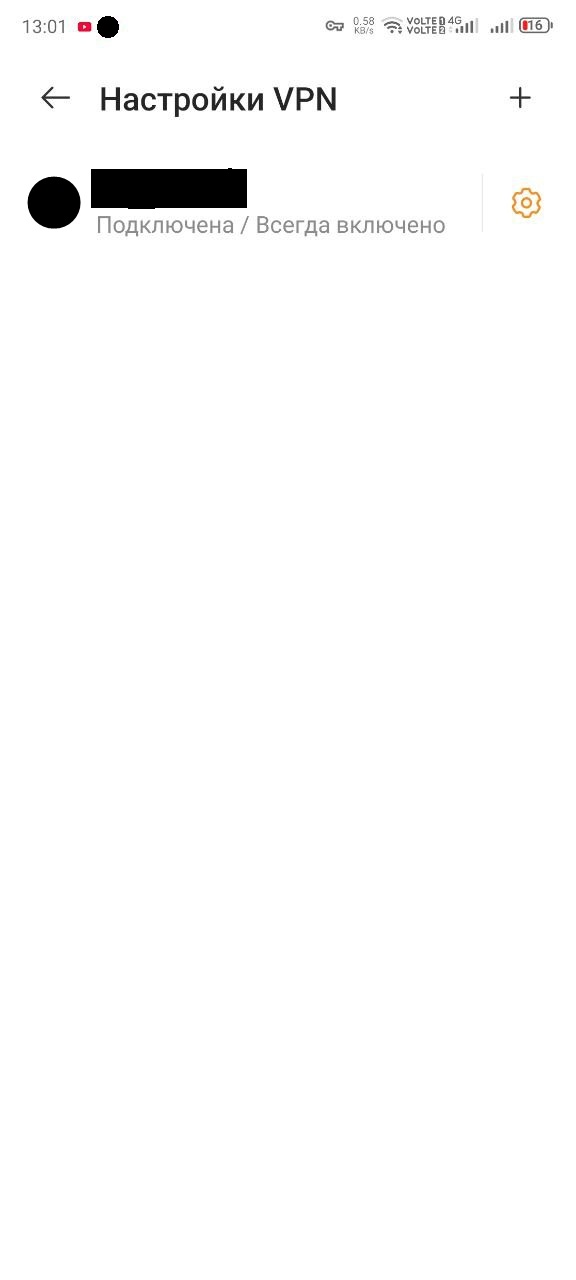
If you see that an app is constantly running in VPN mode - disable this app so there’s no VPN connection. Make sure no app is set to “Always on”.
Works only on Wi-Fi or only on mobile internet, or only with one provider
Each network needs its own strategy. When connecting to a different network, you need to find the appropriate command-line arguments, i.e., perform re-selection. Once the working strategy for the new network is found - you can pin it and sign it for the network this strategy applies to.
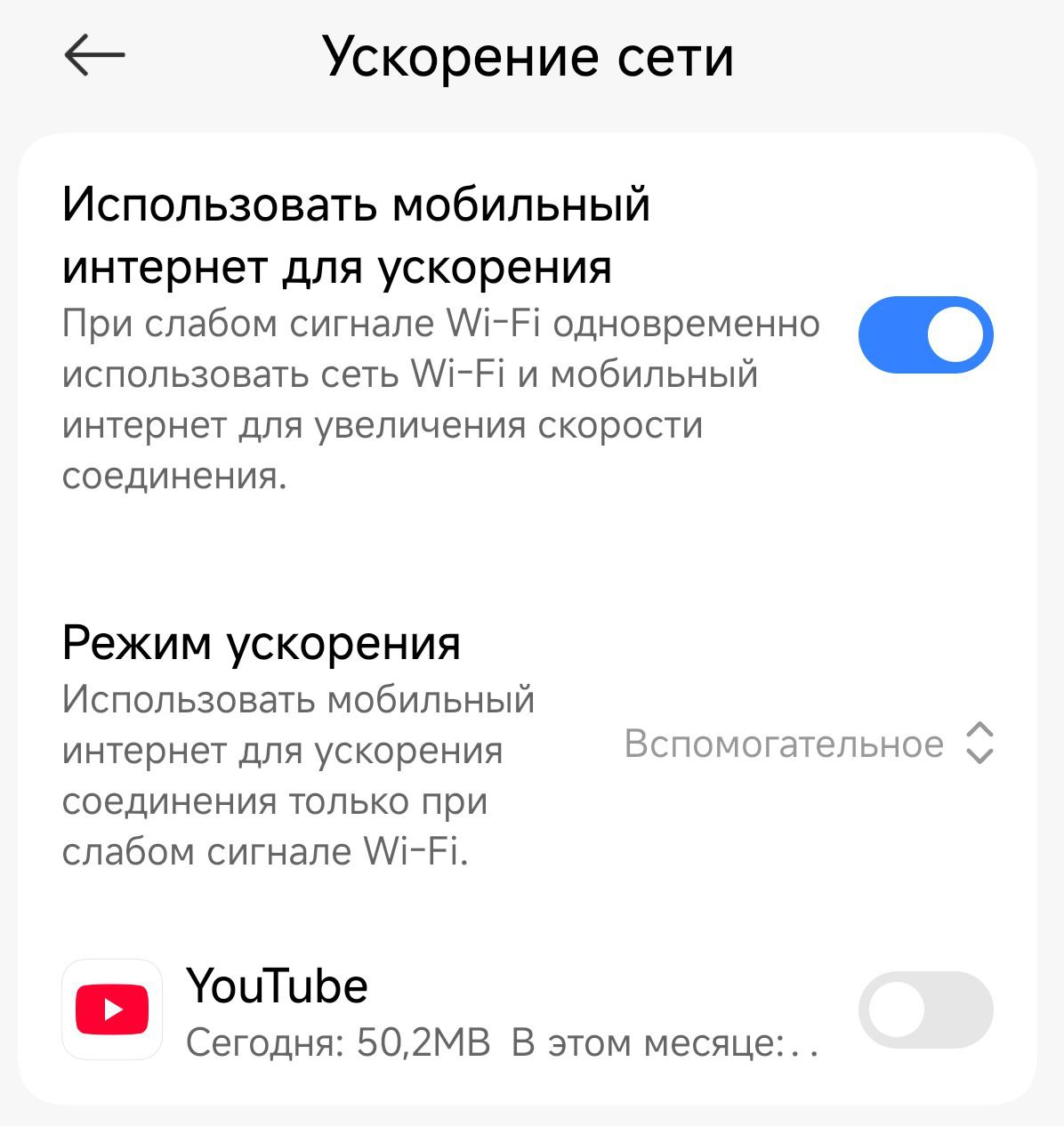
Also try disabling network acceleration in Wi-Fi settings.
An app or website doesn’t work when ByeByeDPI is running
If a specific app doesn’t work, like Telegram - use lists.
If some websites don’t work, like kremlin.ru - use two browsers: add one to the whitelist (where ByeByeDPI will work), and don’t add the other one (where ByeByeDPI won’t work).
If you don’t like the two-browser option, use per-site routing methods.
Doesn’t work with SmartTube
Caution
If Android version is 9 or lower, you probably won’t be able to set up SmartTube to work correctly with ByeByeDPI.
If your device has Android 10 or newer, update SmartTube to the latest version, try different network engines in SmartTube settings, try configuring SmartTube in proxy mode according to this instruction. If none of these actions helped: try rebooting the device and performing strategy selection again.
Error 403
This error is related exclusively to SmartTube’s operation. Users complained about this problem a long time ago. Updating or reinstalling SmartTube might help.
Recently everything worked, but now it doesn’t
Try clearing ByeByeDPI data, rebooting your phone. If that doesn’t help: try clearing YouTube app data and updating the YouTube client to the latest version. If still not working - try performing selection again. If the problem persists - add a browser to the whitelist and open YouTube there. If it works - the problem is with the YouTube client.
Internet disappears on TV when ByeByeDPI starts
Use the whitelist or per-site routing. But first check that the TV box has internet at all (Wi-Fi or Ethernet cable connected). If Android version is higher than 9 - you can configure SmartTube and ByeByeDPI in proxy mode.
No audio in Discord
Perform selection for these domains:
discord.com
discordapp.com
discord.gg
discord.media
discordapp.net
discordstatus.com
dis.gd
discordcdn.com
Instructions for selecting your own domains are here. In selection settings enable extended log:
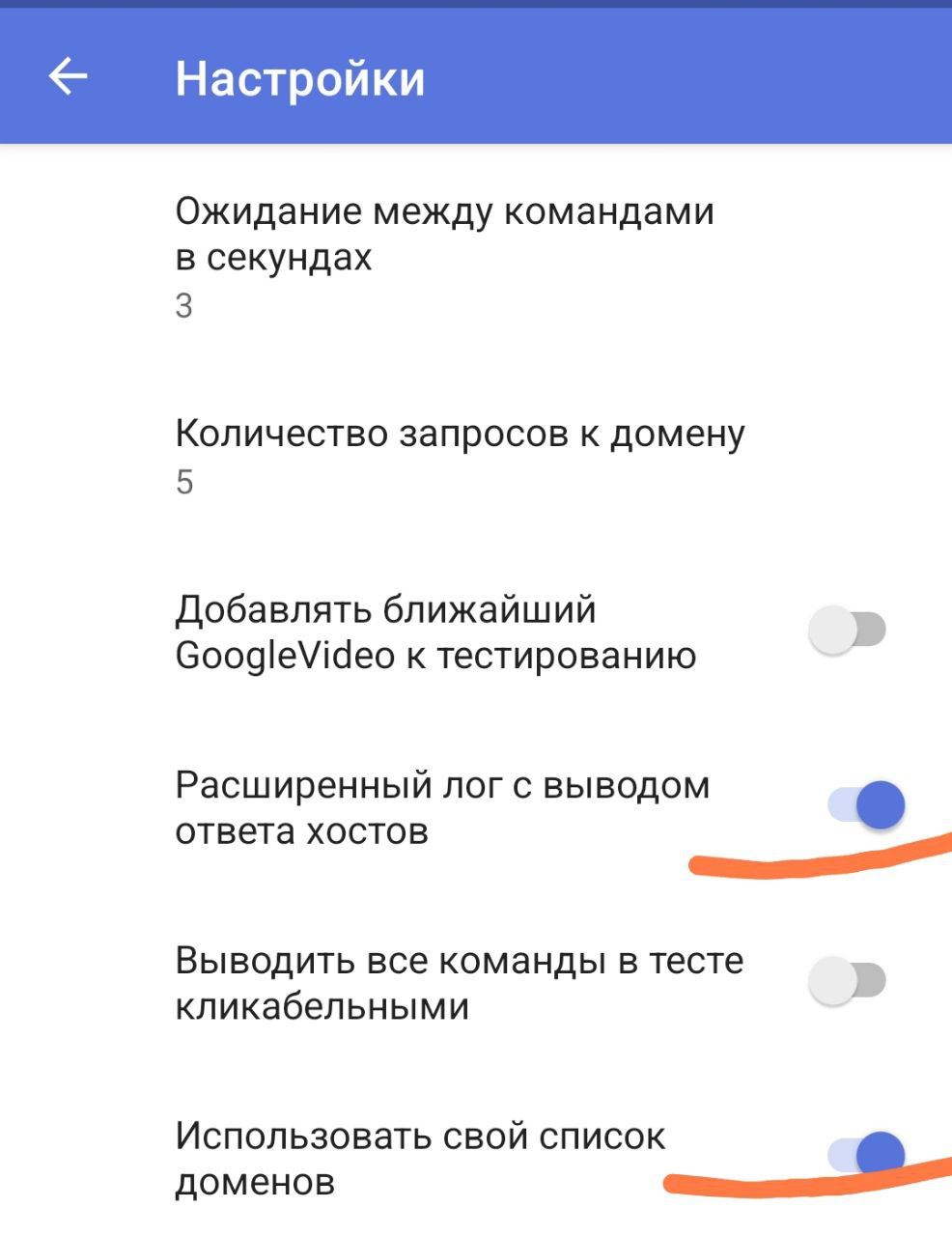
One of the main points is the response from the discord.gg domain.
Warning
The strategy must be able to handle UDP traffic for voice chat to work.
High percentage, but doesn’t work at all
Try updating the YouTube client.
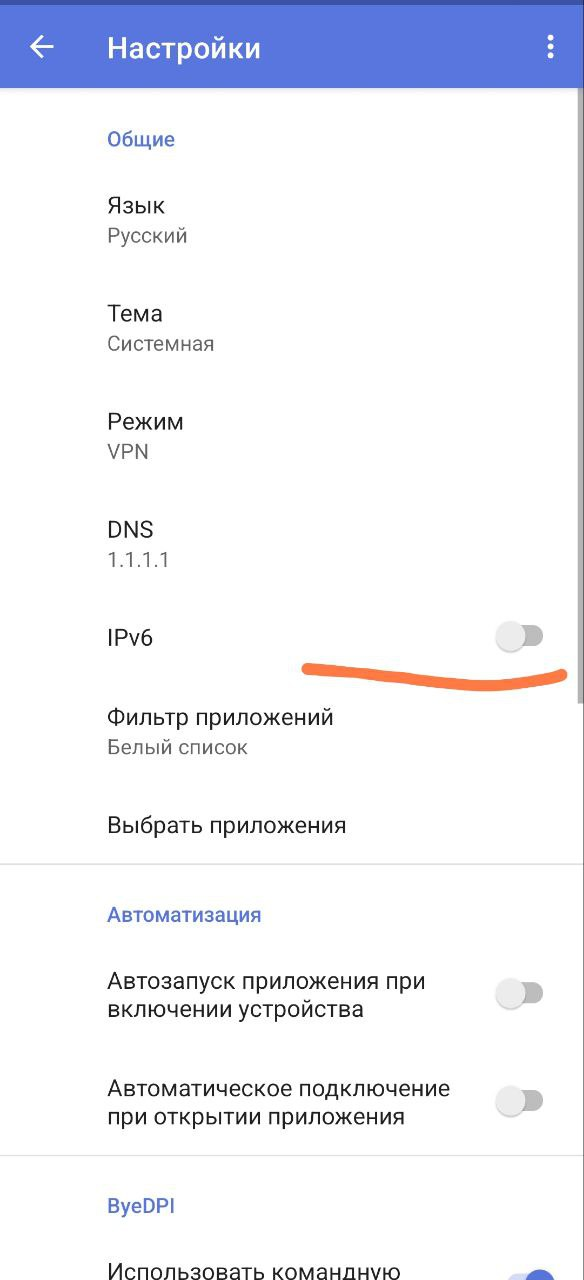
If you accidentally enabled IPv6 - disable it
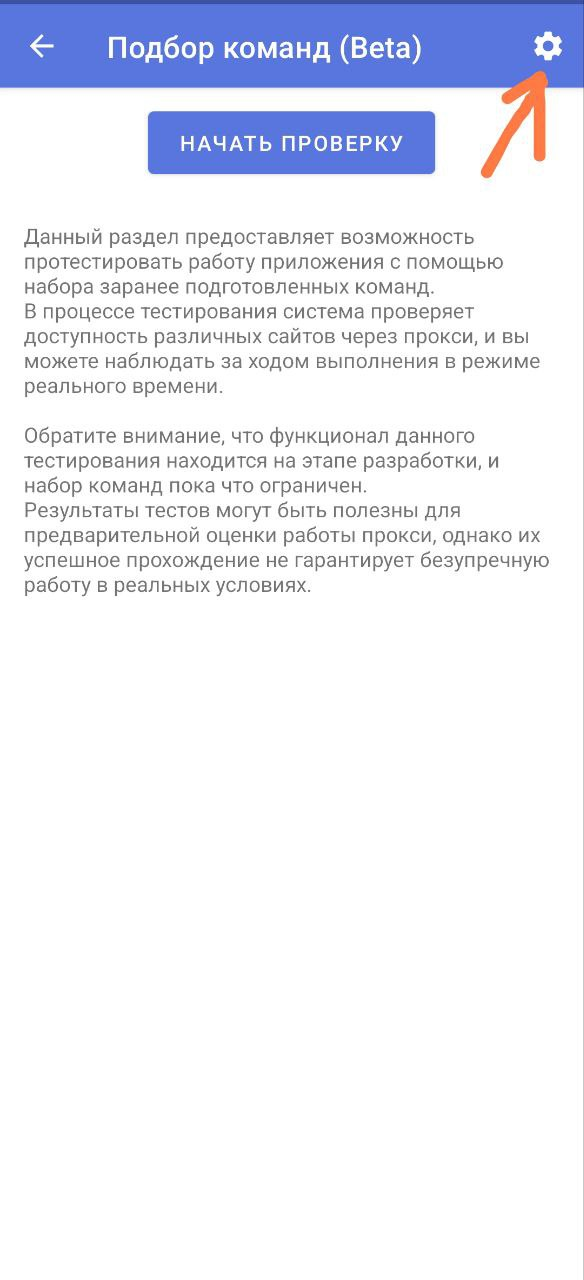
Check in the selection settings the number of requests to the domain: should be at least 5.
Go to Selection settings (gear icon in the top right)
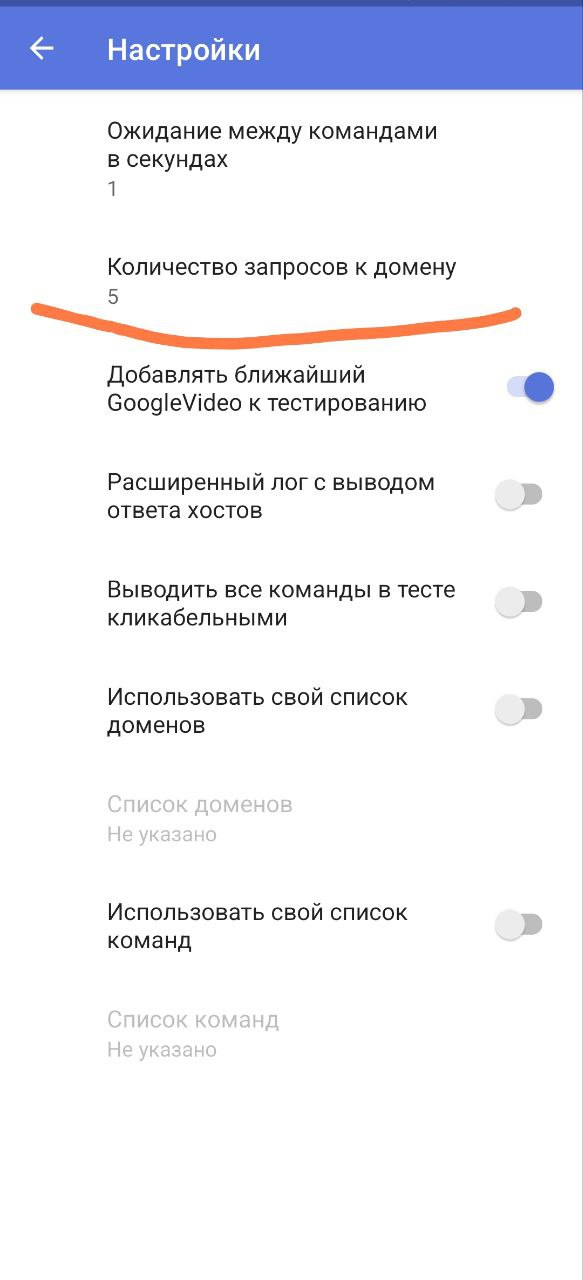
Change Number of requests to domain to 5
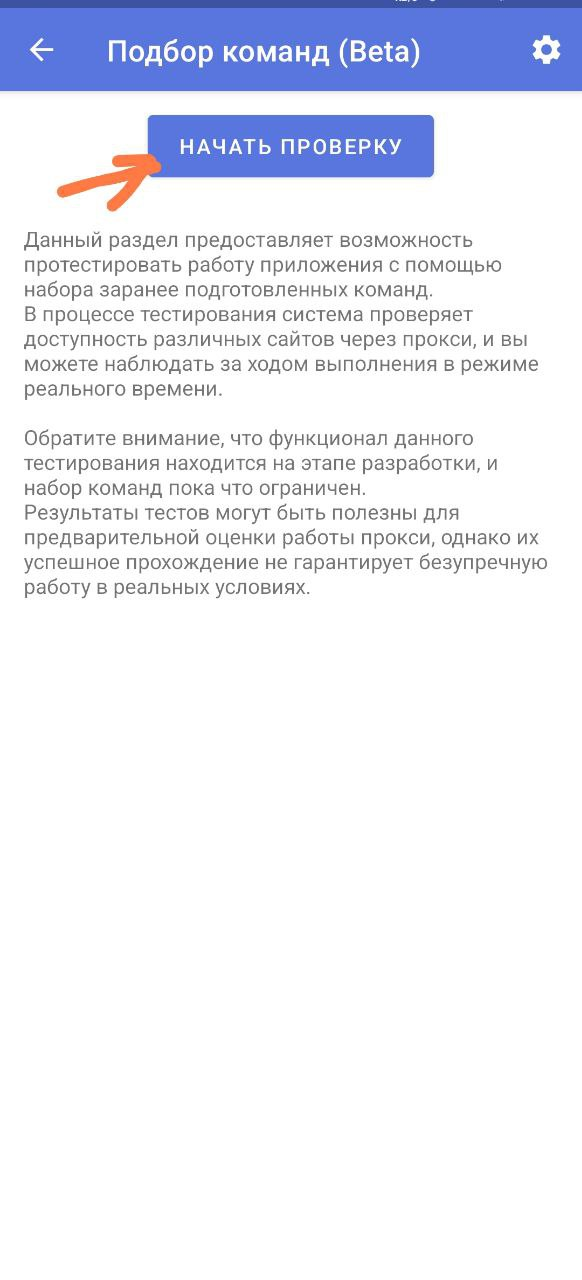
Return to Command selection (Beta) and click the “Start selection” button
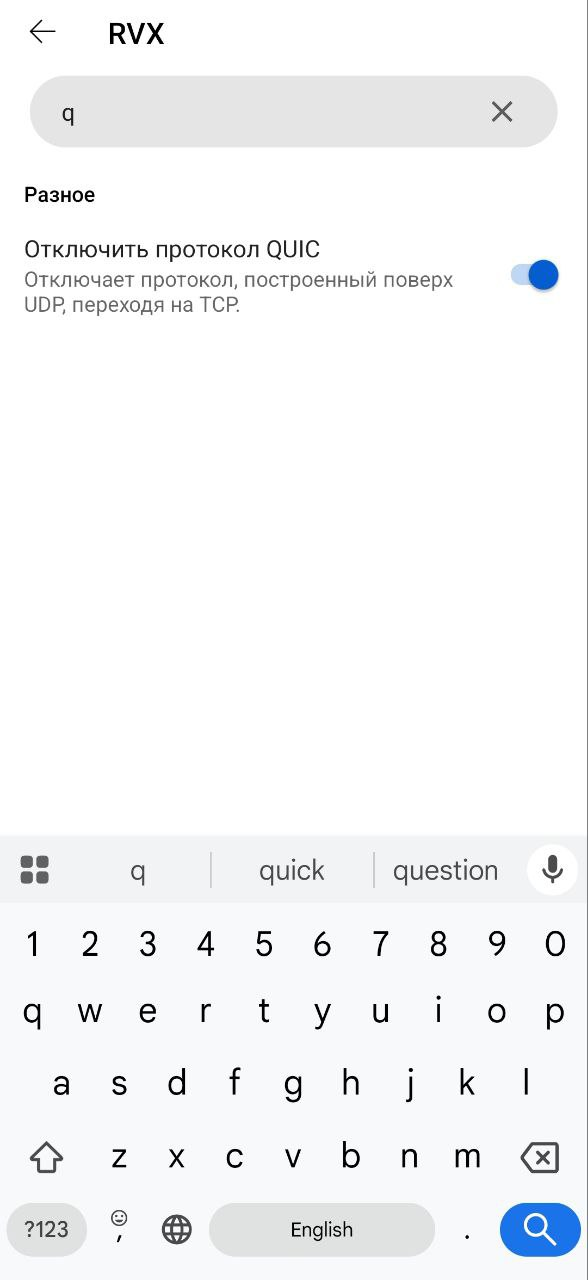
Try adding a browser to the whitelist and opening YouTube there. If it works - the problem is with the YouTube client. Try using YouTube Revanced Extended with QUIC disabled: Settings → Extended → Other → disable quic.
If this is happening on a TV and you have Android 11 or higher - try SmartTube with okHttp engine: SmartTube or SmartTube Beta (latest versions). Settings → Player → Network engine: okHTTP.
Cannot use VPN mode on my device
SmartTube
If your device’s Android version is higher than 9 - you can try configuring SmartTube and ByeByeDPI in proxy mode:
- Switch VPN mode to proxy mode. In Proxy settings specify (if not previously specified in the command line):
Address: 127.0.0.1
Port: 1080- Go to settings in SmartTube:
General → Internet censorship →
Address: 127.0.0.1, Port: 1080, Name and password: empty, Type: socks.
Player → Network engine: okHTTP, Video profile: 2K, Maximum buffer size.
Firefox
If the SmartTube method didn’t work for some reason:
- Switch VPN mode to proxy mode. In Proxy settings specify (if not previously specified in the command line):
Address: 127.0.0.1
Port: 1080- Download
Firefox, install theZeroOmega--Proxy SwitchyOmega V3extension and follow the instructions. To make watching YouTube more comfortable, you can download theSponsorBlockextension.
Very low percentages (above zero)
There’s a chance DNS is being hijacked. Specify your own DoT (DNS-over-TLS) in the system:
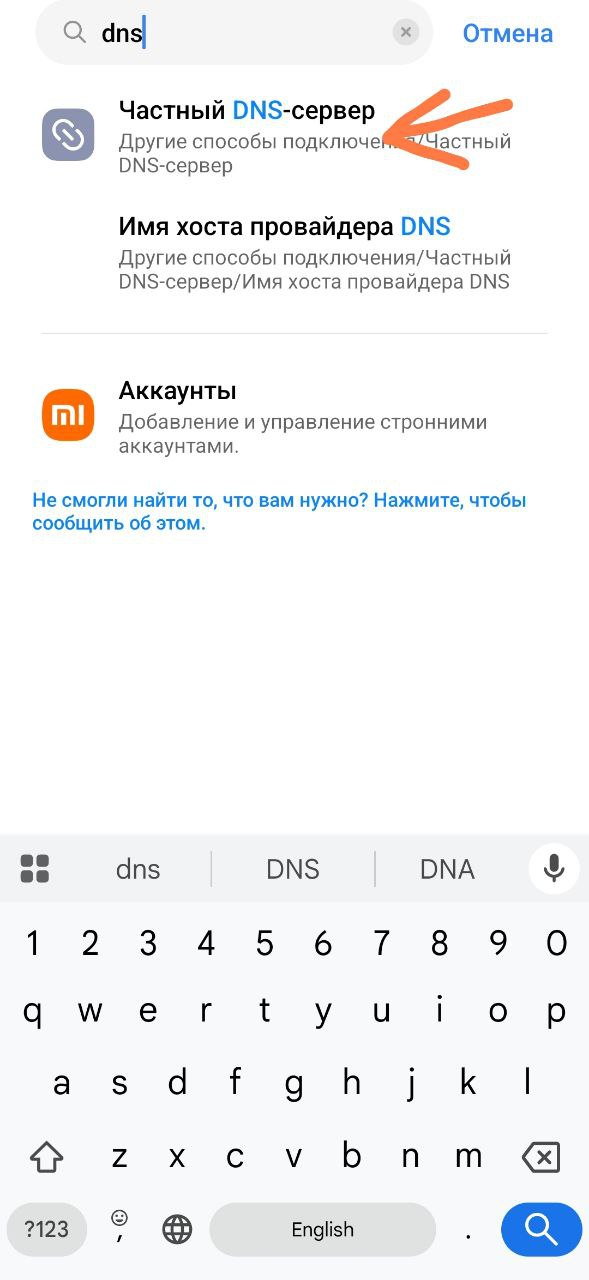
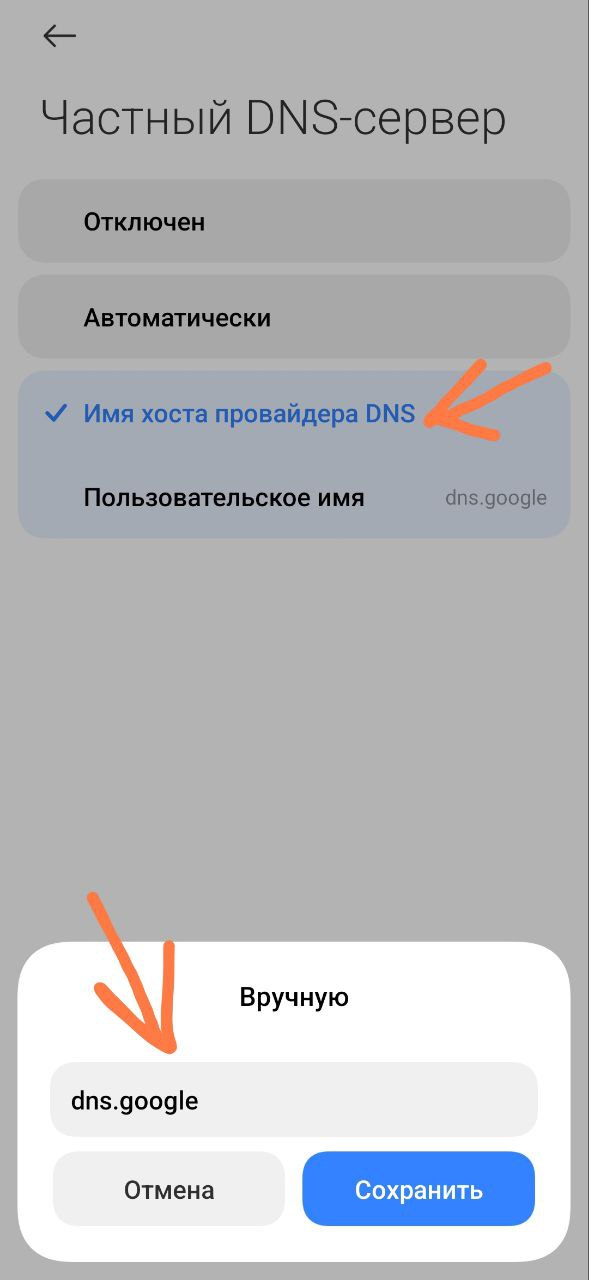
Reboot your device and perform selection again.
Verified DoT can be found here.
Cannot update or import settings
Update 1.4.2 added digital signature. To update from older versions to 1.4.2 and above, a clean installation is required (uninstall the old version, install the new one).
It is impossible to export settings from version 1.4.1 and older and import them to 1.4.2 and newer. If you want to extract some information from a settings file, you can open it with any text editor.
ByeByeDPI turns off by itself
- You need to disable any power-saving modes for ByeByeDPI in battery settings.
- Disable various optimizers.
- Check auto-start settings and allow auto-start for ByeByeDPI:
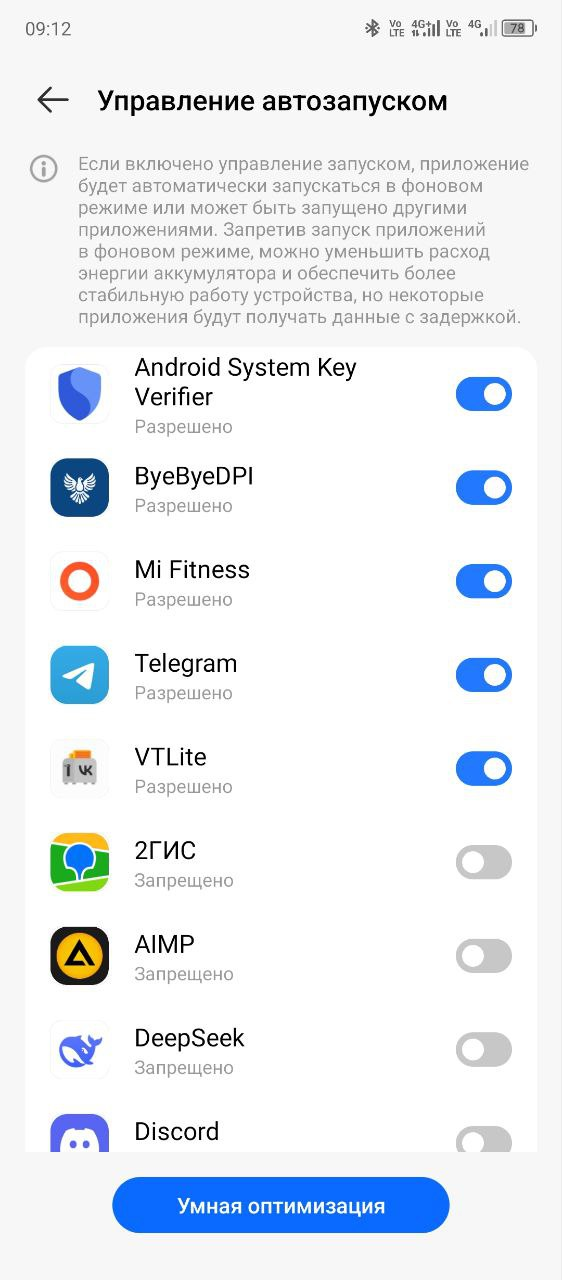
- Check if there’s an app that can automatically start VPN mode (like NUM).
- Check if there’s an app that constantly uses VPN mode (more about this here).
Warning
The NUM app can automatically enable VPN
To disable VPN startup in NUM, go to:
Settings -> Bypass blocking -> Uncheck auto-connect if it's checkedIf none of the above helped, try switching from VPN mode to Proxy mode. If the connection doesn’t drop in Proxy mode and the proxy works - the problem is in VPN mode on your device: either an app is occupying the connection (like NUM or VPNDialogs), or VPN can’t be enabled on your device.
Unlimited traffic is being spent on YouTube
ByeByeDPI is not a VPN, but when using it, unlimited YouTube traffic gets spent. This happens because YouTube is being slowed down via DPI and your traffic is tracked via DPI (for example, so you have unlimited YouTube access). However, when using ByeByeDPI and other packet modifiers, DPI doesn’t detect that you’re watching YouTube. Therefore, if you’re hiding from blocking DPI, you’re also hiding from the DPI that prevents charging for YouTube.
Don’t expect tech support to tell you that you can pay for unlimited YouTube use with a VPN - it won’t work. Since ByeByeDPI is not a VPN. Even with unlimited VPN, when using ByeByeDPI, traffic will be spent.
For DPI, traffic from ByeByeDPI in VPN mode and Proxy mode is no different (if you want to know why: read about proxy and VPN modes in ByeByeDPI in the “Features” section).
Percentages are not displayed
If during selection you see this:
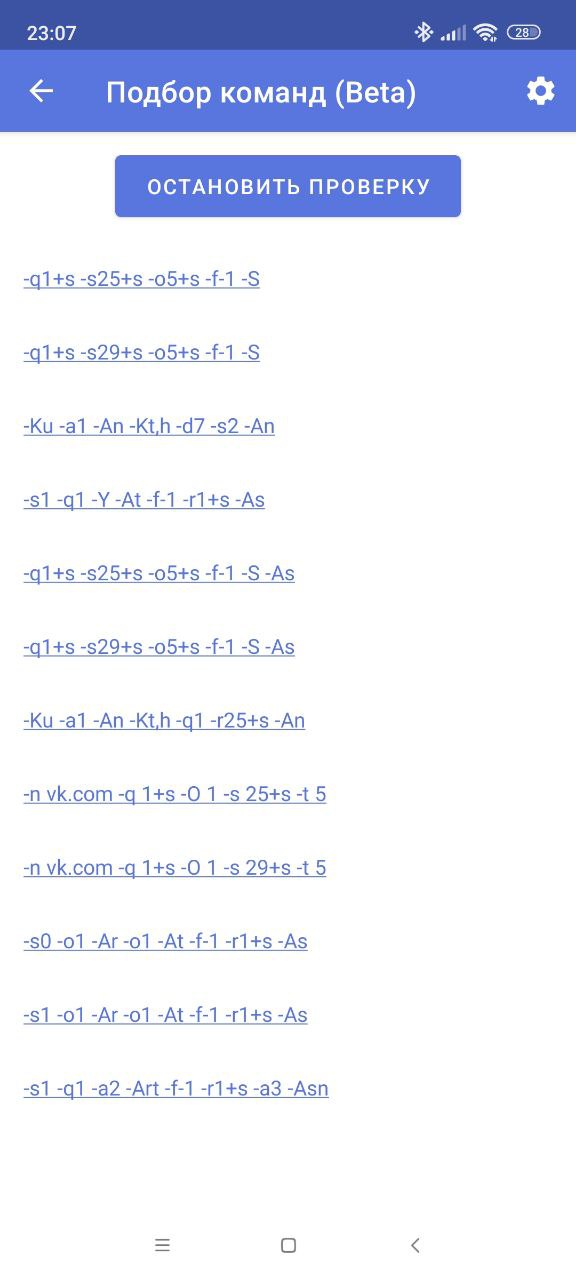
This is a very rare display error. Try switching the theme to dark. If that doesn’t help: enable extended log and after selection finishes, check the “Commands with success above 50%” list from top to bottom.
Doesn’t work with Wi-Fi and mobile internet on simultaneously
Try disabling network acceleration in Wi-Fi settings:
Error parsing the package
If Android version is less than 6.0, nothing can be done about this error. If Android version is 6.0 or higher, use a third-party file manager, for example: FX File Manager, Amaze File Manager, Material Files, Fossify File Manager.
No YouTube tiles on TV home screen
Try adding the Home app or another app responsible for the home screen to the whitelist.
DoT / DoH / DNS in IPv6 format doesn’t work in ByeByeDPI
If you tried to enter DNS in non-IPv4 format in the DNS field, ByeByeDPI won’t work with them. To fix this, just leave the DNS field empty. Note that when performing selection, the system DNS is used regardless of what you specified in the DNS field in ByeByeDPI.
Doesn’t work on Yandex TV running YaOS
YaOS TV often has problems. Check if YouTube works in the browser: if it does - the problem is with the client. Some users fixed it by installing YouTube for Android TV 1.3.11 and updating on top of the latest YouTube for Android TV.
You can also try alternative client TizenTube Cobalt. If YaOS is based on Android 10+ - you can try SmartTube with ByeByeDPI in VPN mode or connect it in proxy mode.
Doesn’t work on TV at all / Can’t install app due to WebOS/Tizen
If you tried all clients and YouTube doesn’t work in browser and in proxy mode with extension connected - the problem is in the firmware (either DNS requests are redirected incorrectly, or the app can’t be installed at all). The only solution is to configure the bypass on the router or set up bypass on PC and use it as a gateway for TV traffic.
Failed to start VPN
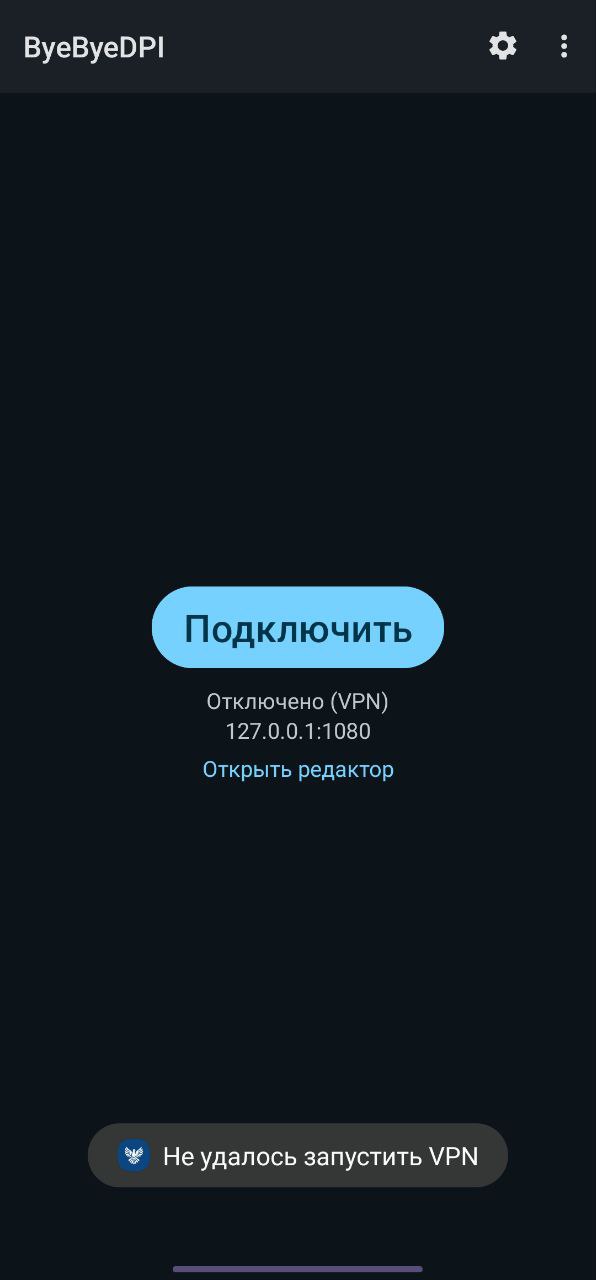
Check that the strategy is written correctly. If you can’t - use a different strategy.
Doesn’t work on sbertv / saluttv
Check if YouTube works in the browser, after adding the browser to the whitelist first. If it works - install the latest version of the official YouTube client.
If the problem persists - there’s a chance that special configuration of the TV is required.