Modes and routing
Methods of launching
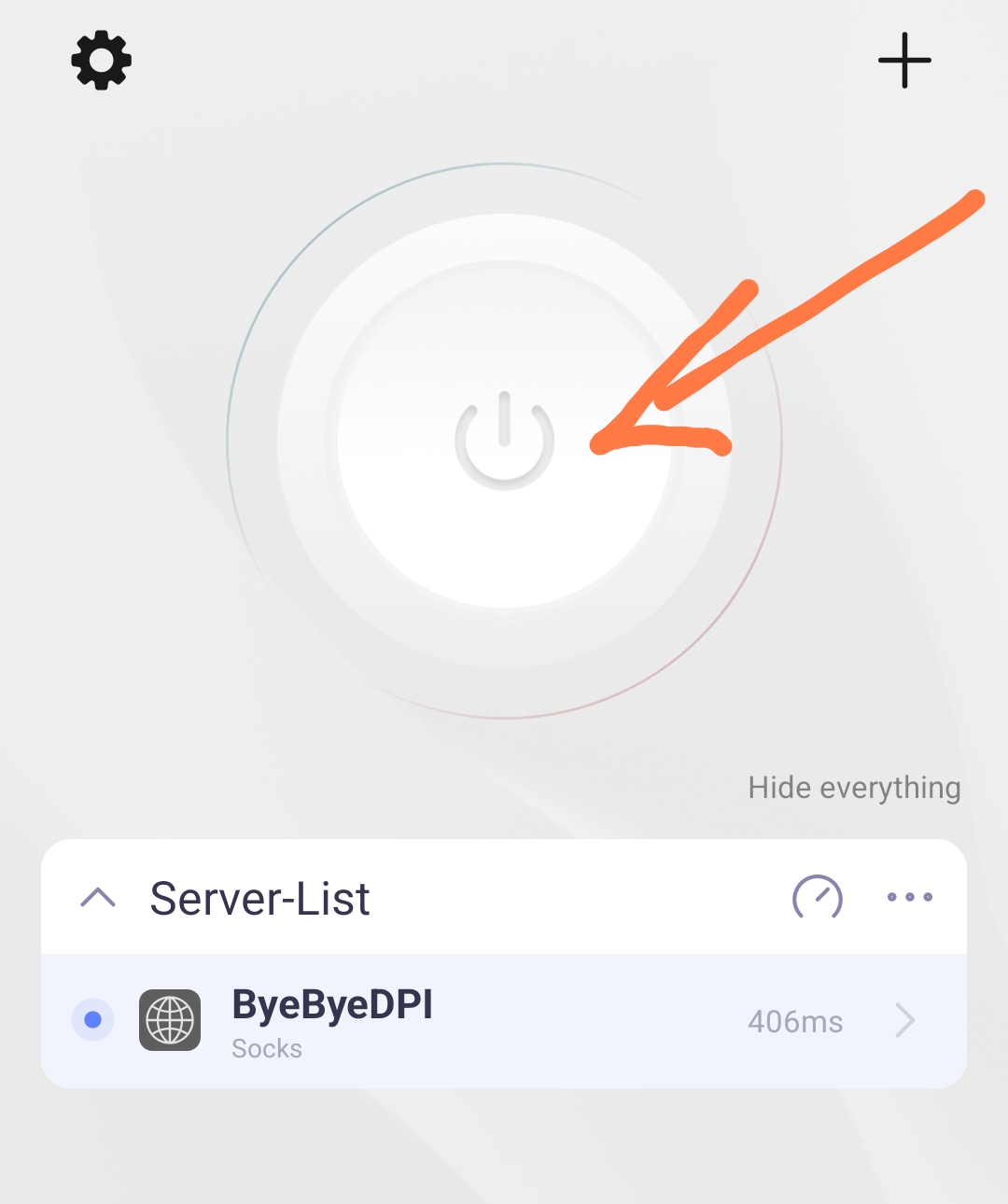
Classic launch
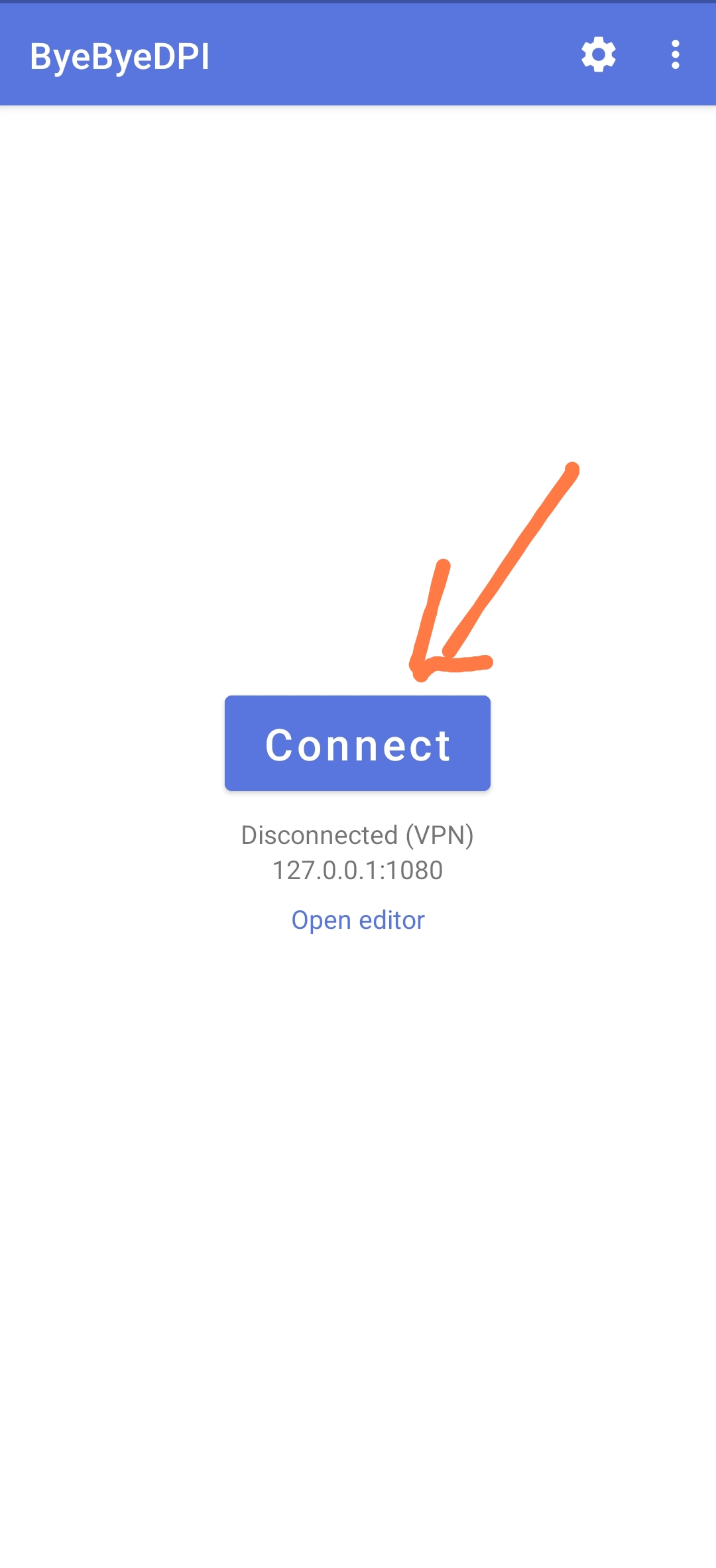
The classic way to launch the application is by pressing the Connect button.
Tip
Some may find this method inconvenient, so there are other options available.
Launching through the control centre
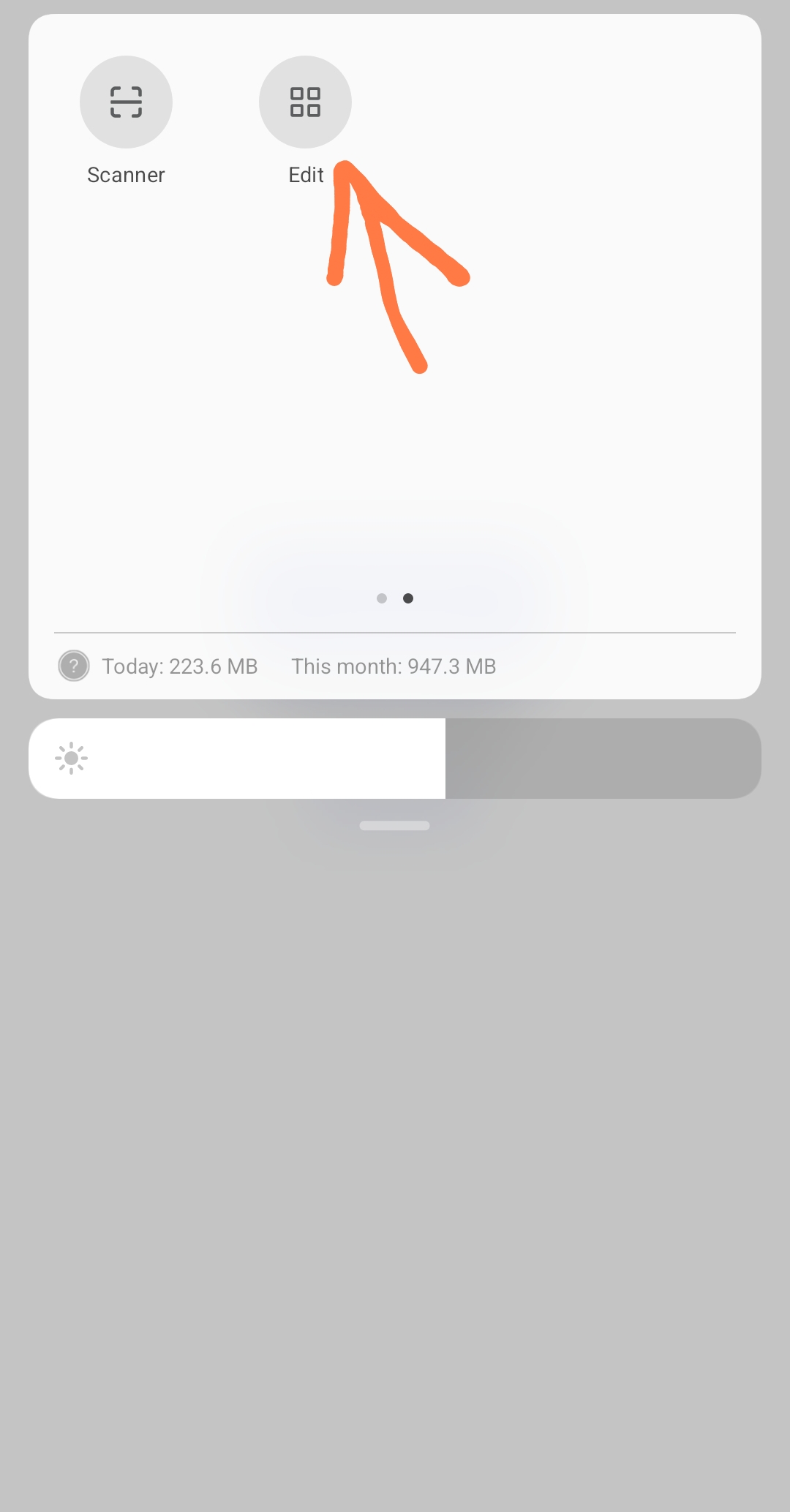
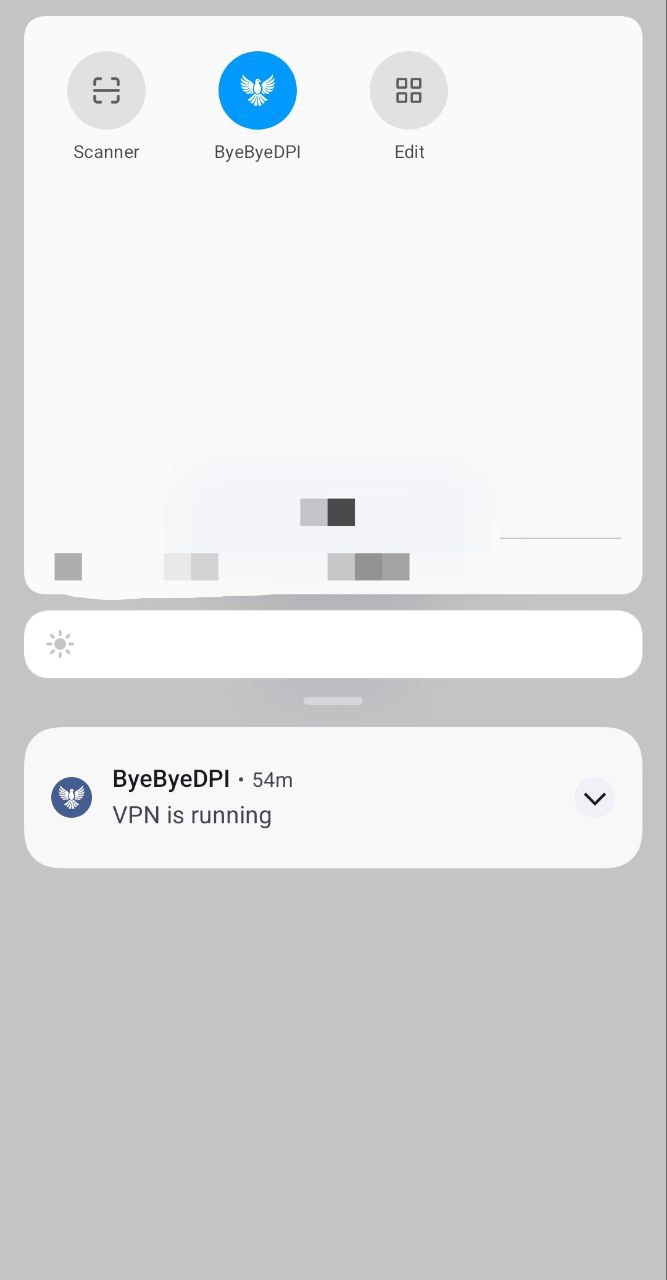
Open your Control Centre and find Edit (or similar).
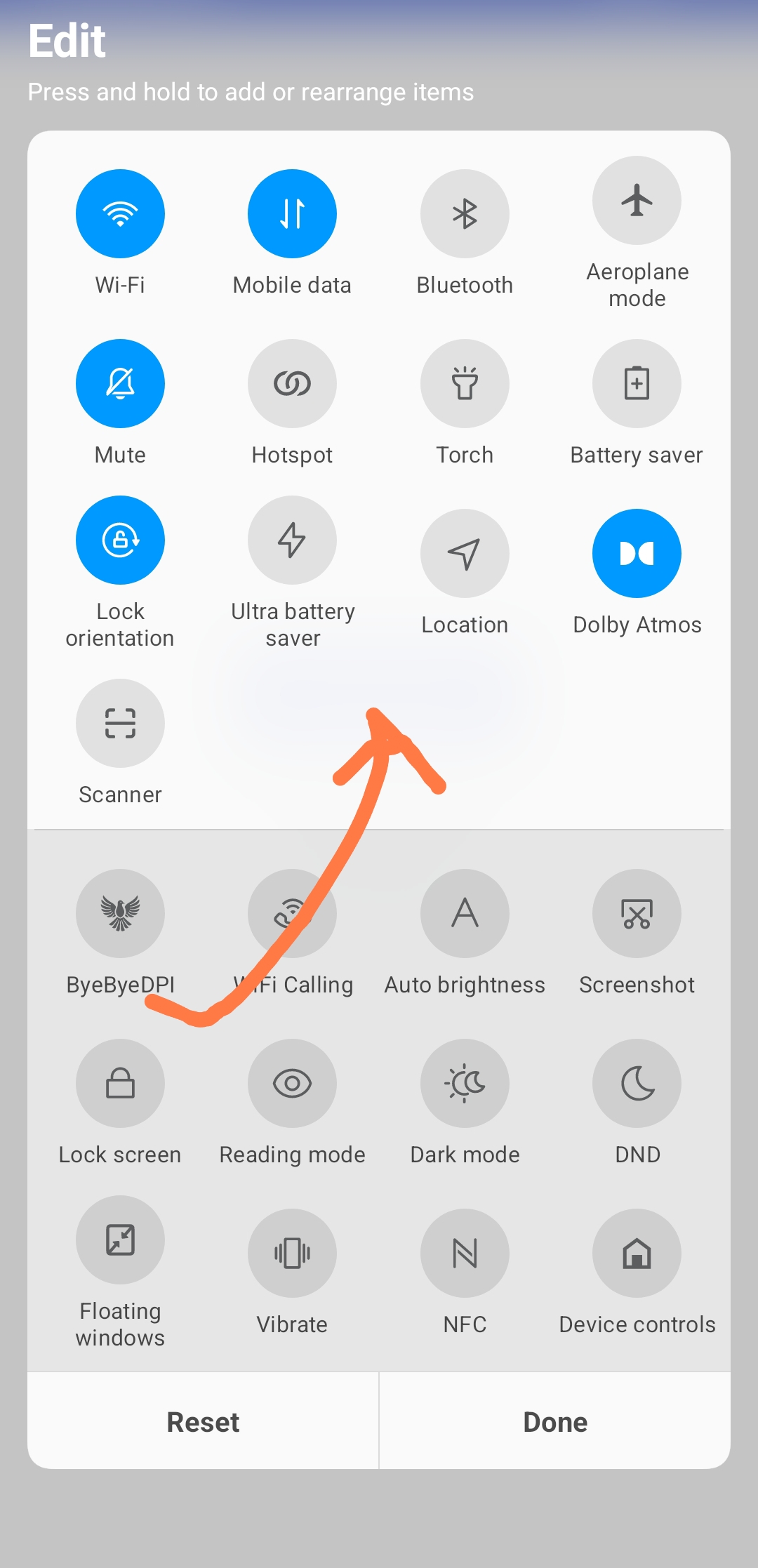
You will see inactive elements. Find ByeByeDPI among them, click, and drag it to the main elements
Don’t forget to save your changes.
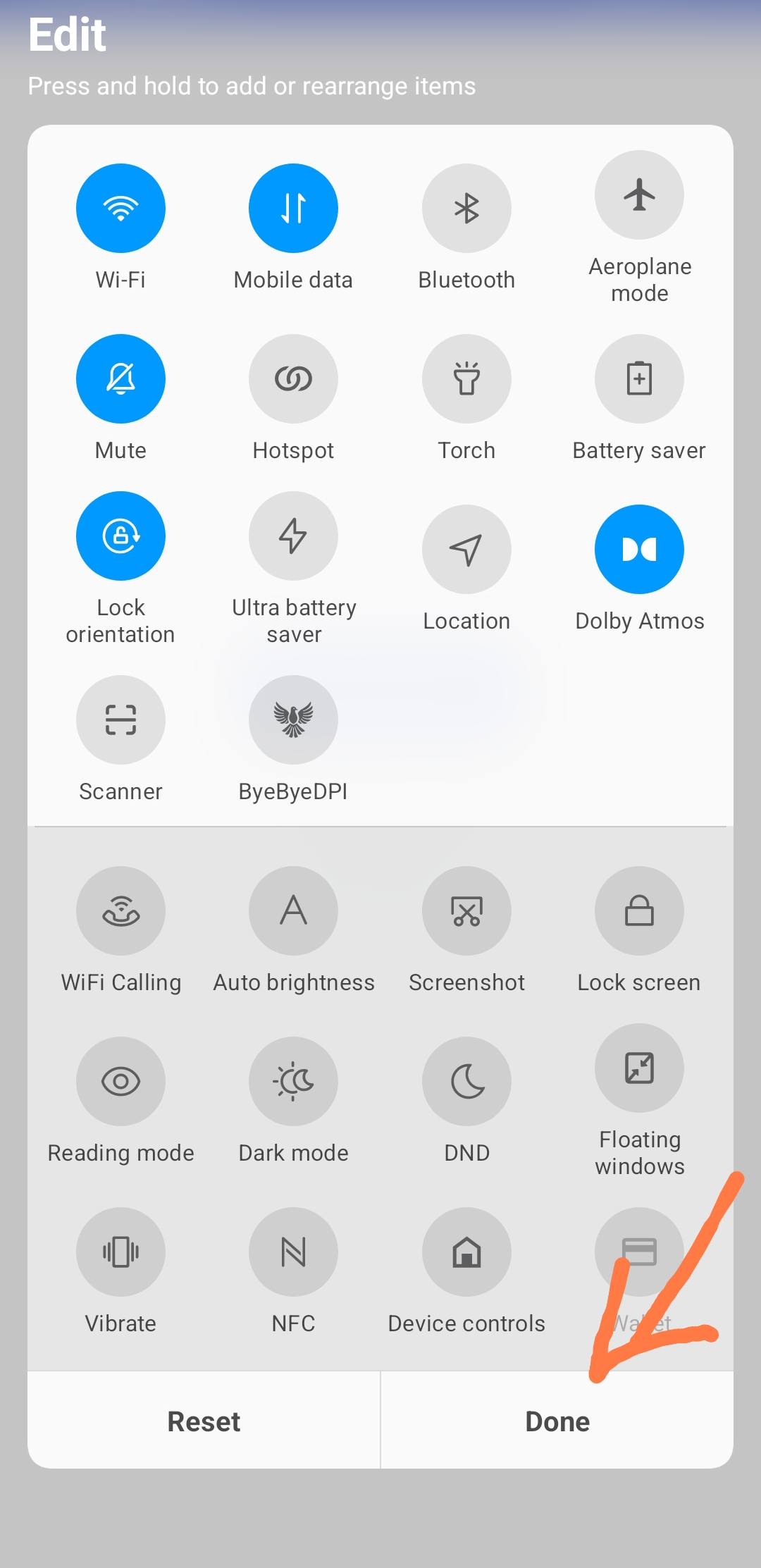
You can now launch ByeByeDPI directly from the Control Centre.
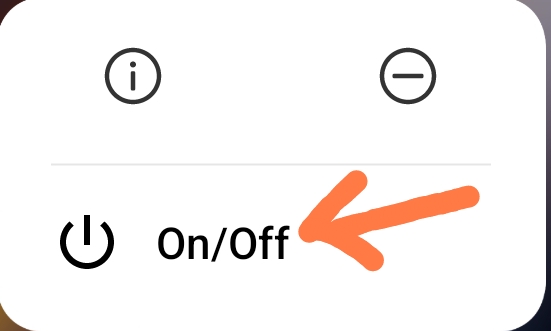
Context menu
If you press the ByeByeDPI icon, a context menu will appear, allowing you to quickly toggle the application on and off.
Widget
By default, the application does not include widget functionality. However, it’s possible to create a widget:
Some launchers allow you to create widgets from quick menu items.
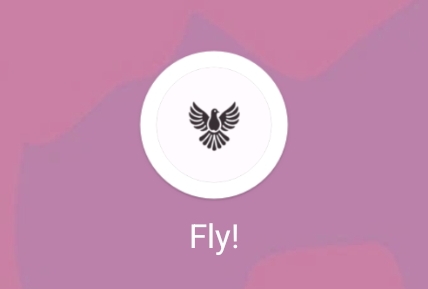
If your launcher doesn’t support this, you can use the
Shortcut Maker(or similar) app.
Important
Use ToggleActivity for the widget.
VPN and Proxy modes
Caution
Proxy mode can only be used if you are connecting through a proxy client.
Tip
Why use Proxy mode? Proxy mode is useful if you want to run other applications in VPN mode simultaneously (e.g., AdGuard, etc.) or if you want to use a proxy client (e.g., ZeroOmega extension for point-proxying sites in the browser).
In VPN mode, traffic is forced through ByeByeDPI. In Proxy mode, a local SOCKS proxy is created.
The local proxy is also created in VPN mode, and you can connect to it using a proxy client when ByeByeDPI is in whitelist mode.
The proxy is raised in any mode, but in VPN mode the client of this proxy is ByeByeDPI.
Schematic representation of VPN-mode operation (HevSocks5Tunnel and ByeByeDPI direct traffic to the Internet):
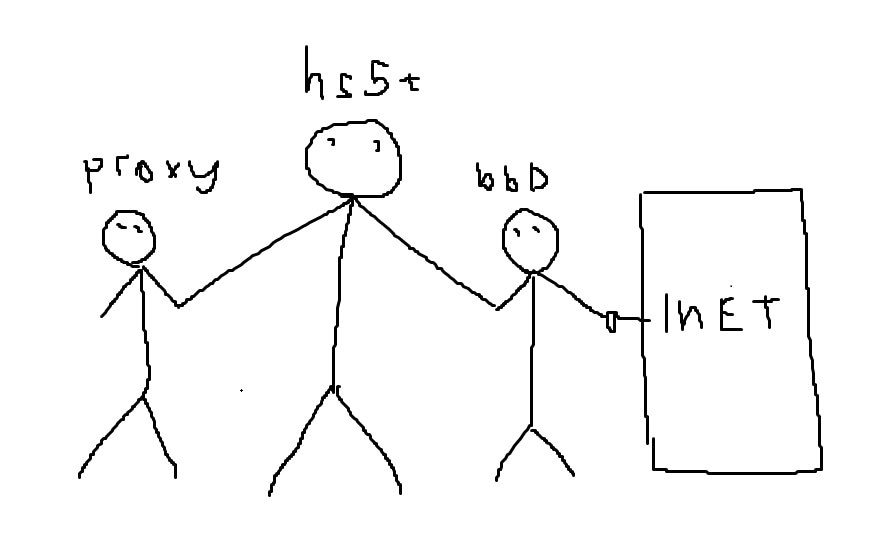
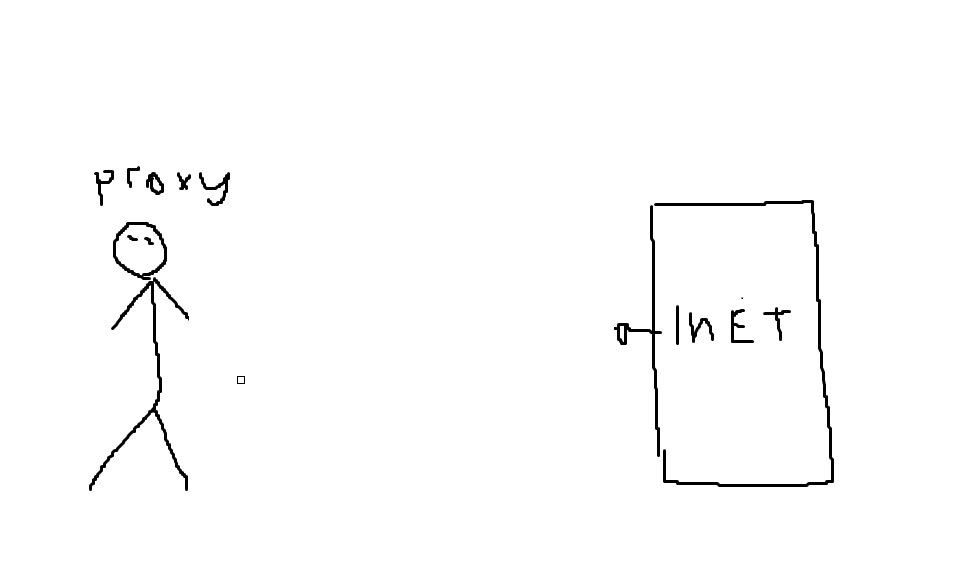
In Proxy mode, the user needs to connect the proxy client itself to a proxy to access the Internet:
Split routing for sites (domains)
Tip
Why use split routing?
DPI traversal can disrupt sites that function normally without it. For example: mfa.gov.tr.
Native method
To make ByeByeDPI process only specific domains, add the --hosts (-H) argument to your strategy and list the domains you want:
# From ByeDPI documentation

-H, --hosts <file|:string>
    Limit the scope of parameters to a list of domains
    Domains must be separated by a new line or a space
‘Whitelist’ for domains
If you specify a host list before finalizing the group with (-A), the strategy for that group will only interact with domains in the list.
Example strategy:
-H:"roblox.com discord.com discord.gg" -o1+s -d3+s -a2Note
The brackets are necessary due to the peculiarities of the parsing mechanism.
Tip
It is not necessary to use whitelisting in this mode.
‘Blacklist’ for domains
In some cases, you may need to restrict ByeByeDPI from processing traffic for specific domains, such as mfa.gov.tr and geliyoo.com. To prevent ByeByeDPI from processing these domains, add them to a separate group at the beginning of the strategy with -H:"mfa.gov.tr geliyoo.com" -An. In simple words, this part means: if the domain is mfa.gov.tr or geliyoo.com - do nothing. It’s important not to forget -A with the right parameter after the list.
Example strategy:
-H:"mfa.gov.tr geliyoo.com" -An -o1+s -d3+s -a2Tip
In the strategy, you can specify the path to the text file containing the domains. To do this, you need to give ByeByeDPI permission to access the files. The contents of the fake packages can be specified in the same way.
Example strategy:
-Ku -a10 -An -Kt,h -H /storage/emulated/0/Documents/domain.txt -s1 -q1 -Art -f-1 --md5sig -r1+s -An
Browser extension
An alternative method for point-to-point routing is using a browser proxy extension. Here’s an example using the Firefox browser with the ZeroOmega--Proxy SwitchyOmega V3 extension installed, but you can use any similar extension and browser with extension support.
First, activate proxy mode in ByeByeDPI or remove the browser from the whitelist in which you will install the extension.
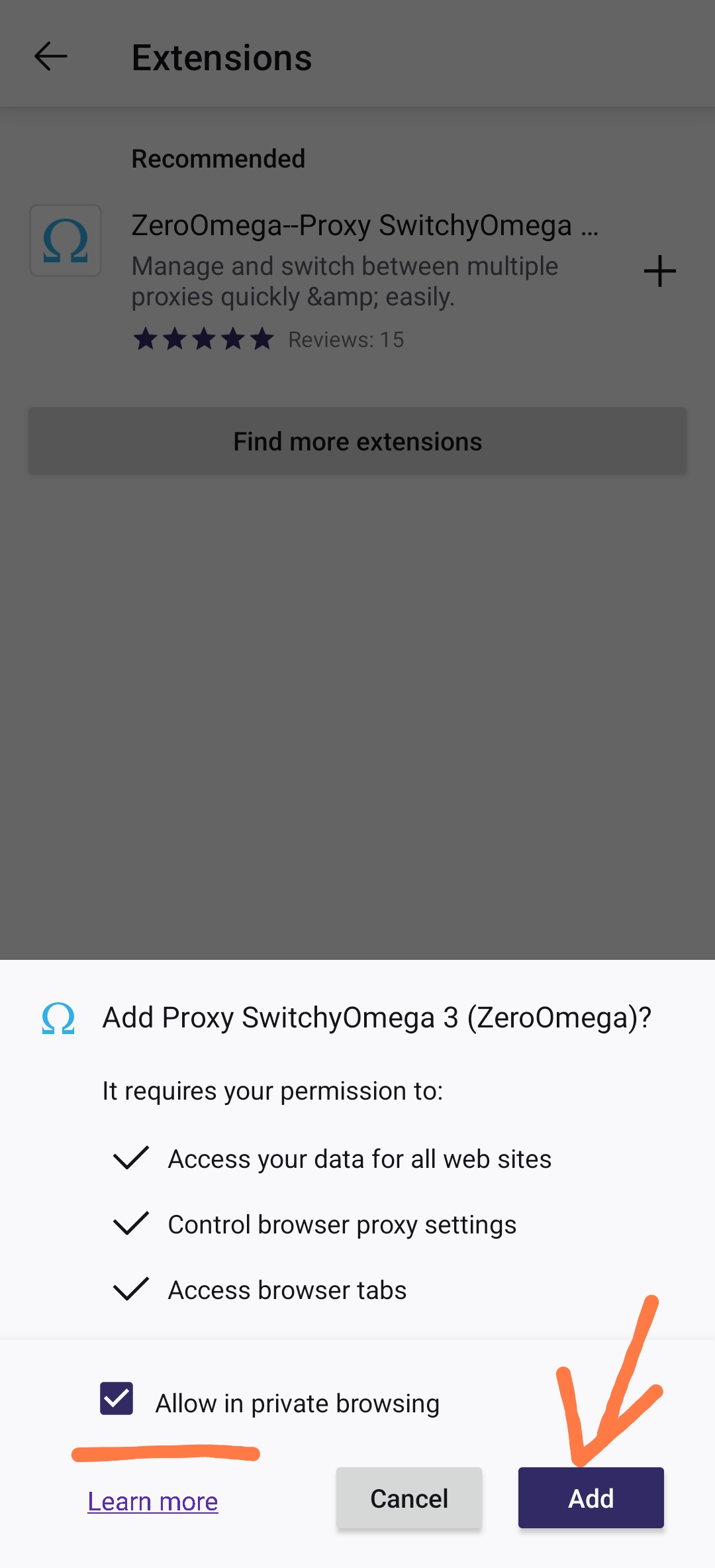
Install the extension and be sure to grant it permission to work in private windows (this is necessary for the proxy to function properly). Click the Add button.
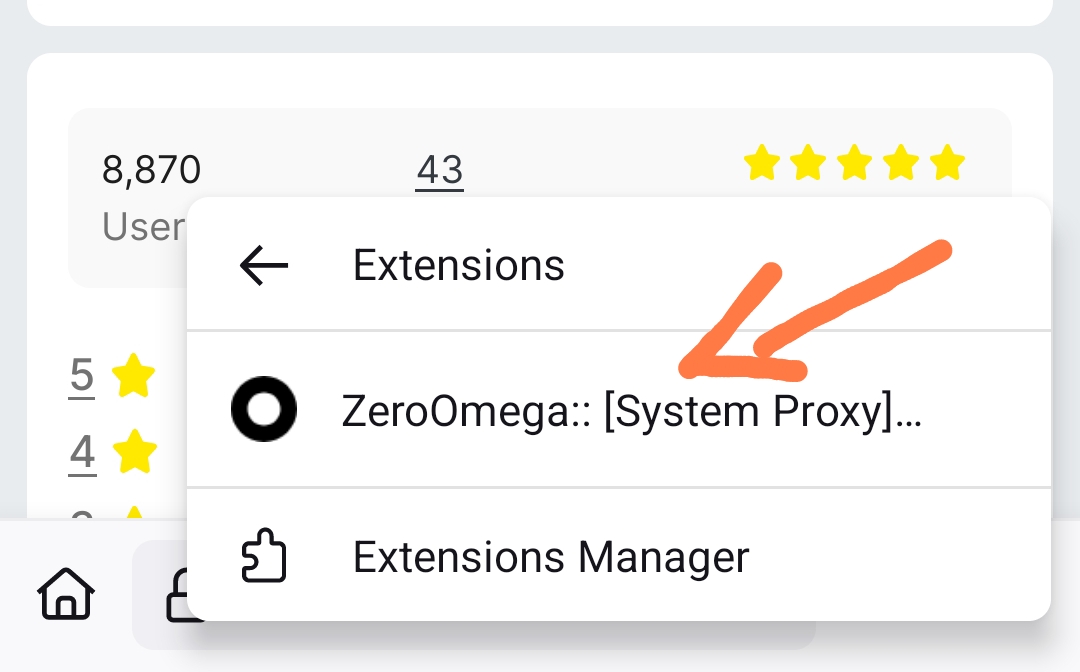
Then, open the list of extensions and click on ZeroOmega.
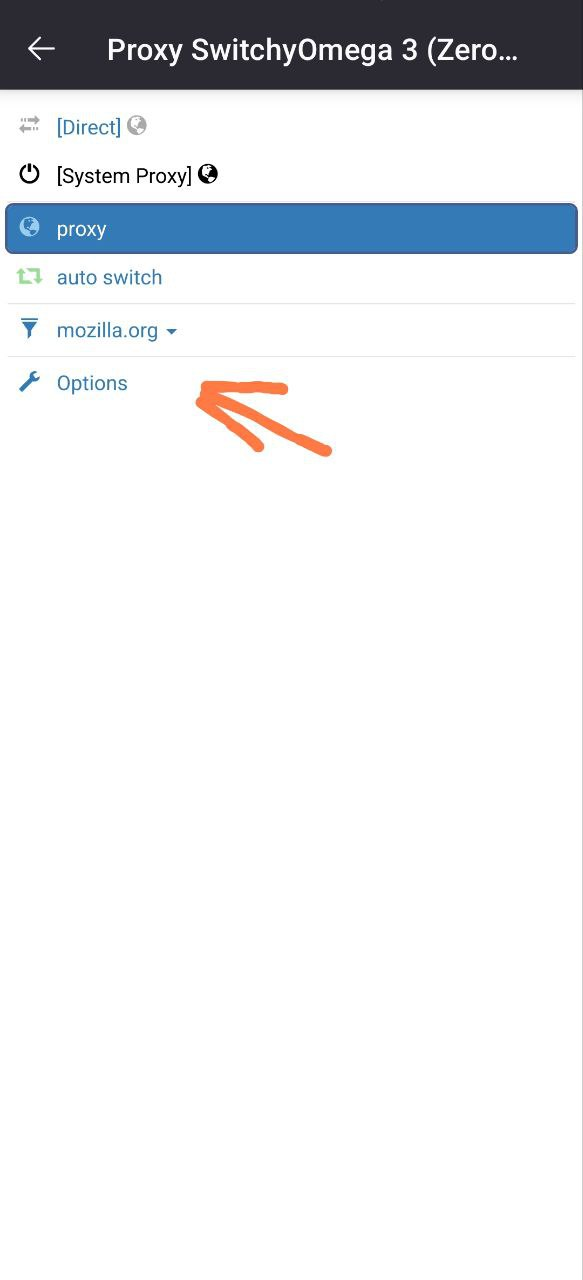
Navigate to the options tab.
In the Proxy tab, configure the connection settings: protocol (ByeByeDPI’s default is SOCKS5), the address and port of the proxy (which you can find in ByeByeDPI settings). For example:
Protocol: SOCKS5
Server: 127.0.0.1
Port: 1080
After setting up the connection, don’t forget to apply the changes by clicking Apply changes.
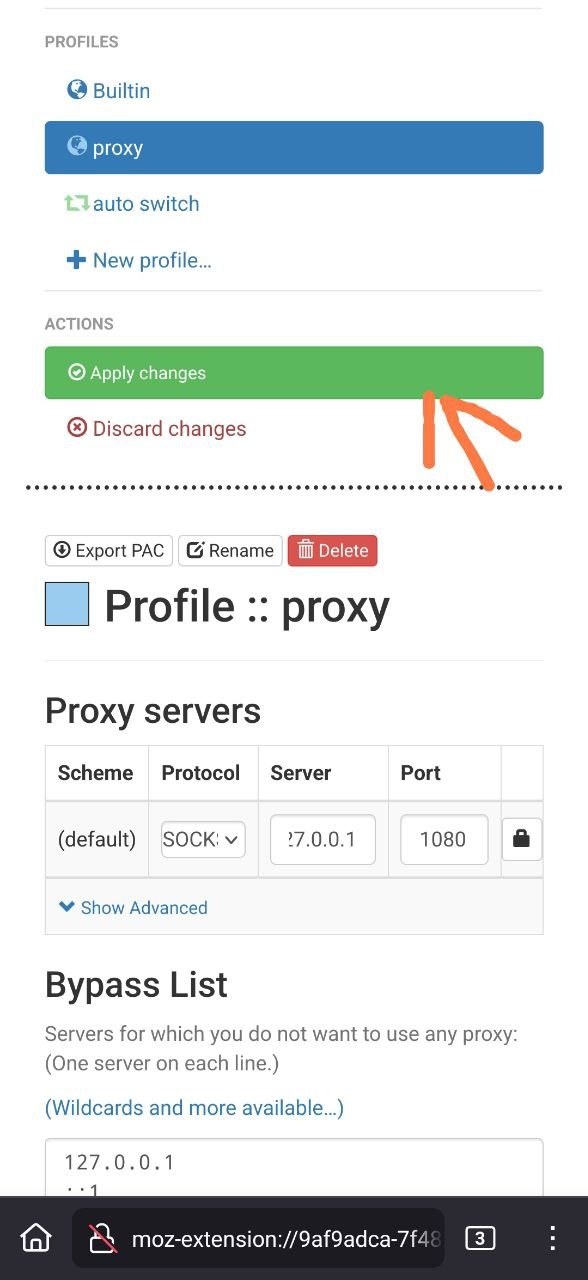
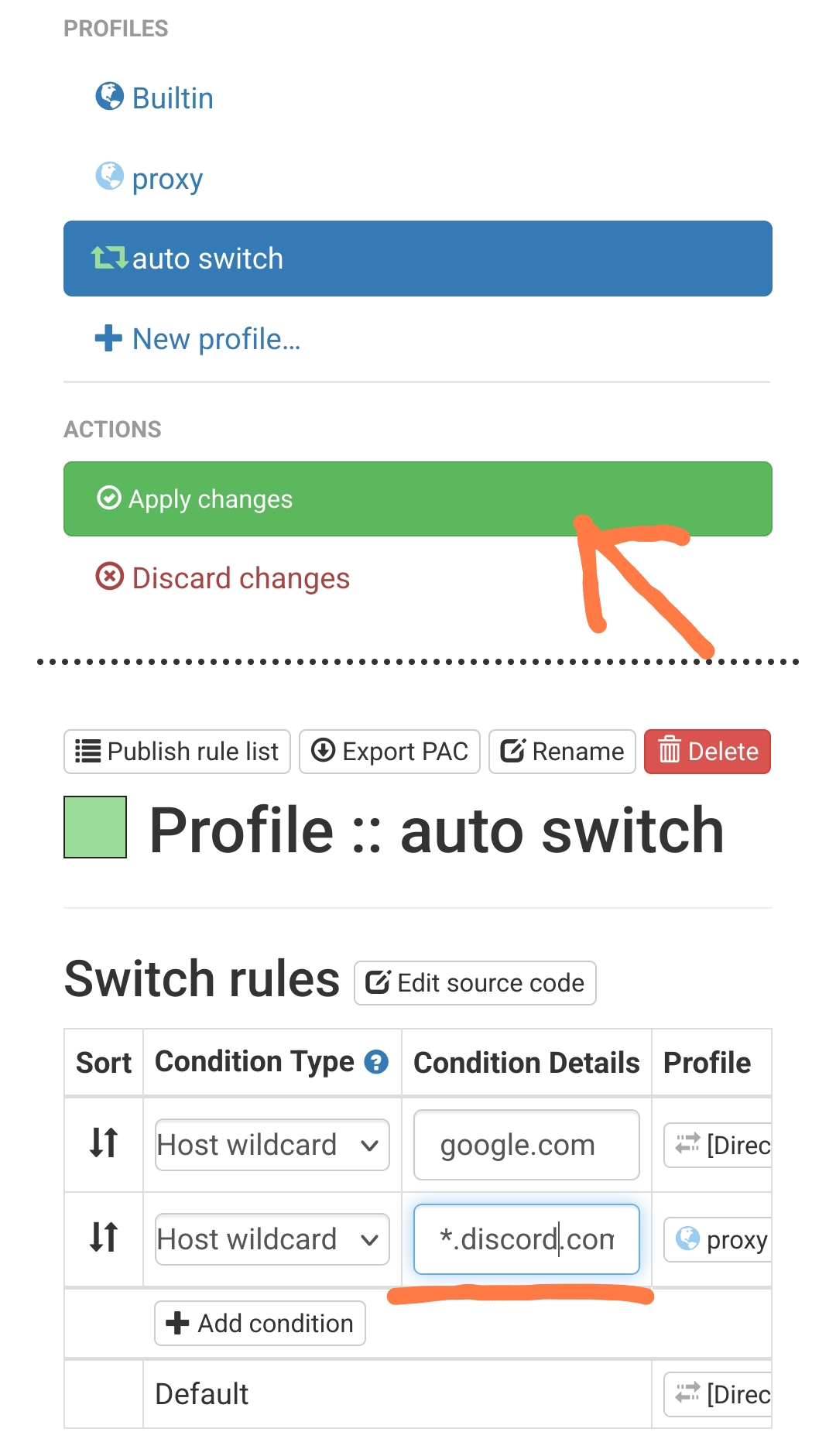
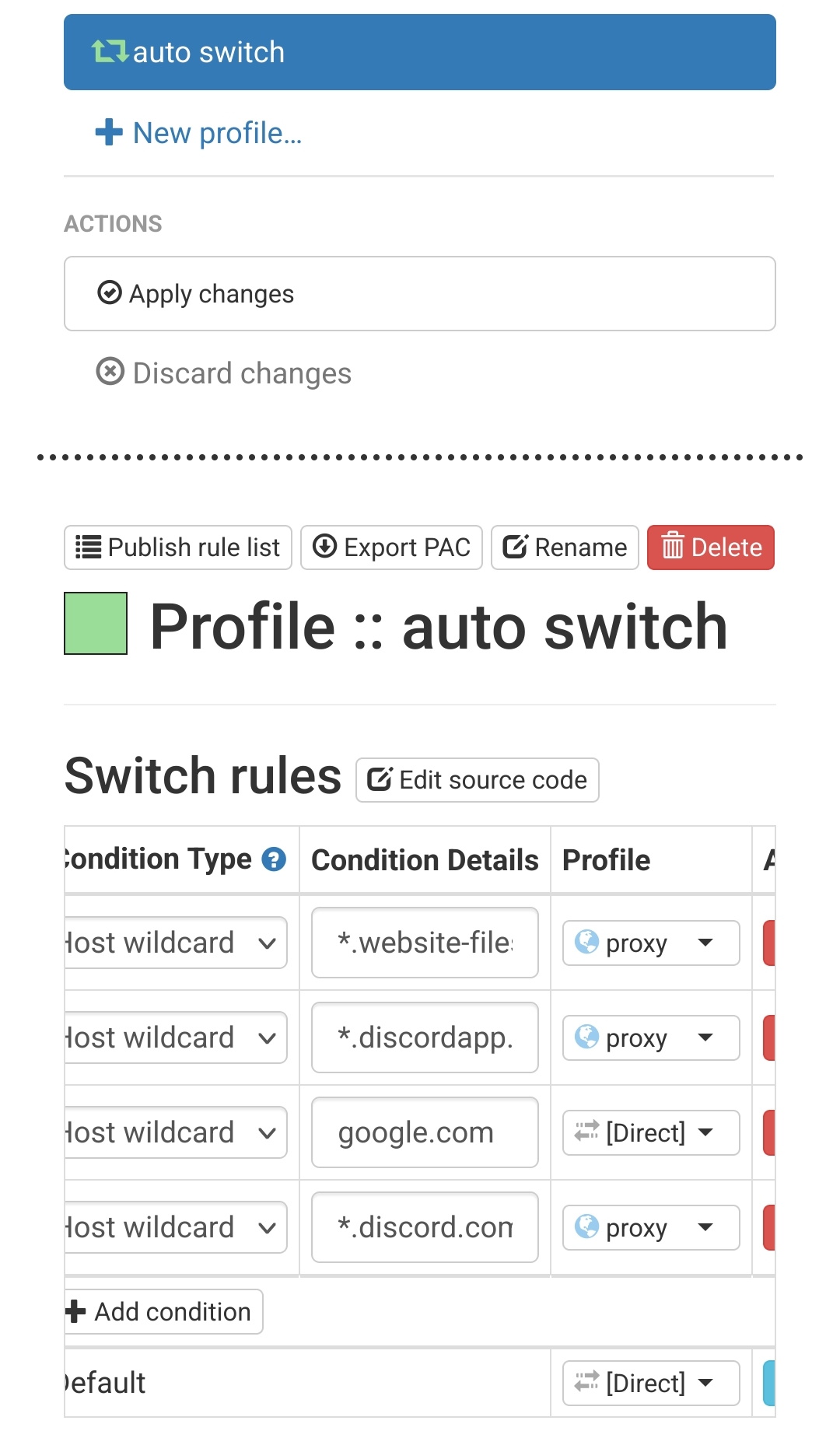
Next, go to the Auto Switch tab and add Switch rules. For example, I added:
Condition Type: Host Wildcard
Condition Details: *.discord.com
Profile: proxy
Remember to save the changes by clicking Apply changes.
Try accessing the desired resource. It may not open immediately. Change ZeroOmega’s mode to
auto switchmode.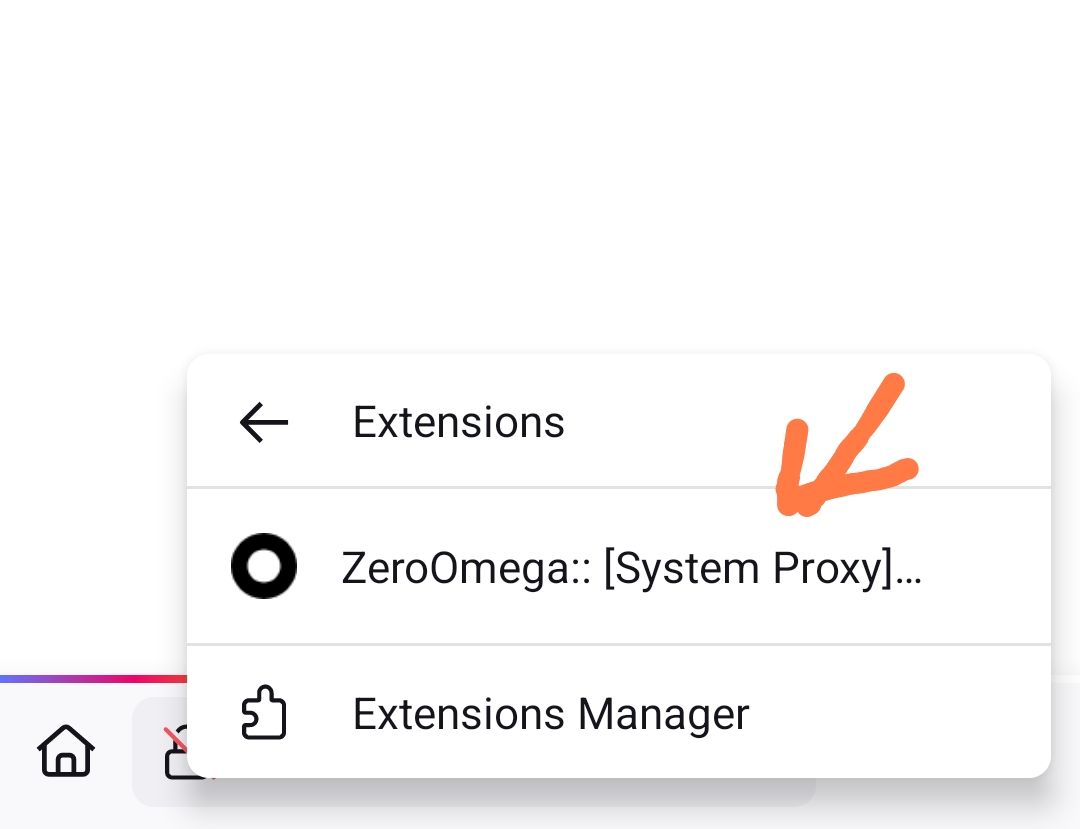
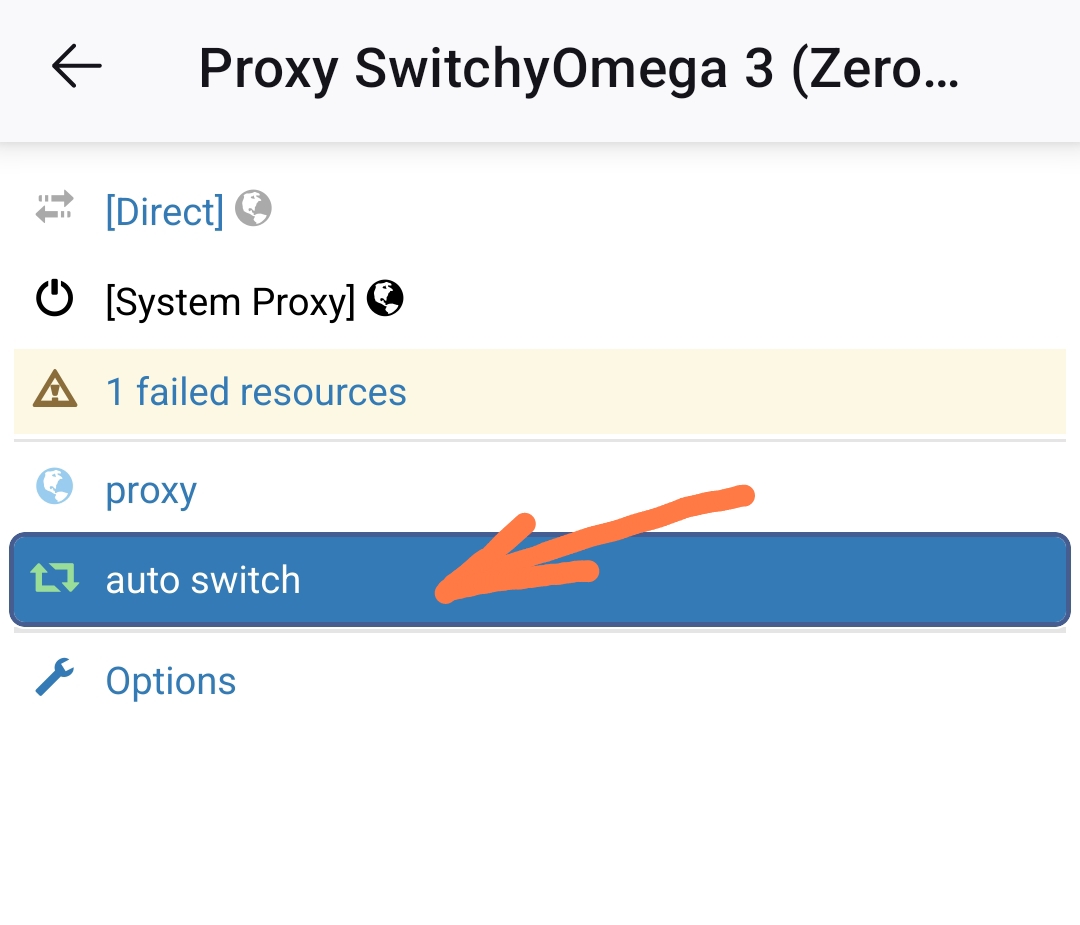
Refresh the page to load the resource. For instance, if you open a video, it may not start playing immediately. In this case, go to the extension settings.
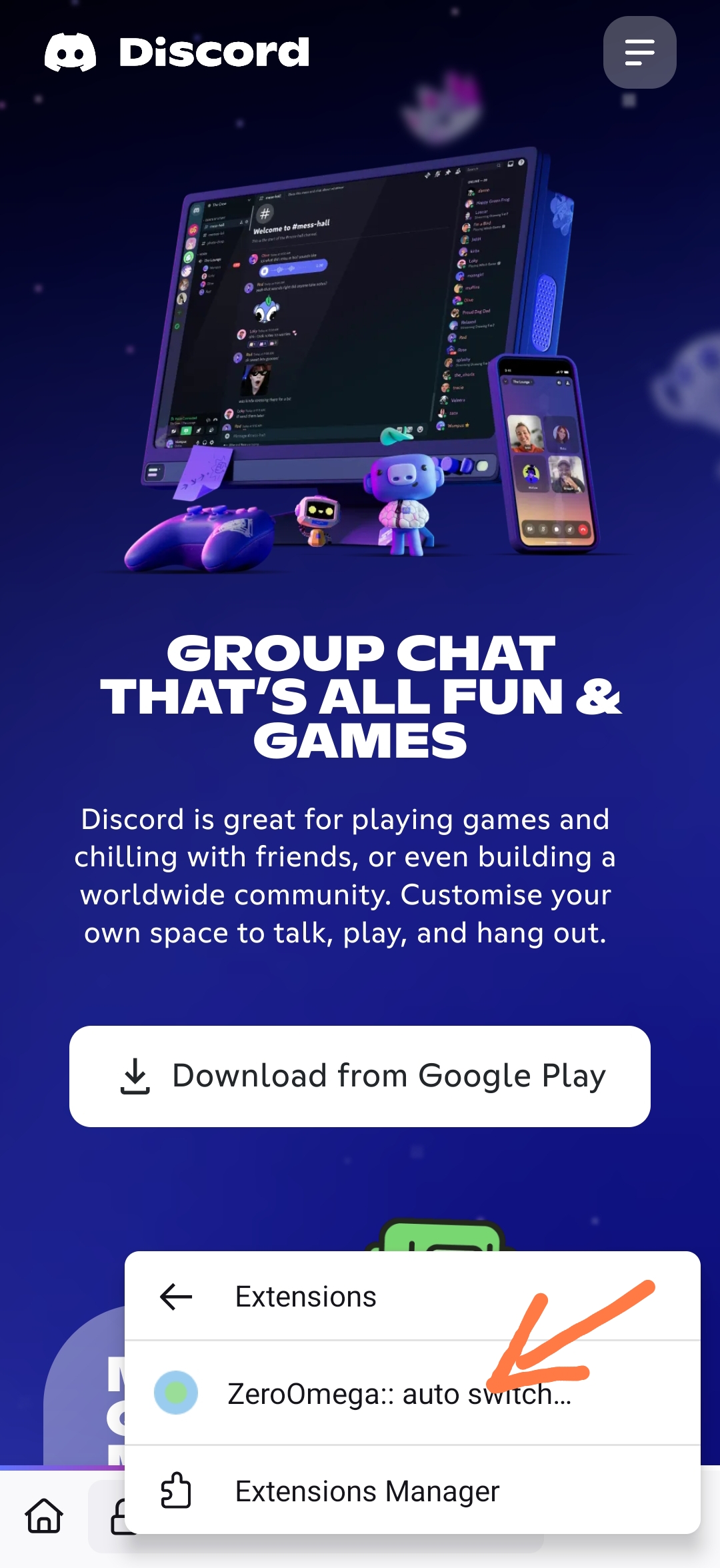
In
auto switchmode, the extension will notify you if any domains cannot be reached.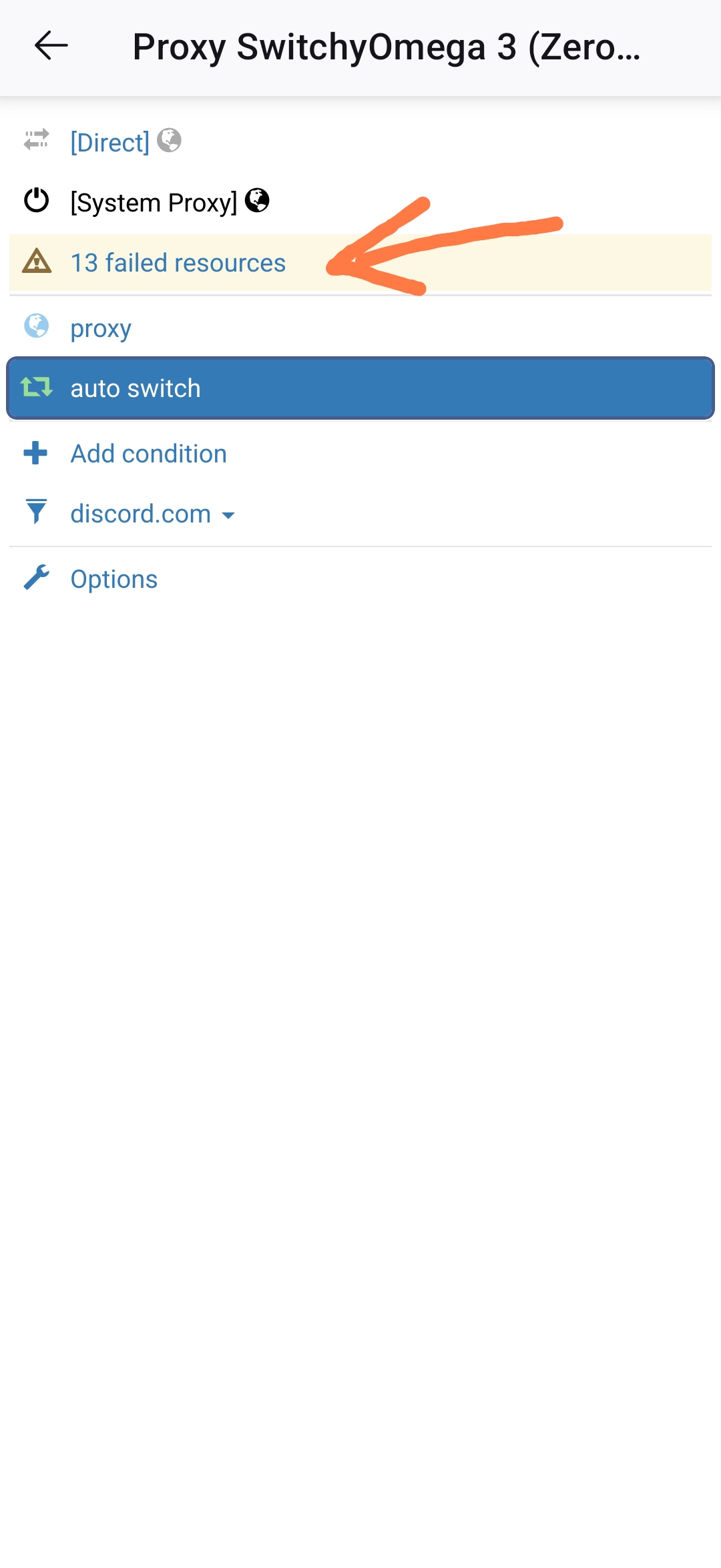
Open the failed resources tab, change their profile to proxy, and add them.
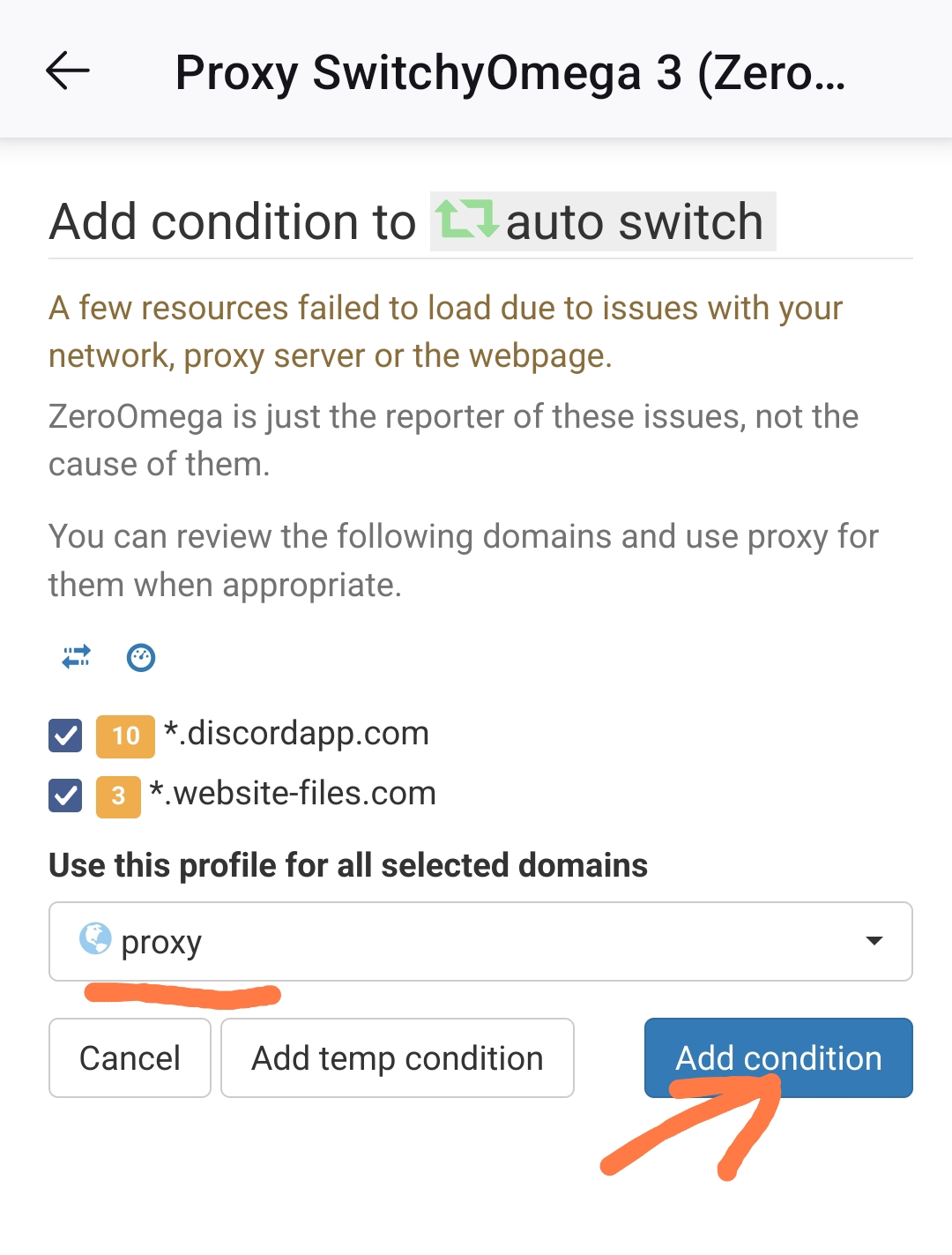
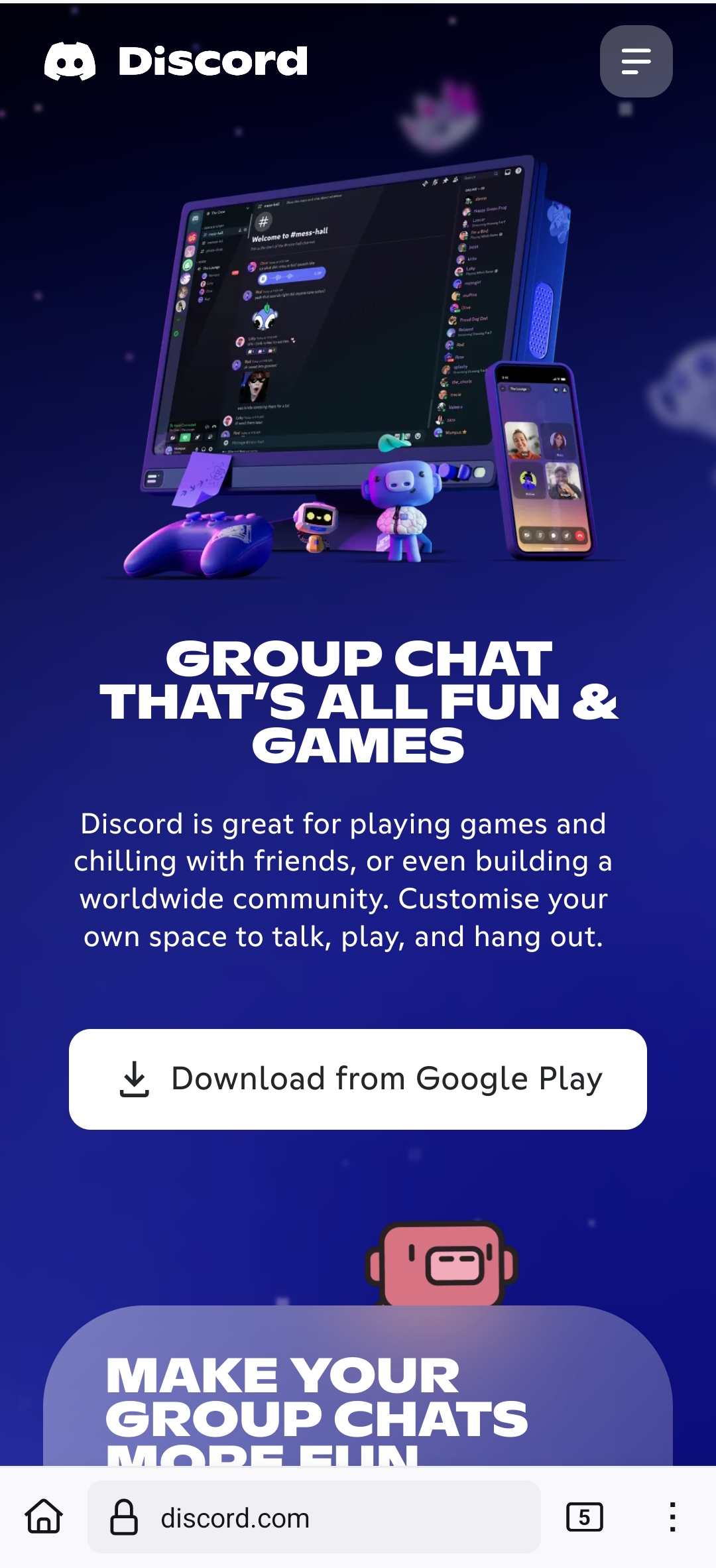
After refreshing the page, everything should work.
In the settings, it now looks something like this:
Internet distribution with ByeByeDPI (local proxy)
Suppose you have an iPhone (or another device on which you can install a proxy client) and an Android 6.0+ phone (or another device running ByeByeDPI).
ByeByeDPI is installed on the Android device, and a working strategy is selected. On the iPhone (or other device), install a proxy client that supports SOCKS5 (for example, Happ is suitable for both iOS and Android).
To share access to ByeByeDPI, both devices (you can connect more than one device, but for simplicity, let’s assume it’s just one device) must be on the same local network. You can either connect both devices to the same access point or share your phone’s access point. The main thing is that both devices are on the same local network.
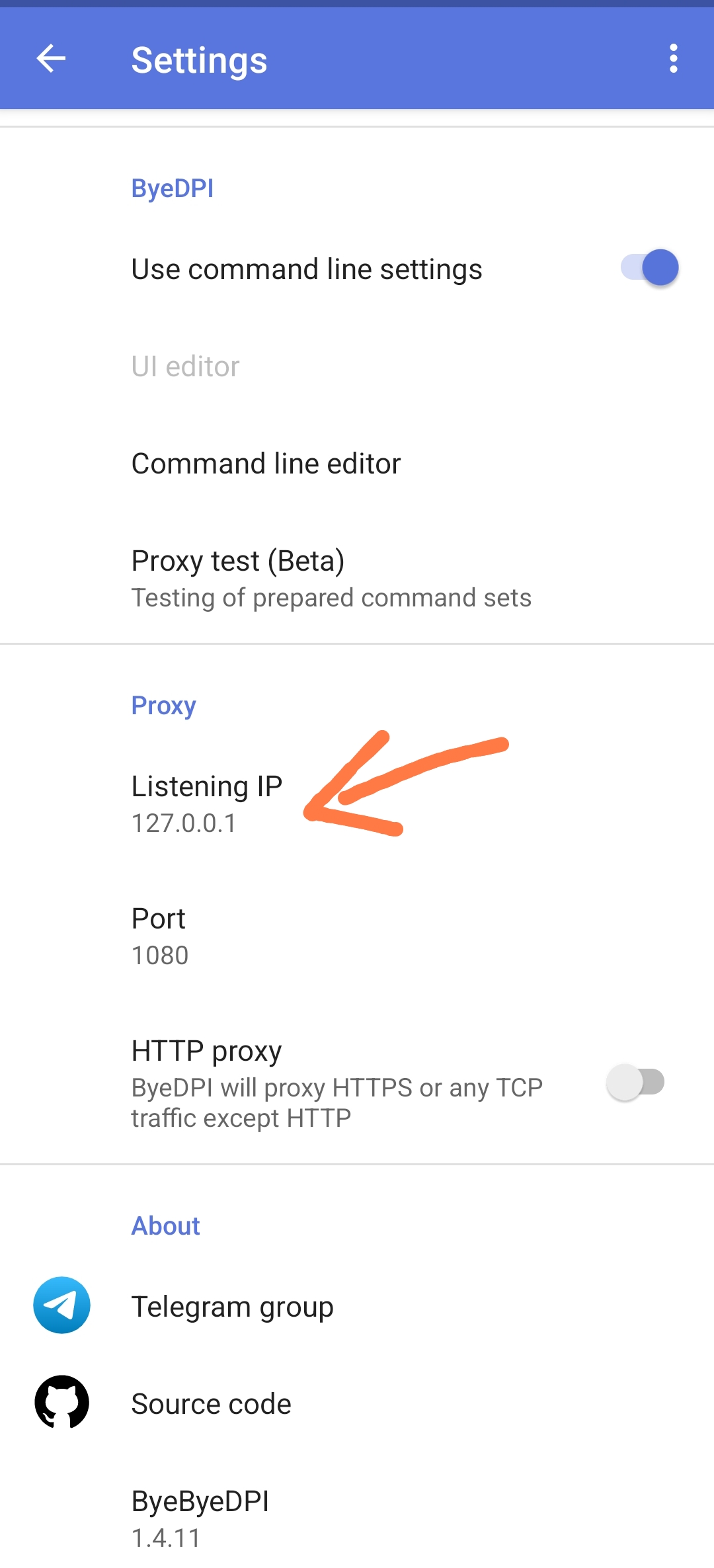
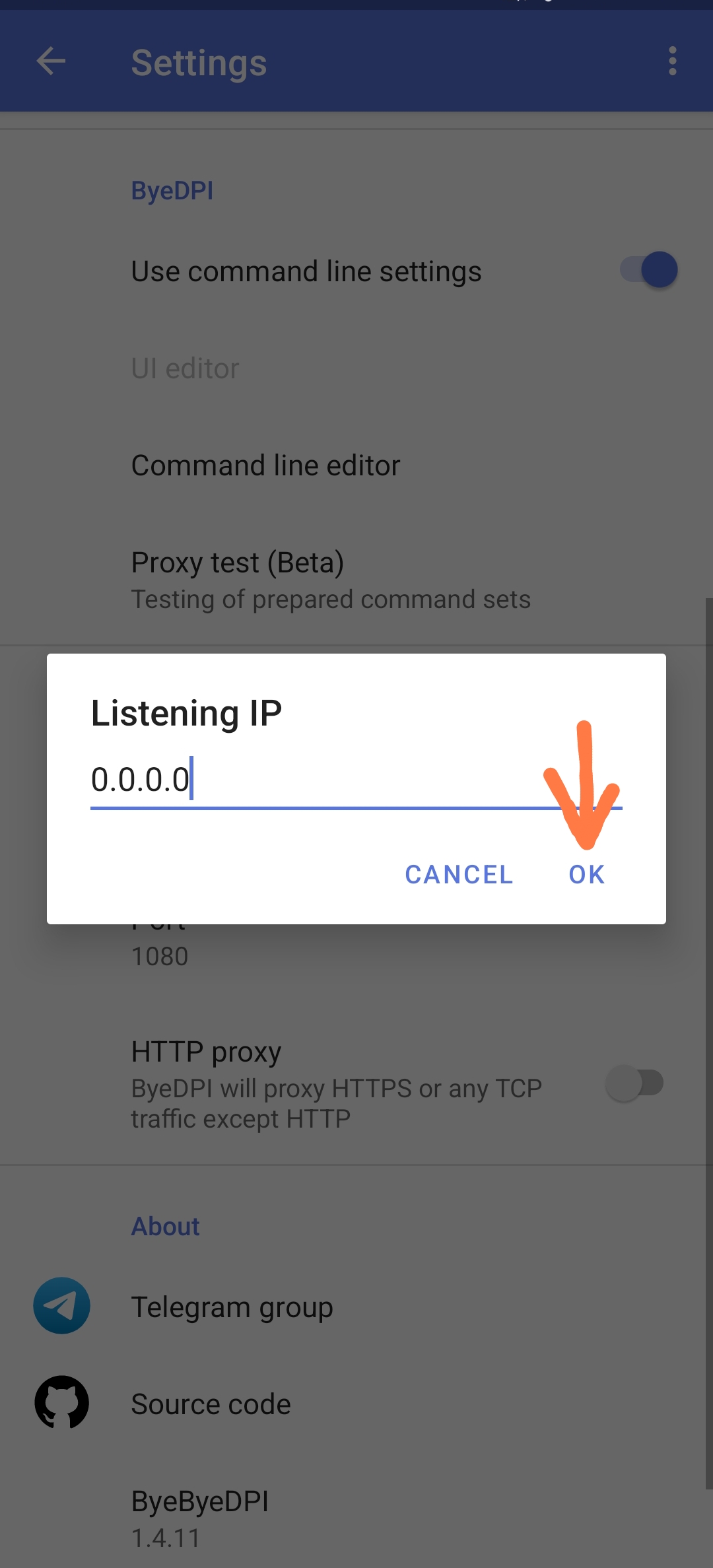
Next, in the ByeByeDPI settings, set the address and port to 0.0.0.0 and 1080.
Caution
If you want Roblox (and other apps) to continue working on the device running ByeByeDPI, do not activate Proxy mode. Otherwise, you will need to install a proxy client on the device with ByeByeDPI as well. To understand why this happens and why you can still connect from another device even if ByeByeDPI is in VPN mode, read here.
Launch ByeByeDPI.
Afterward, determine the IP address of the device running ByeByeDPI in the local network. You can use the Android Network Tools application. When you enter this application, the ip address will be written:
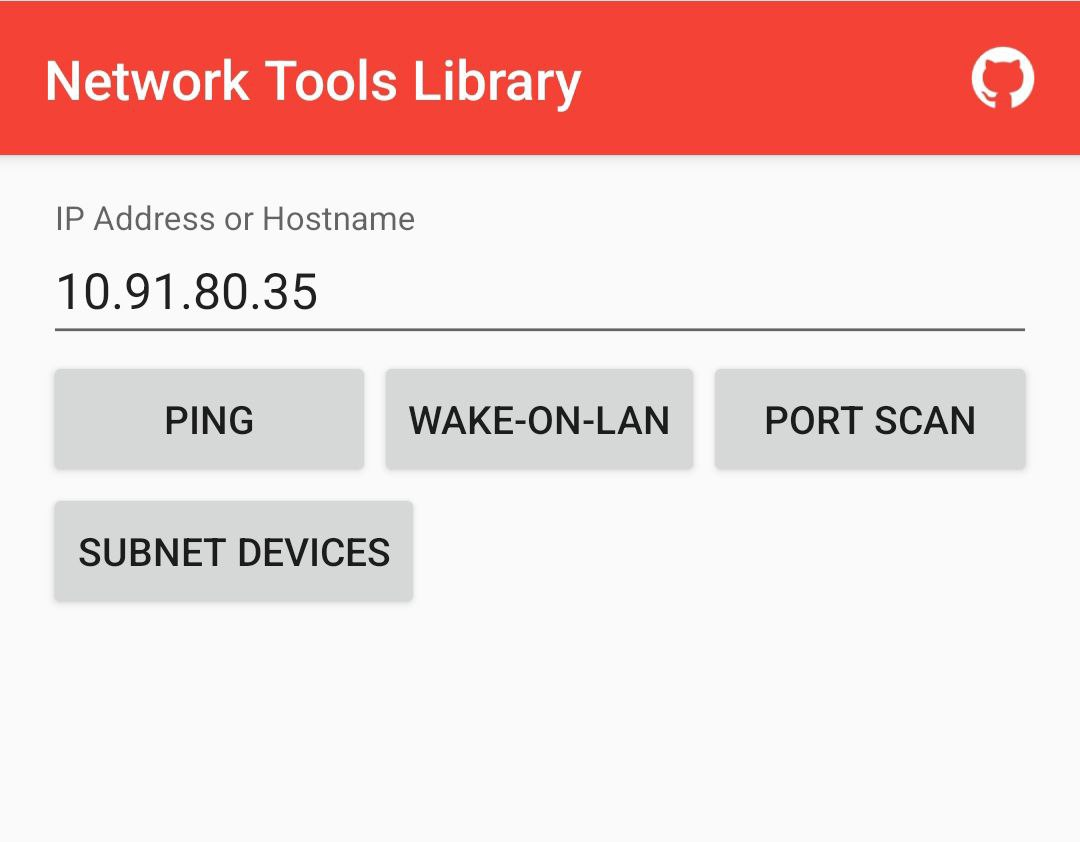
The ip of the device can also be found in the network settings or by using the Ning app.
Tip
For those in the know: If you will be connecting often, set a static IP for your phone.
Then, open the proxy client on the iPhone (or other device). This example uses Happ.
Warning
There’s no separate app tunneling on the iPhone. You will need to add your own routes. In some regions, such as Russia, the ability to connect to SOCKS proxies may have been removed from Happ (in that case, use another client).
To add a connection:
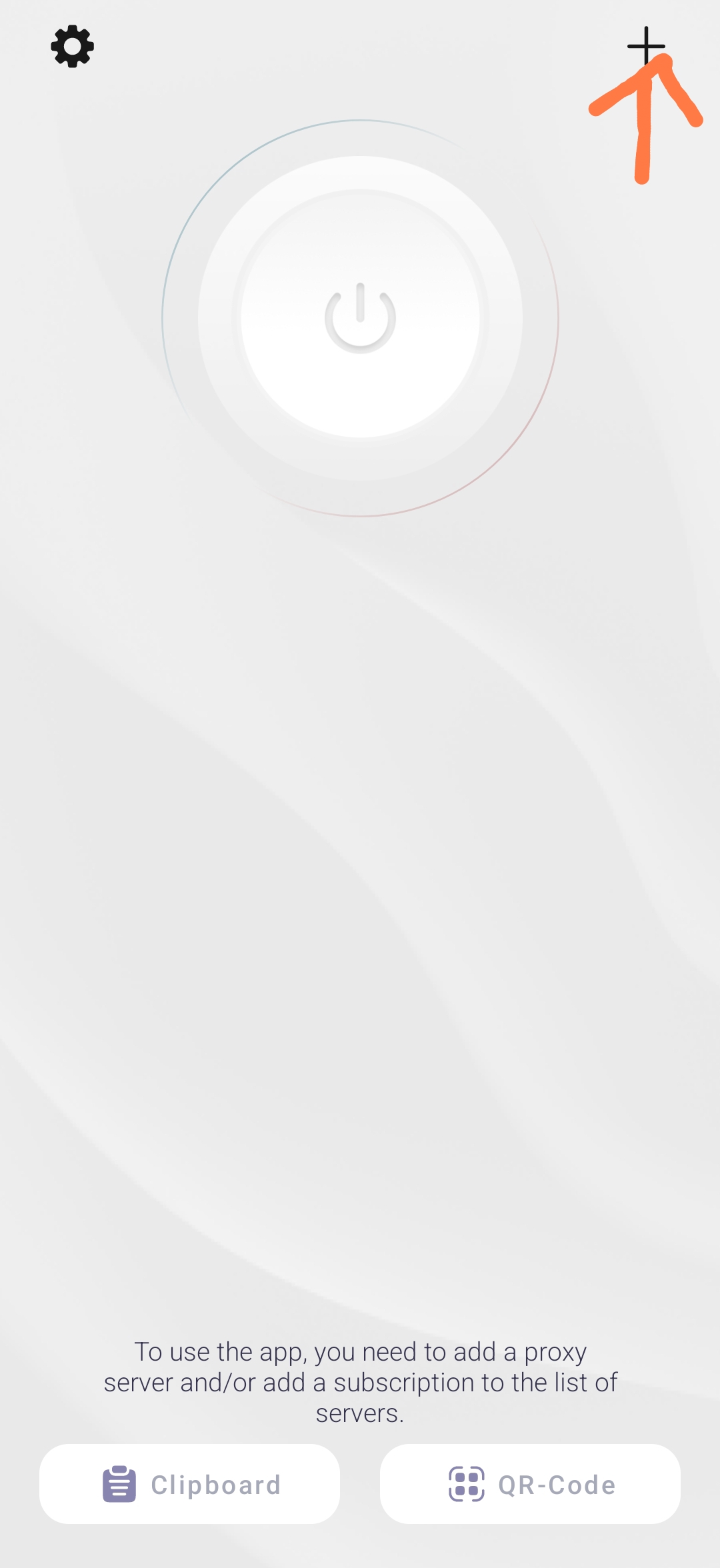
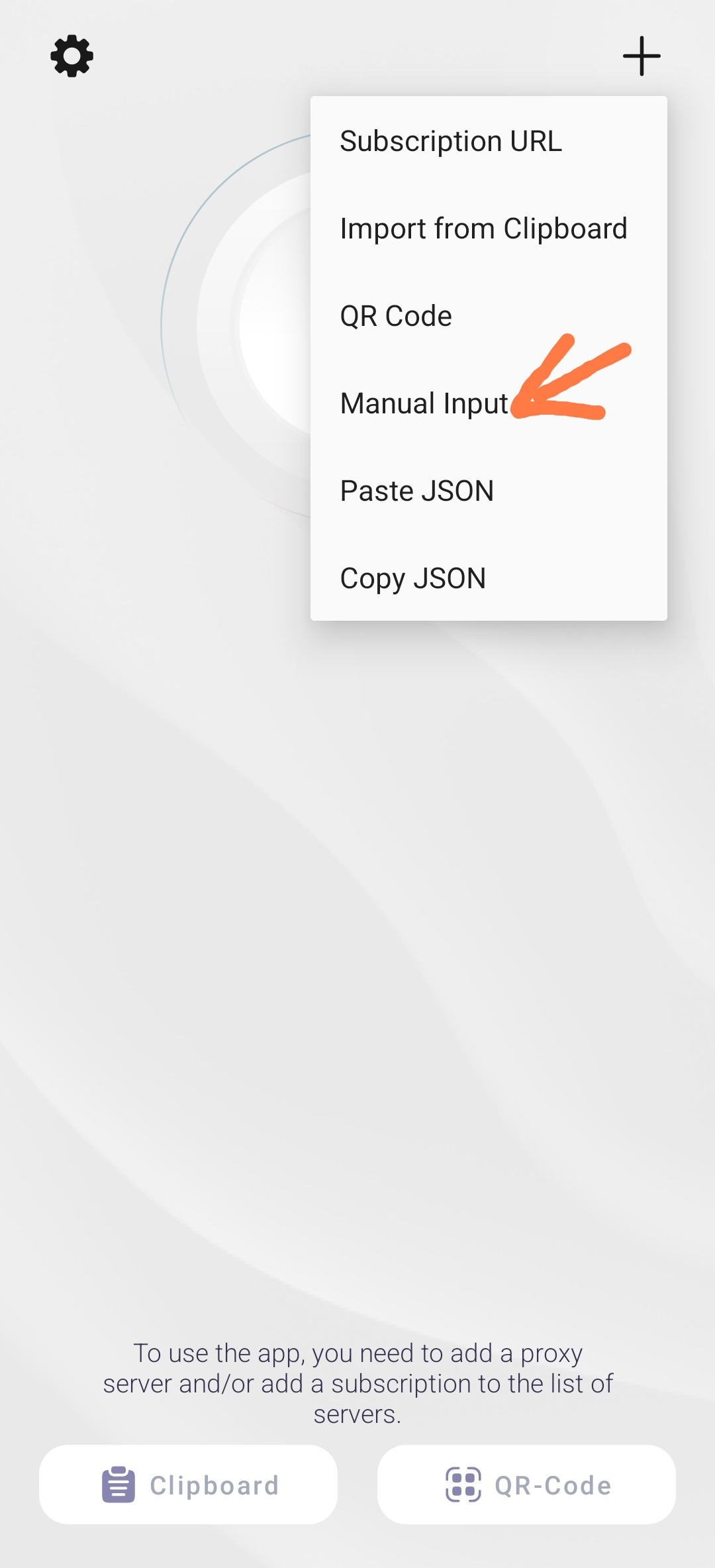
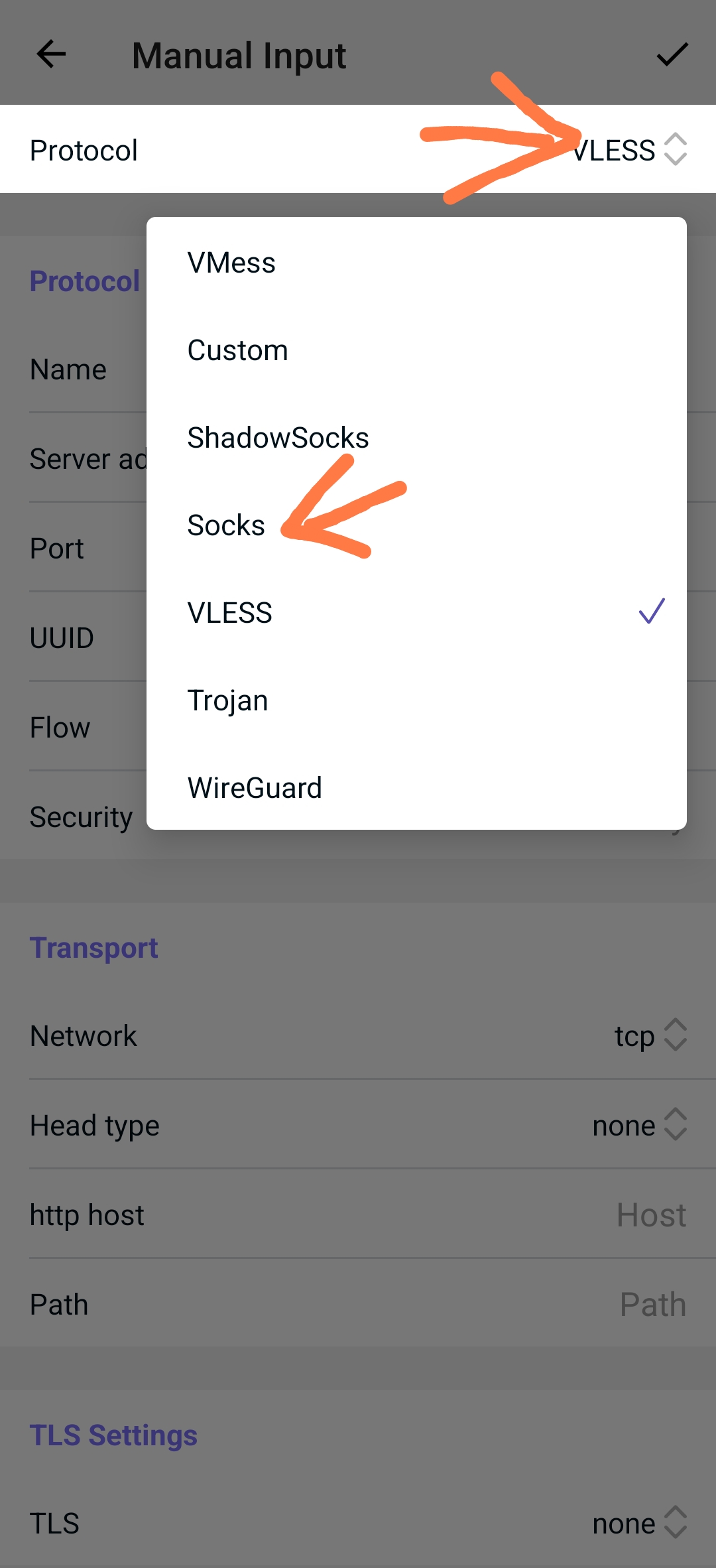
Important
SOCKS5 or SOCKS protocol should be used NOT Shadowsocks.
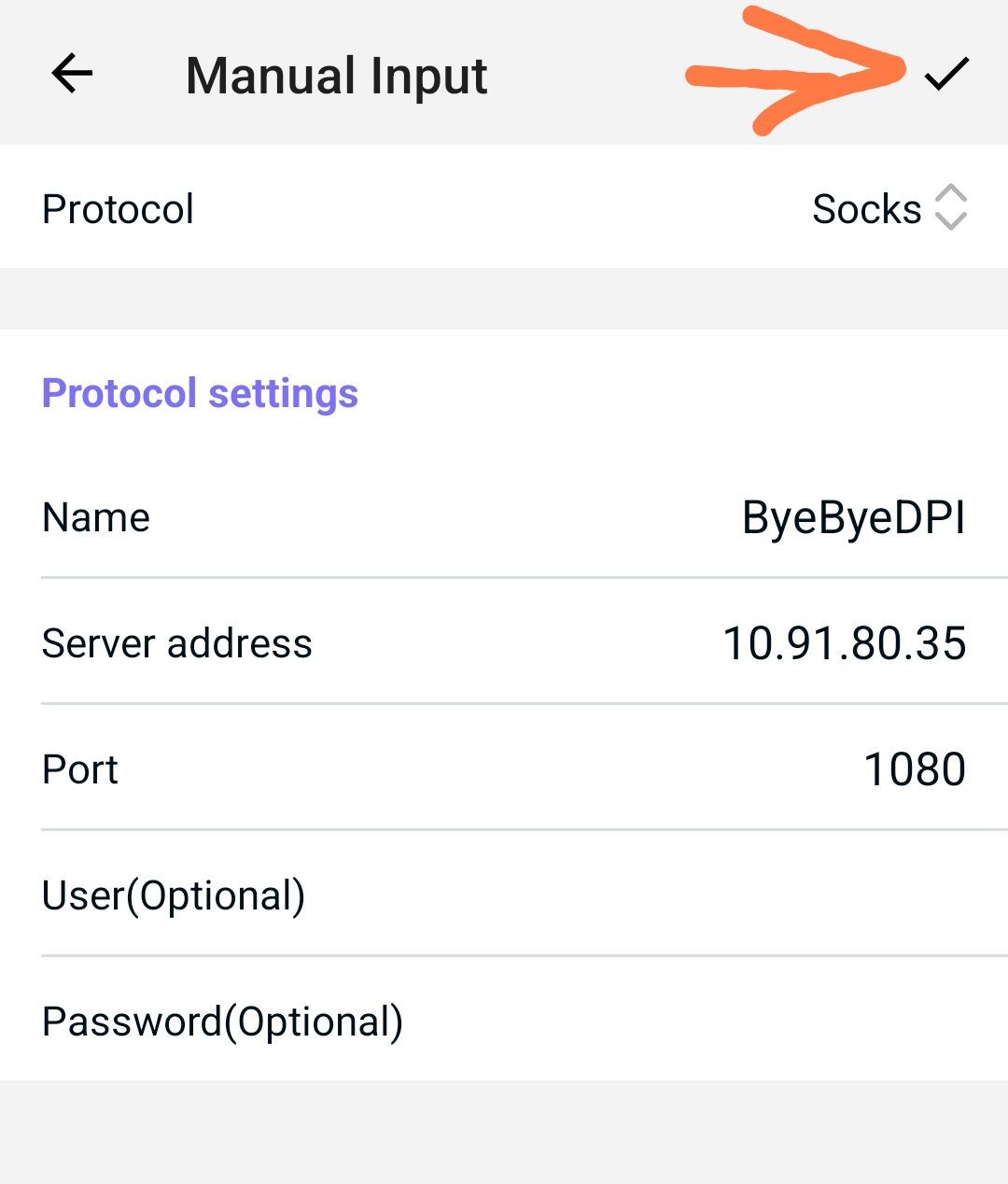
Enter the IP of the device running ByeByeDPI (which you obtained using Android Network Tools) and the port specified in ByeByeDPI. After entering the details, be sure to save the changes.
Important
The proxy server that ByeByeDPI creates does not require a username or password, leave those fields blank in the proxy client.
If the proxy client has a test connection feature, use it.
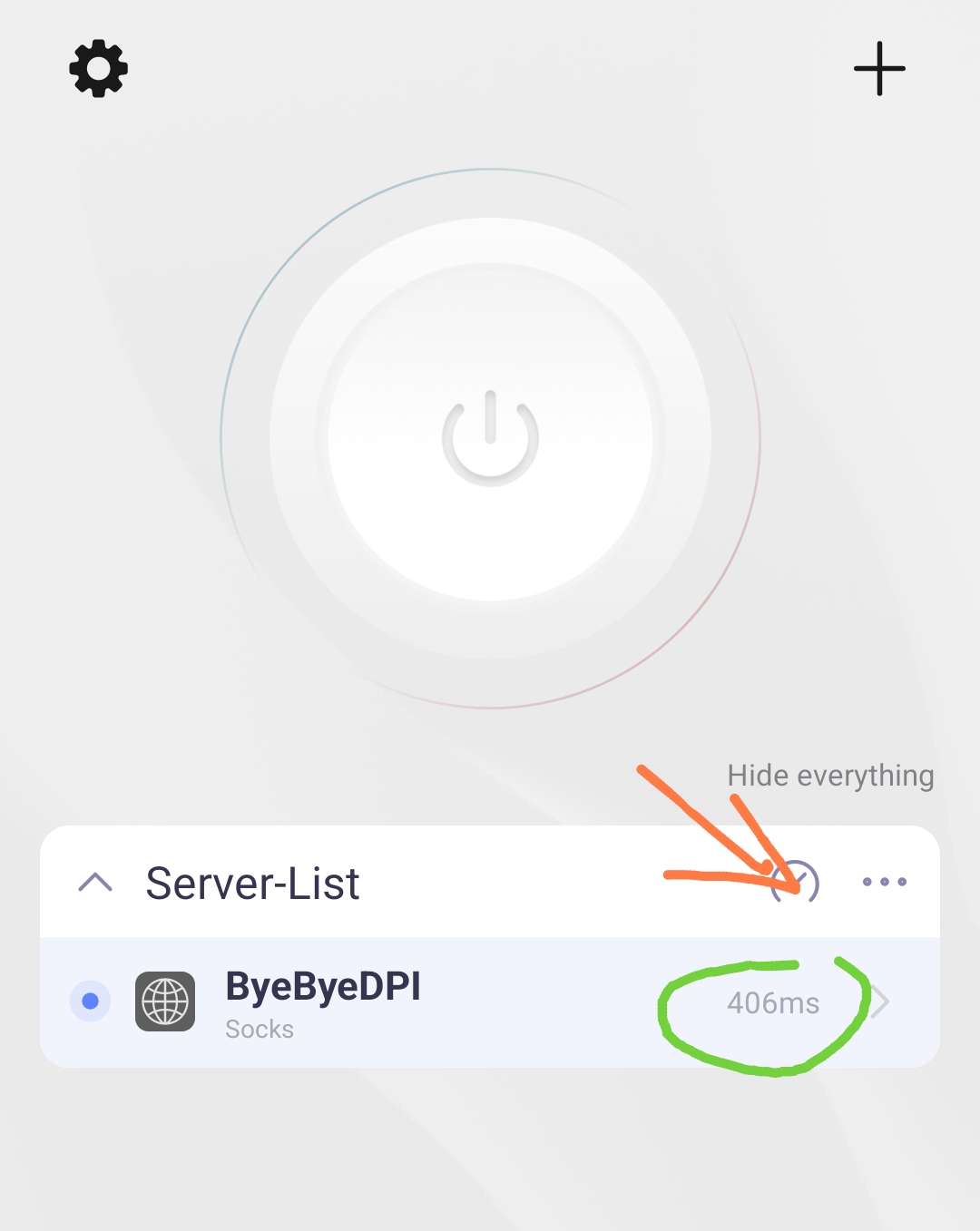
Note
If there is no response, there is no connection: ByeByeDPI may be turned off, incorrect data may be entered, or the devices may be on different networks.
Afterward, specify the applications that ByeByeDPI should work with on the iPhone (or other device).
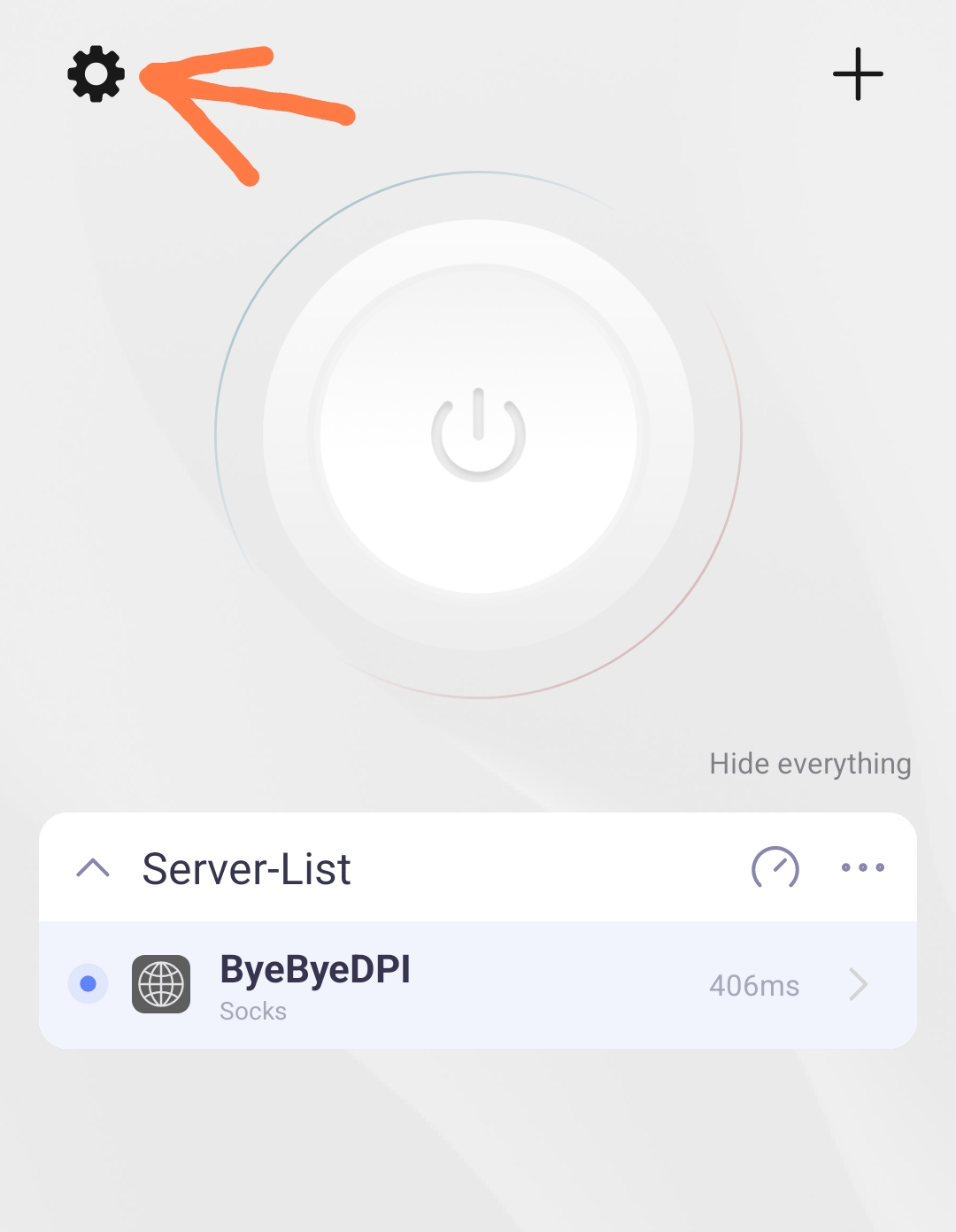
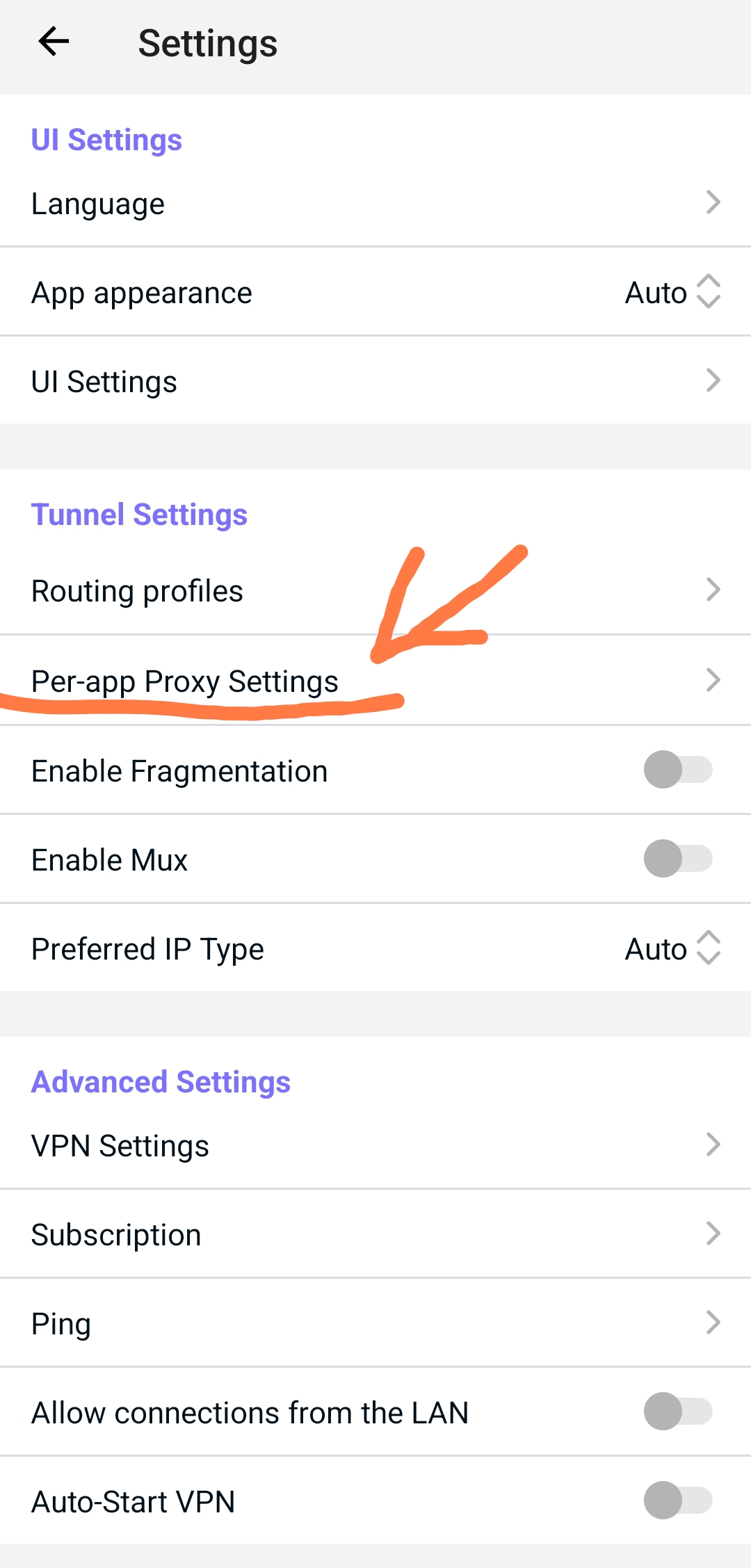
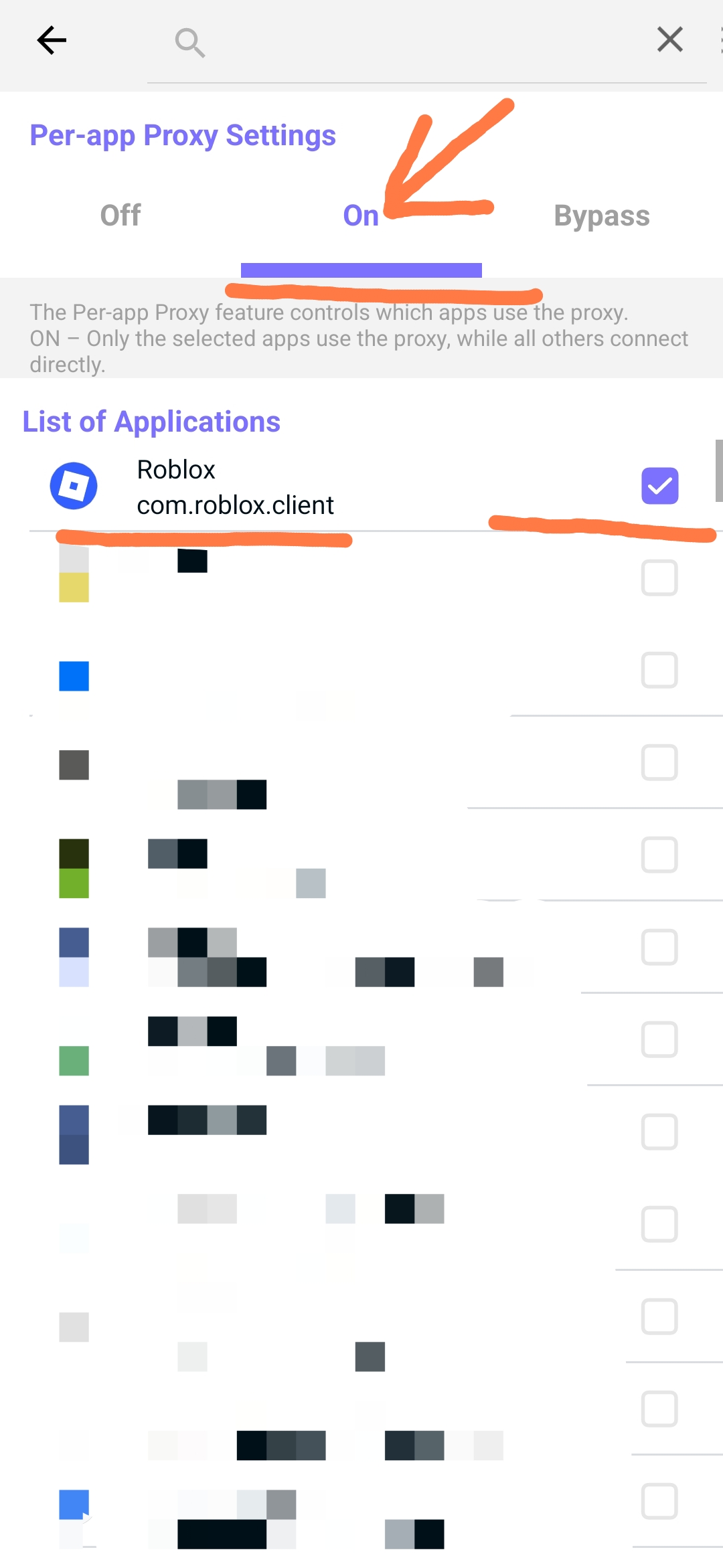
Once done, you can launch the app and start using Roblox.
Proxy Clients for Various Devices and Systems:
- iPhone:
Happ,FoXray,Shadowrocket,Sockswitch-Shadowsocks Client,Potatso Lite - Windows: you can use browser extensions, e.g.
ZeroOmega--Proxy SwitchyOmega V3(the algorithm of setting here - the only difference: you need to enter not127.0.0.1, but ip of the device with ByeByeDPI running) or use applications: nekoray, proxifier, proxifyre, Happ, sockscap64 (for older Windows). - MacBook: FoXray, V2RayXS (for old macbooks), nekoray.
- Other Android devices:
Happ, nekobox, proxifier for Android, SocksDroid (requires Android 5.0+), SocksTun, for older versions of Android ProxyDroid (root required).