Strategies and lists
Whitelisting and blacklisting
White list: selected applications will route traffic through ByeByeDPI, while all others will bypass it. Black list : selected applications will NOT route traffic through ByeByeDPI, while all others will.
Tip
Why are these lists important? Some apps (like Telegram) may not function properly or may not work at all when DPI bypass is applied. Additionally, the less traffic that passes through ByeByeDPI, the less battery power will be consumed. On some TVs or set-top boxes, internet access may not work at all without whitelisting.
Command line editor
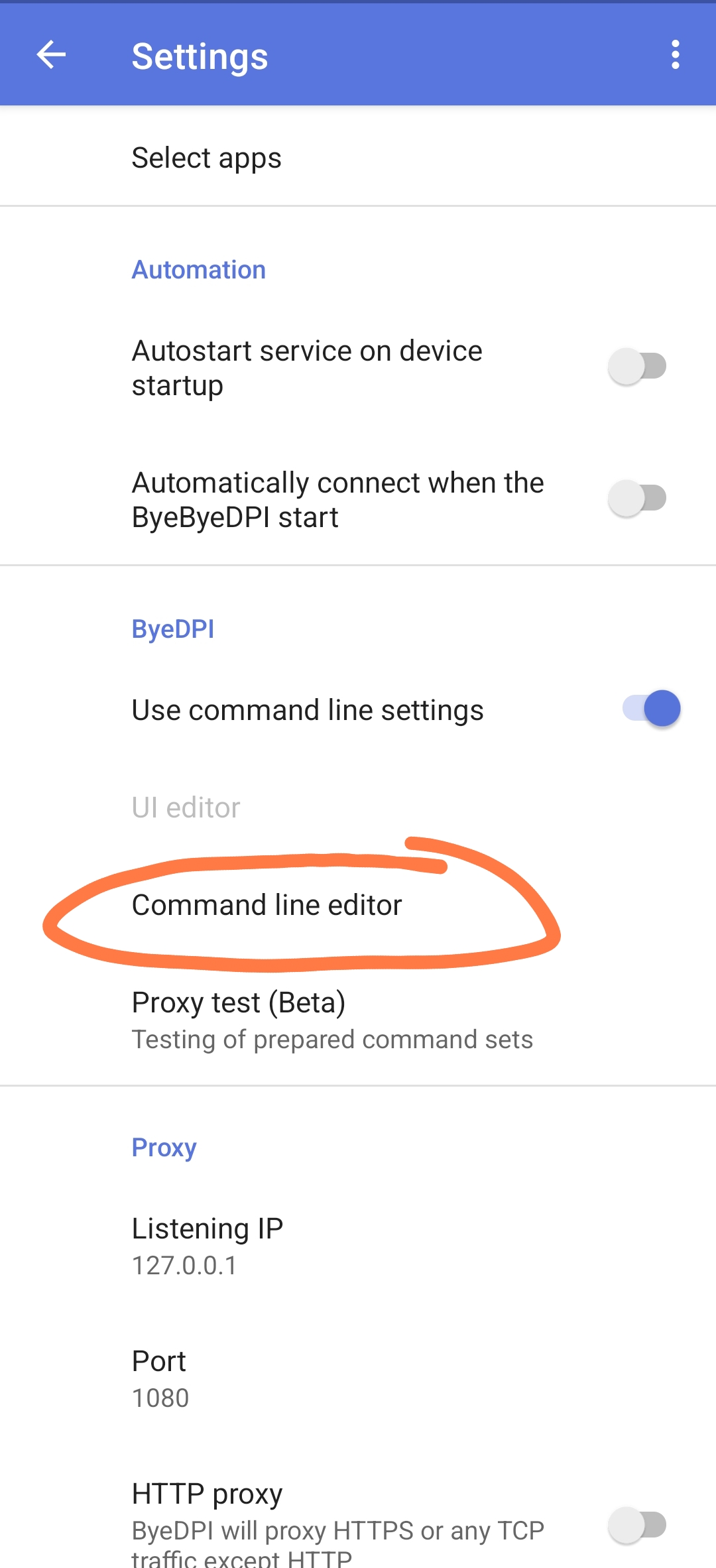
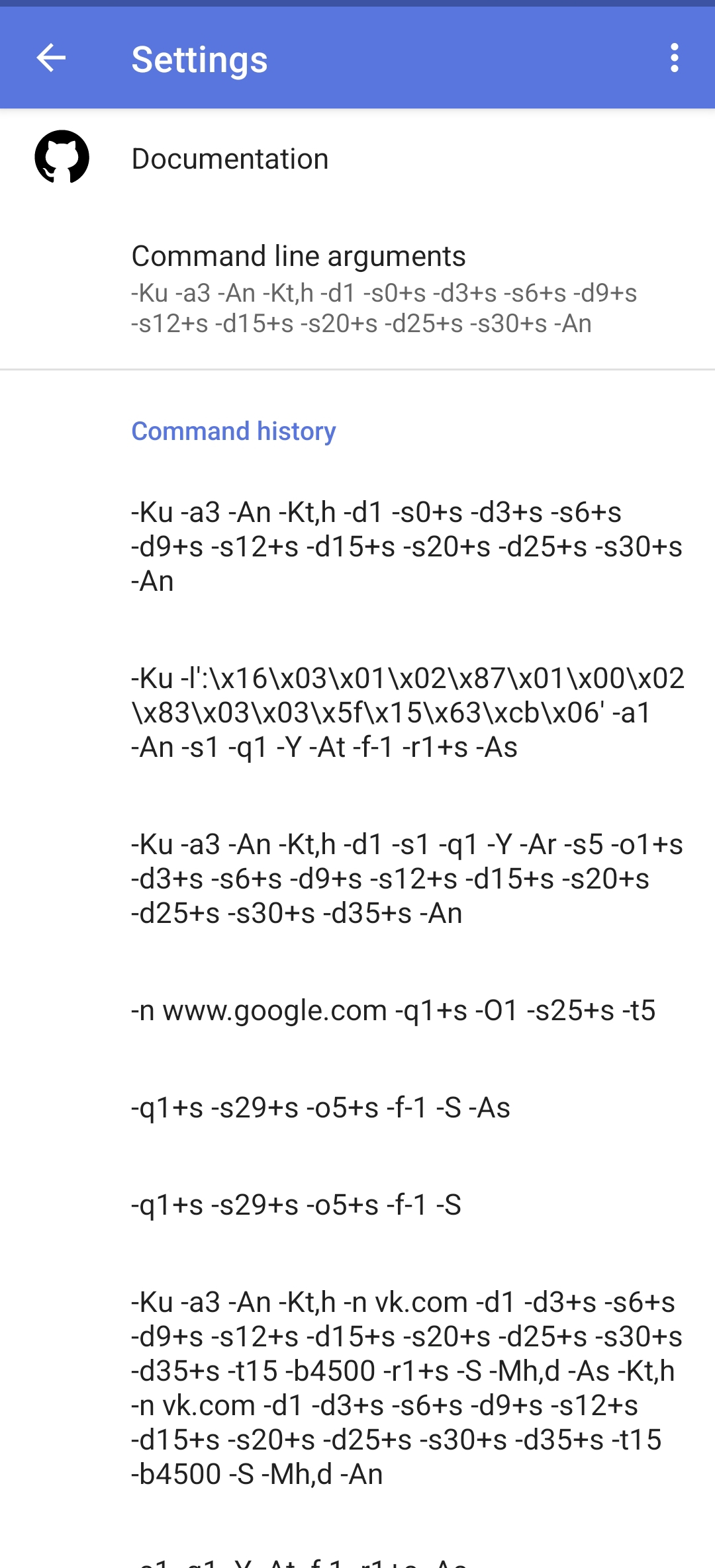
The Command Line Editor section contains a list of Command Line Arguments (strategies) that have been applied previously.
Warning
Be careful: the list length is limited. If the list overflows, the oldest strategies will be removed.
Clicking on a strategy will open a menu with the following options:
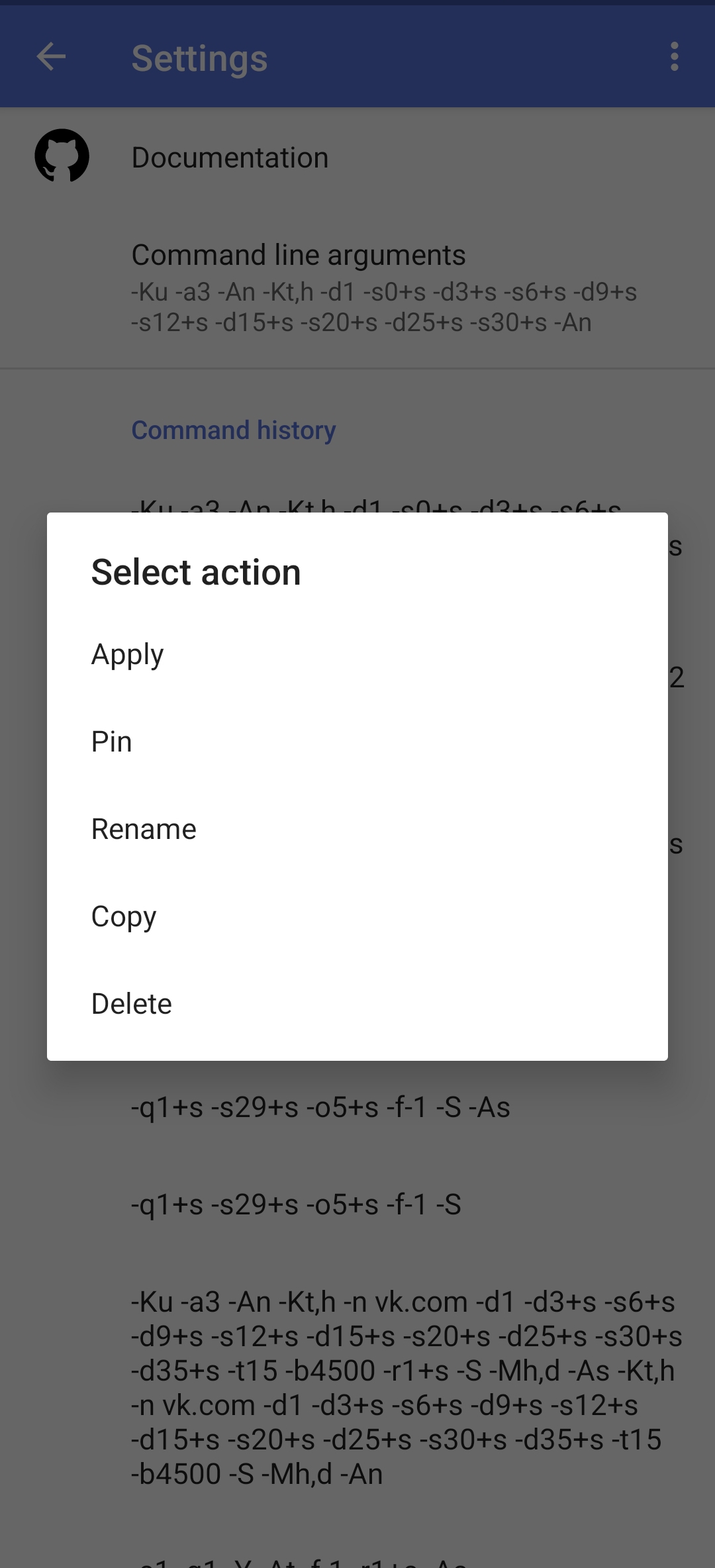
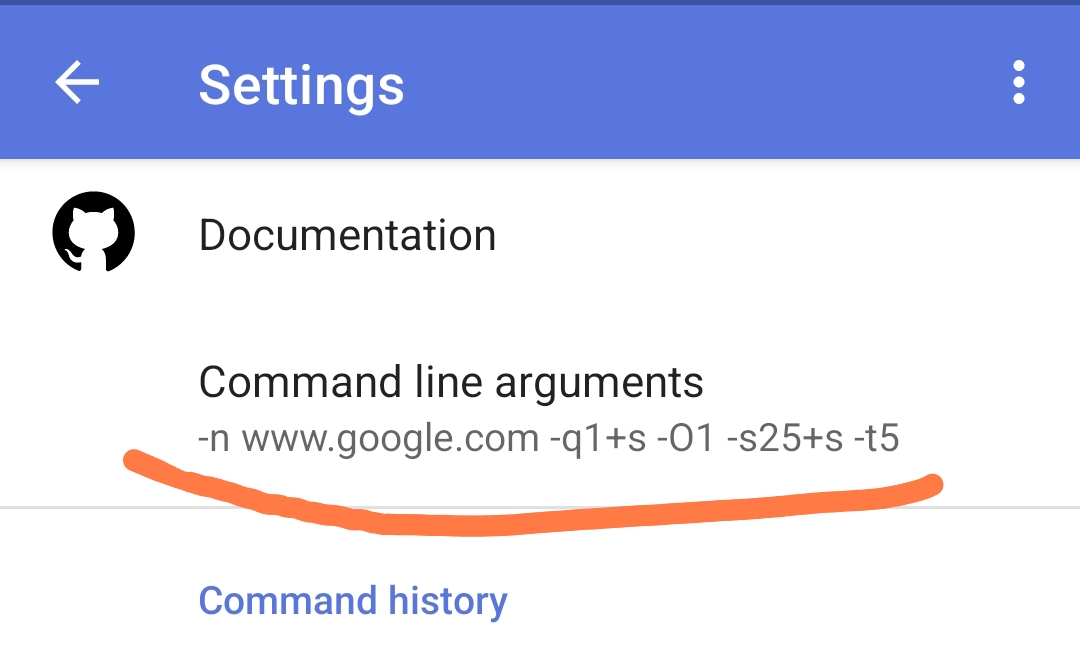
Apply action: applies the command (sets it as the current Command Line Argument).
Pin action: pins the strategy to the top of the list.
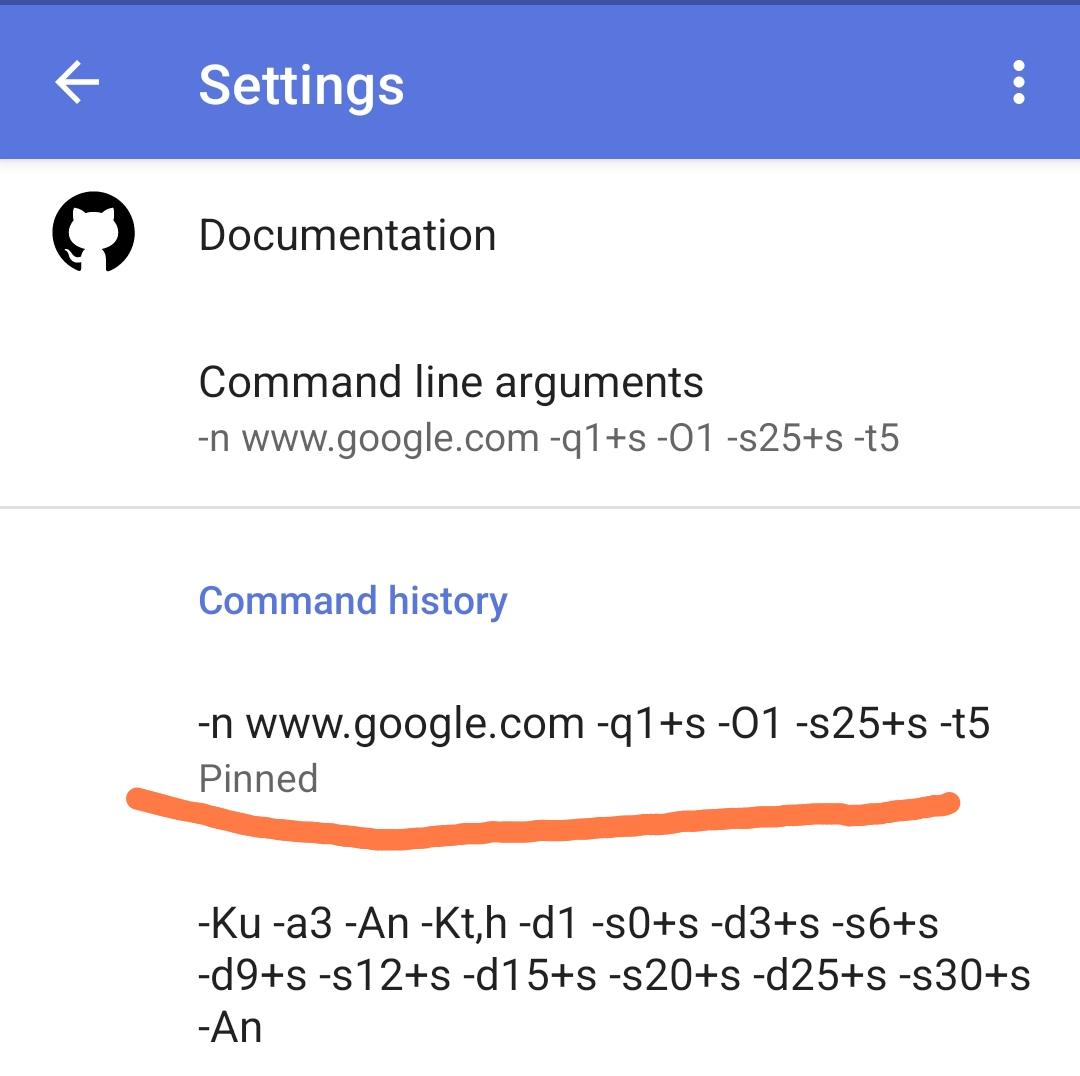
Rename action: allows you to rename the strategy.
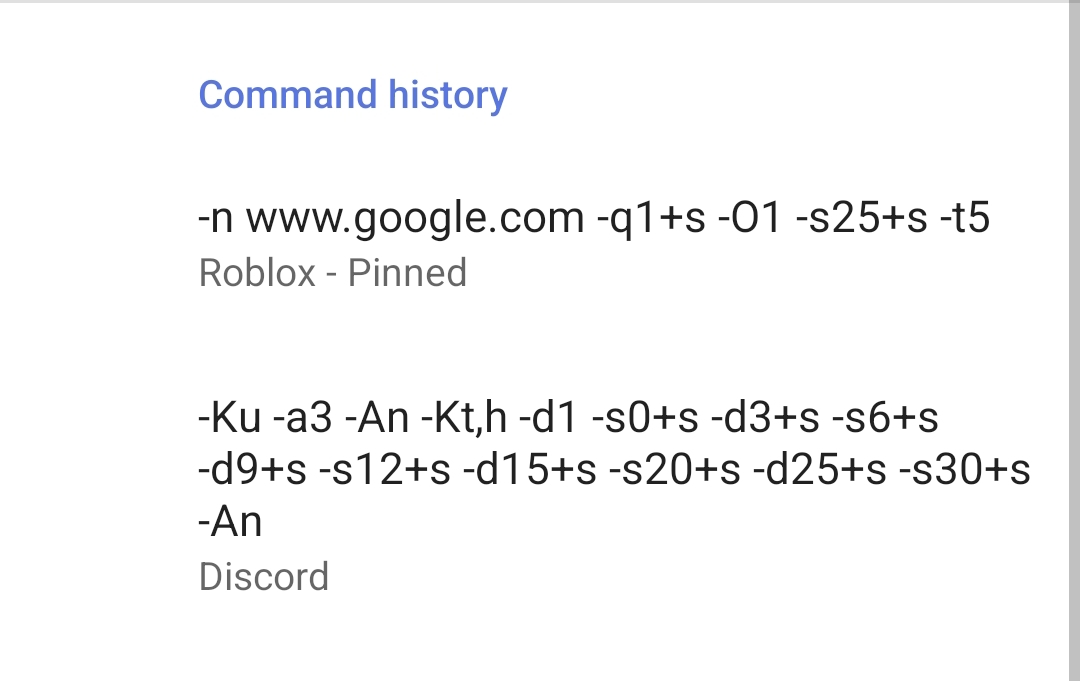
Copy action: copies the strategy to the clipboard.
Delete action: removes the strategy from the list (history).
Display all commands in the test as clickable
Tip
What is this setting useful for? If you don’t want to wait for the selection to finish because the test has already shown high (50% or more) percentages for several strategies, or if you’re experiencing a selection failure but some strategies in the test show high (50% or more) percentages, this setting can help.
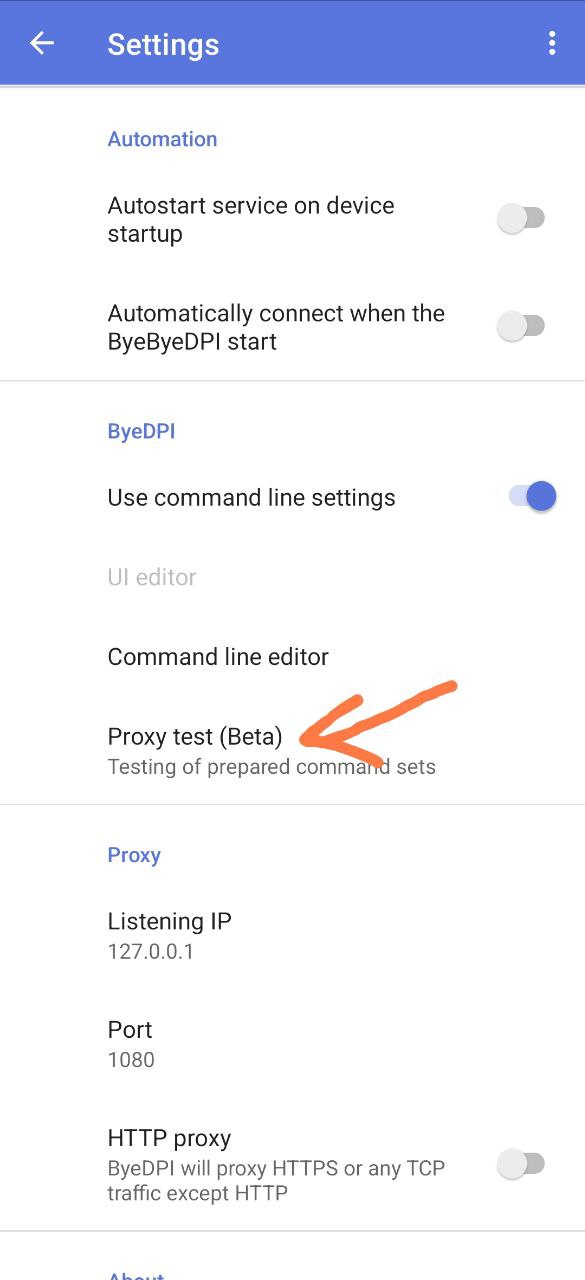
This option can be found in the Proxy Test (Beta) settings.
Go to “Proxy Test (Beta)”1
Open Proxy Test Settings (gear icon in the top-right).
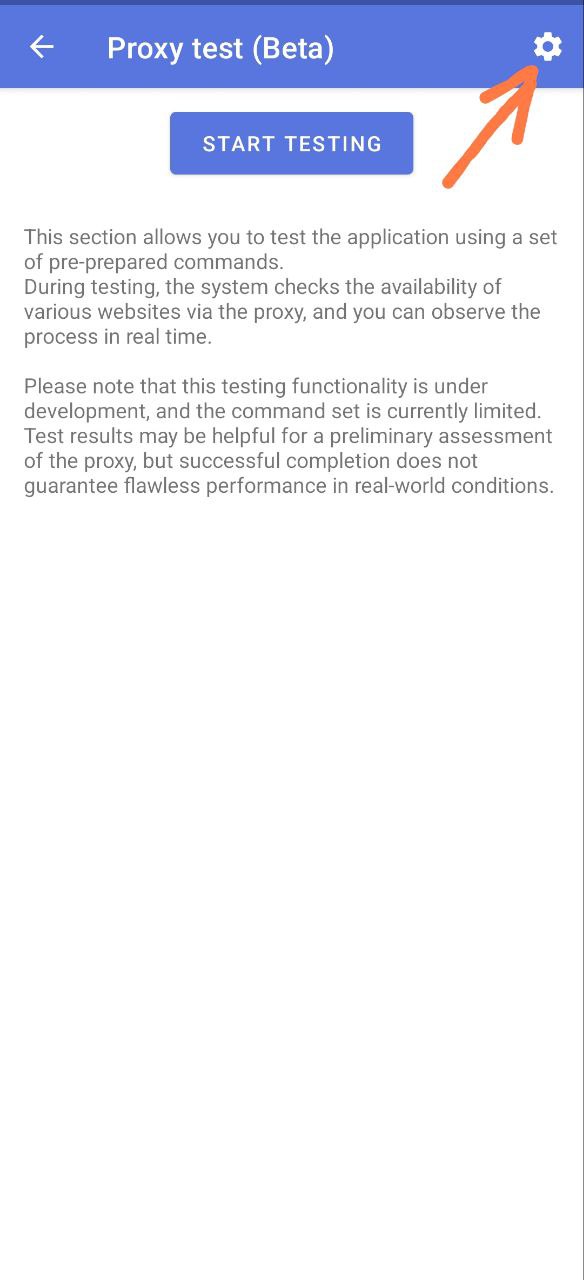
Activate the toggle Display all commands in the test as clickable
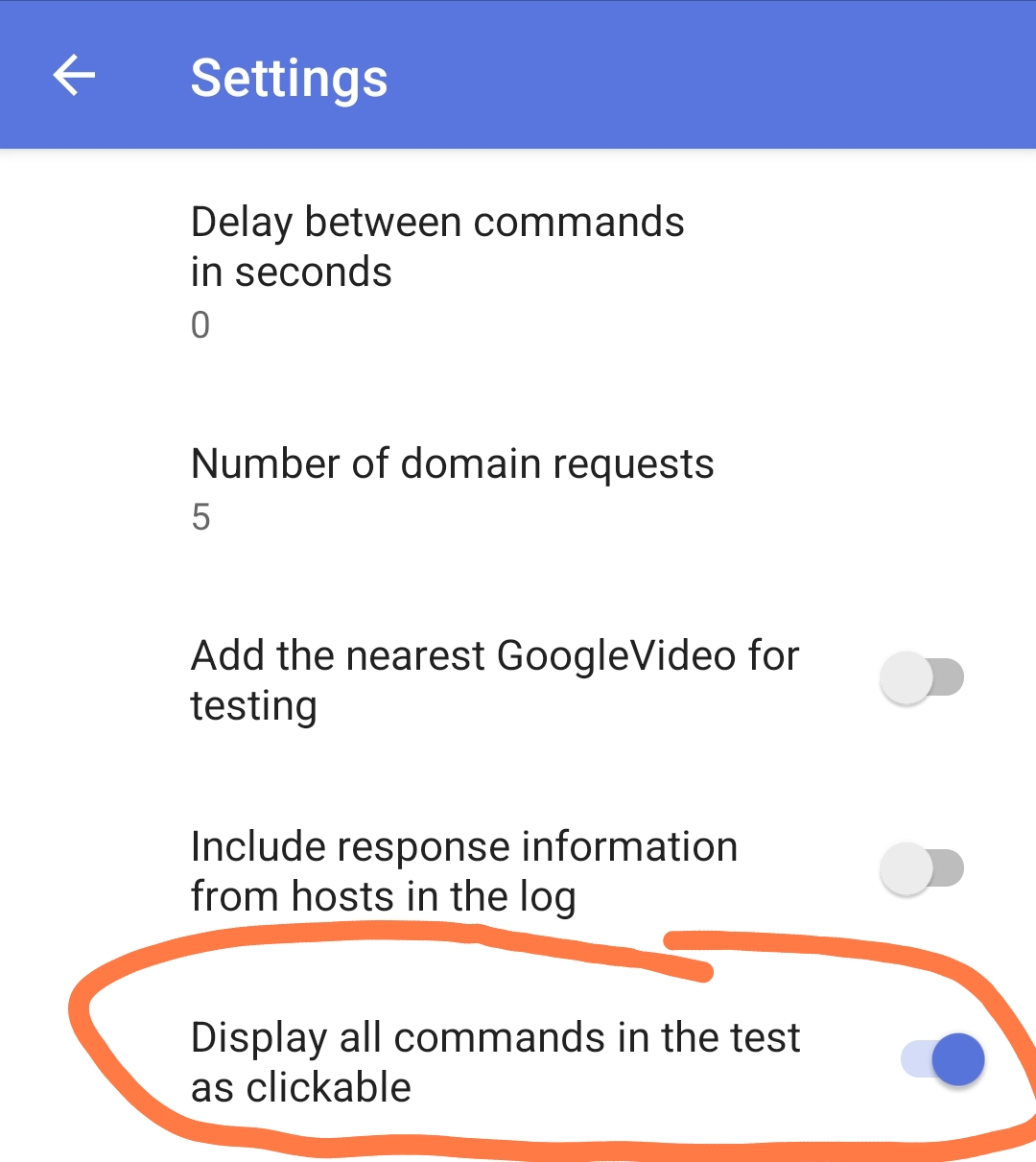
Now, even if the Proxy Test is interrupted, the list of strategies will be displayed as clickable.
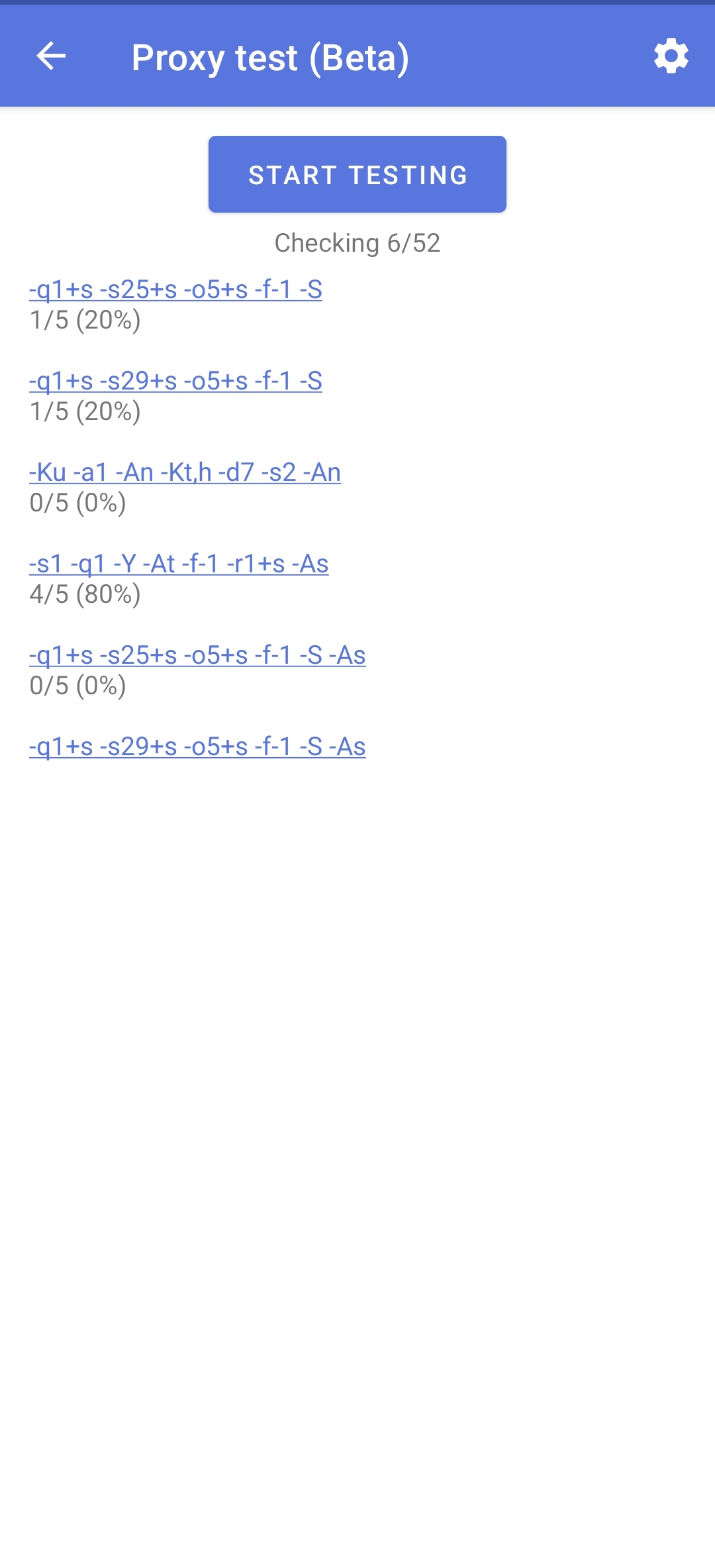
Clicking on a strategy will open a menu with these options:
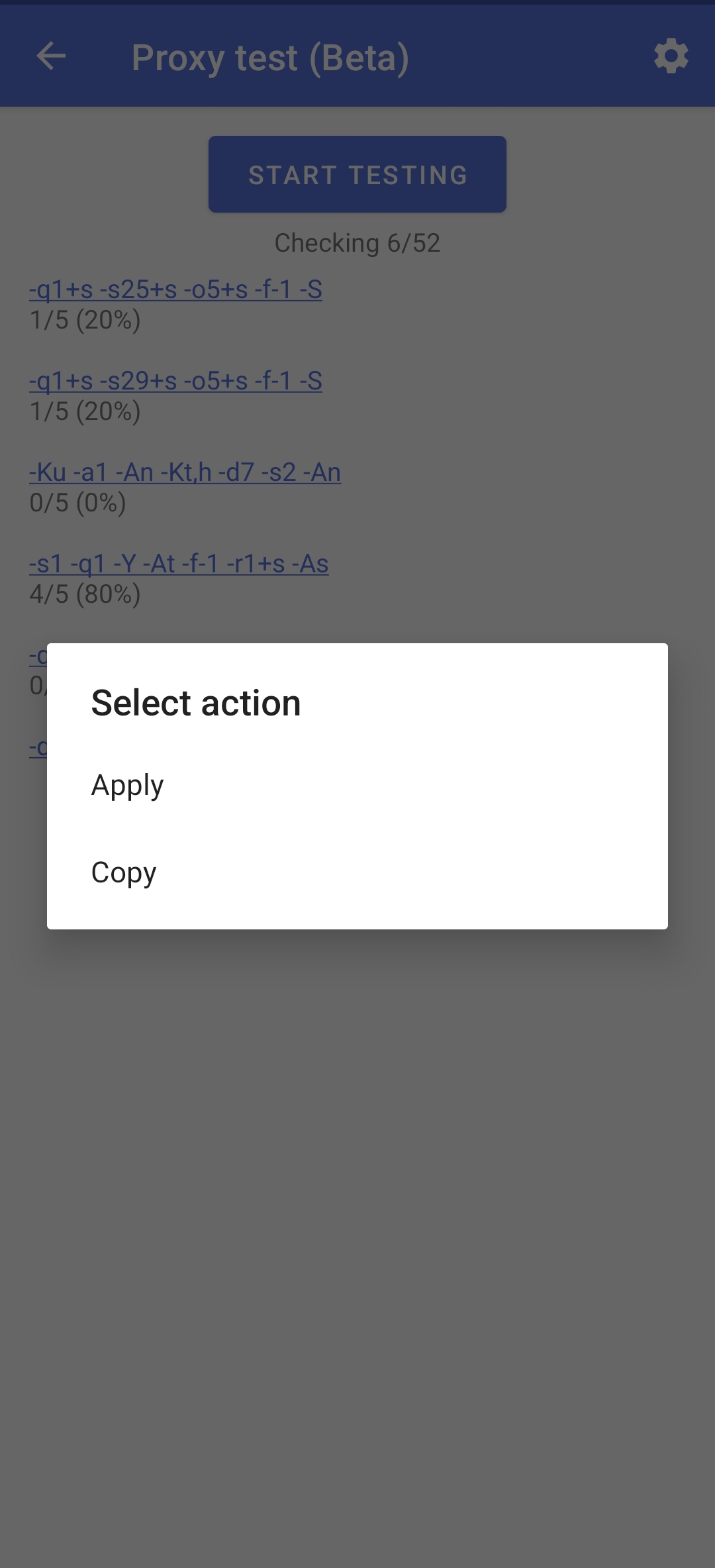
Apply action: applies the command (sets it as the current Command Line Argument).
Copy action: copies the strategy to the clipboard.
Your list of commands (strategies)
Important
You should use your custom list of strategies only if the auto-selection results in low percentages, and you see no strategies with the highest percentages hitting the ceiling (for more on this, see here).
If you’re unsatisfied with the results of the auto-selection and have found commands (strategies) elsewhere, but checking each one manually is tedious, you can follow these steps:
- Go to “Proxy Test (Beta)”1
Open Proxy Test Settings (gear icon in the top-right).
Activate the switch Use custom command lists
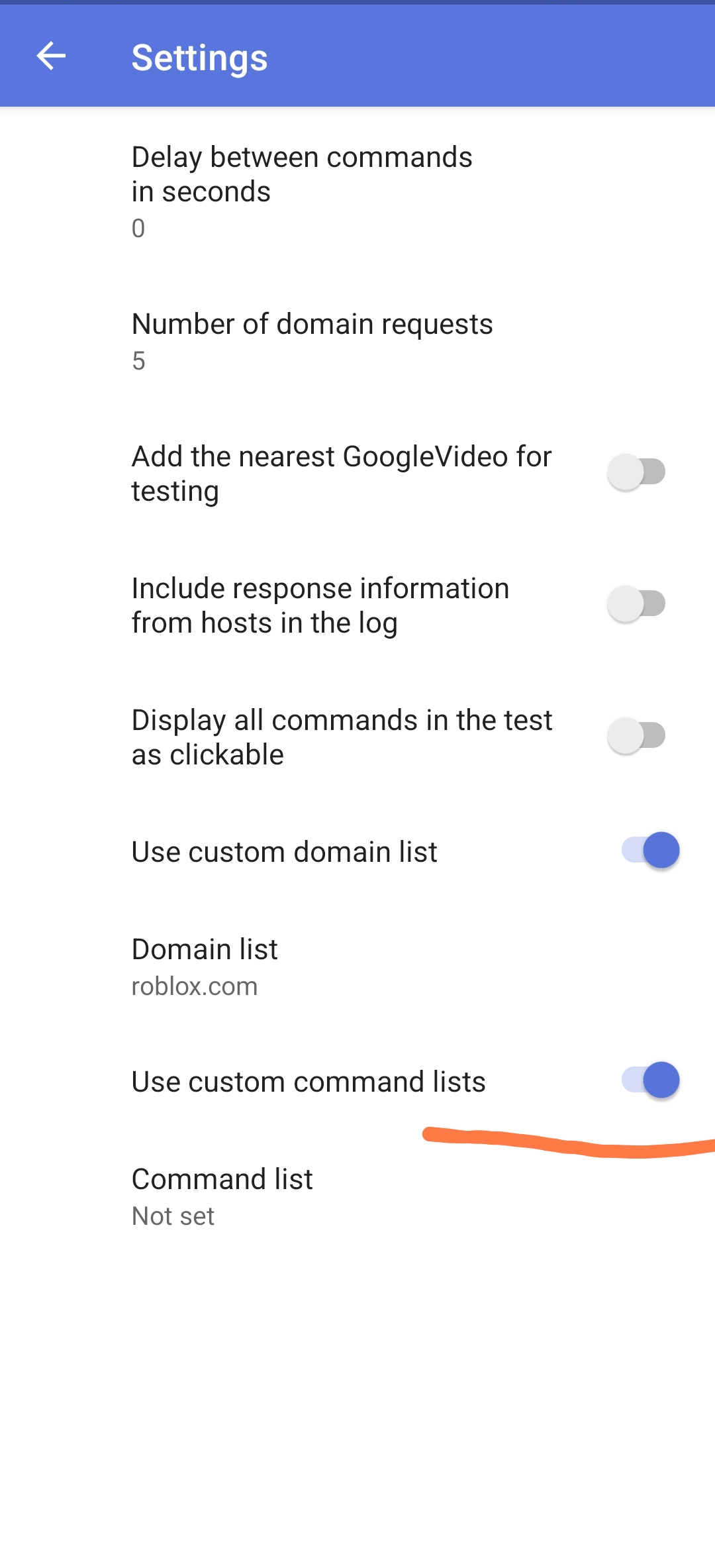
Tap on Command lists
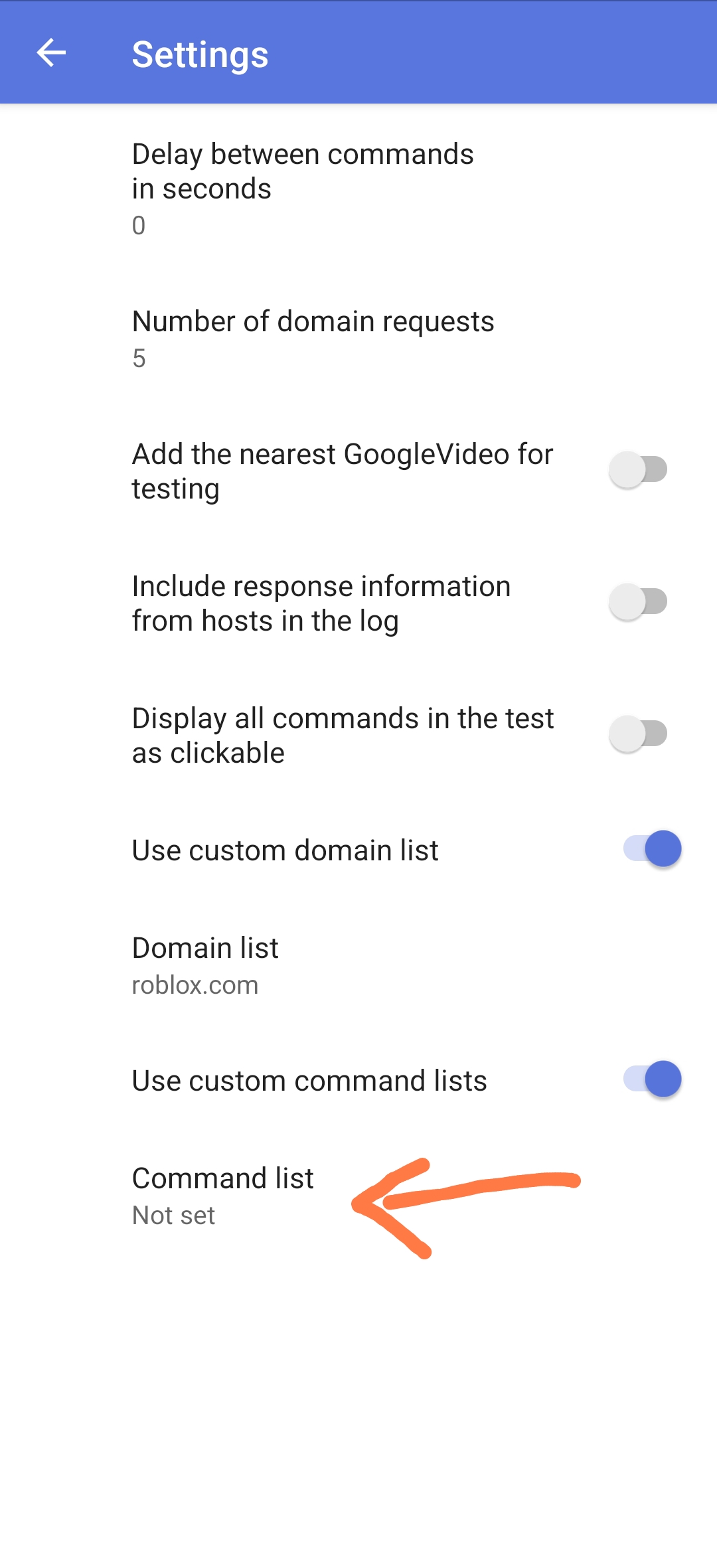
A window will open
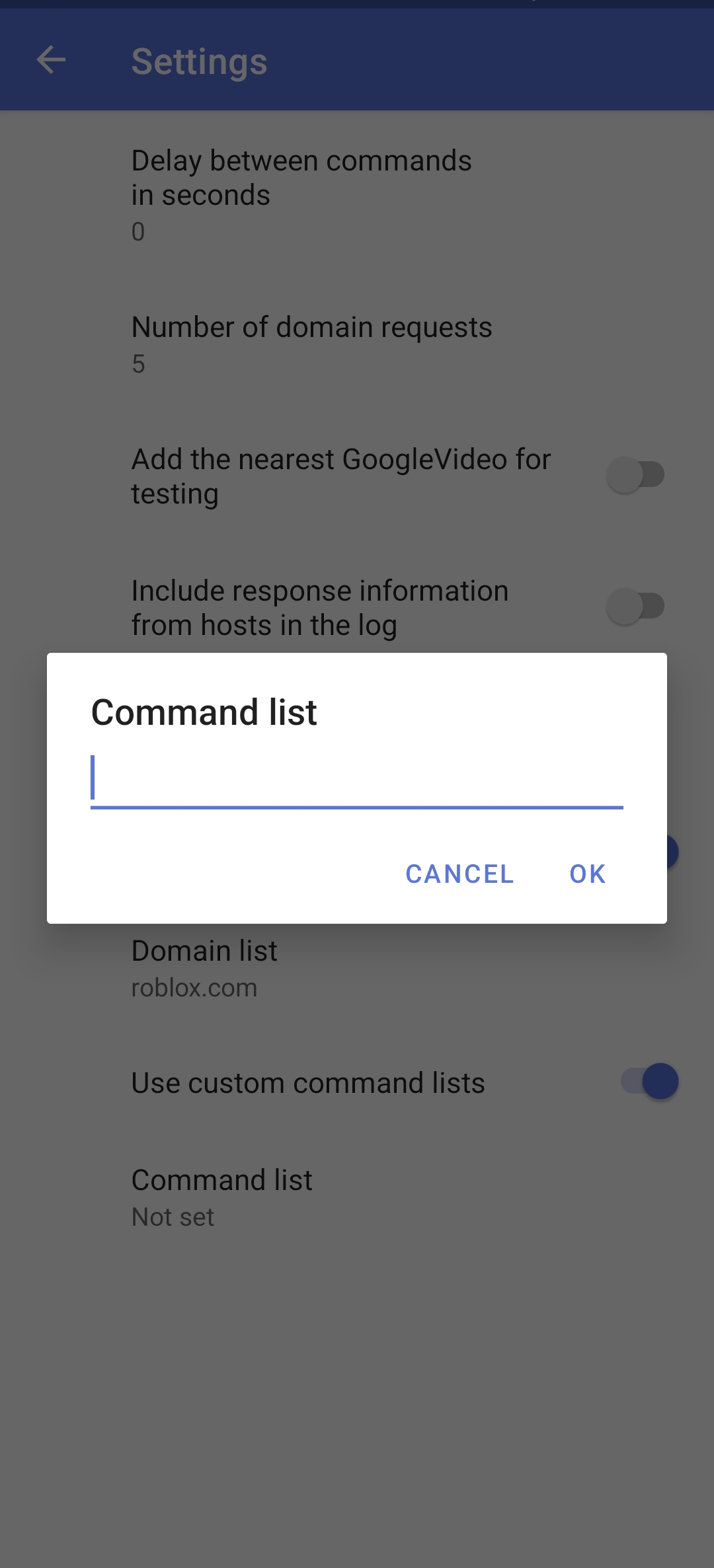
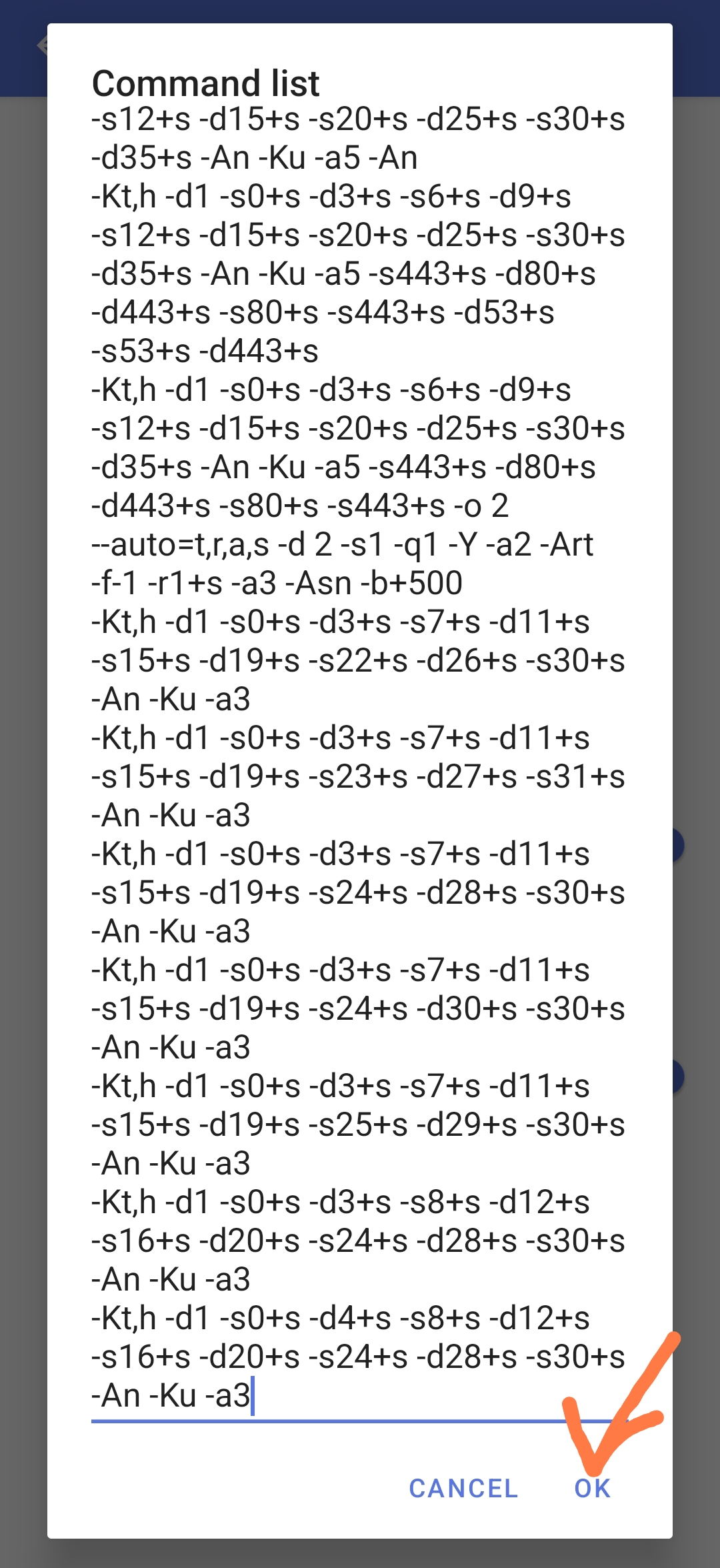
In this window you should enter your list of commands (strategies)
Important
Each new strategy must be on a new line. Commands (strategies) cannot be separated by commas, periods, or any other symbols. They should only be separated by new lines.
After entering your strategies, press OK.
Return to Proxy Test (Beta) and click on the ‘Start Testing’ button.
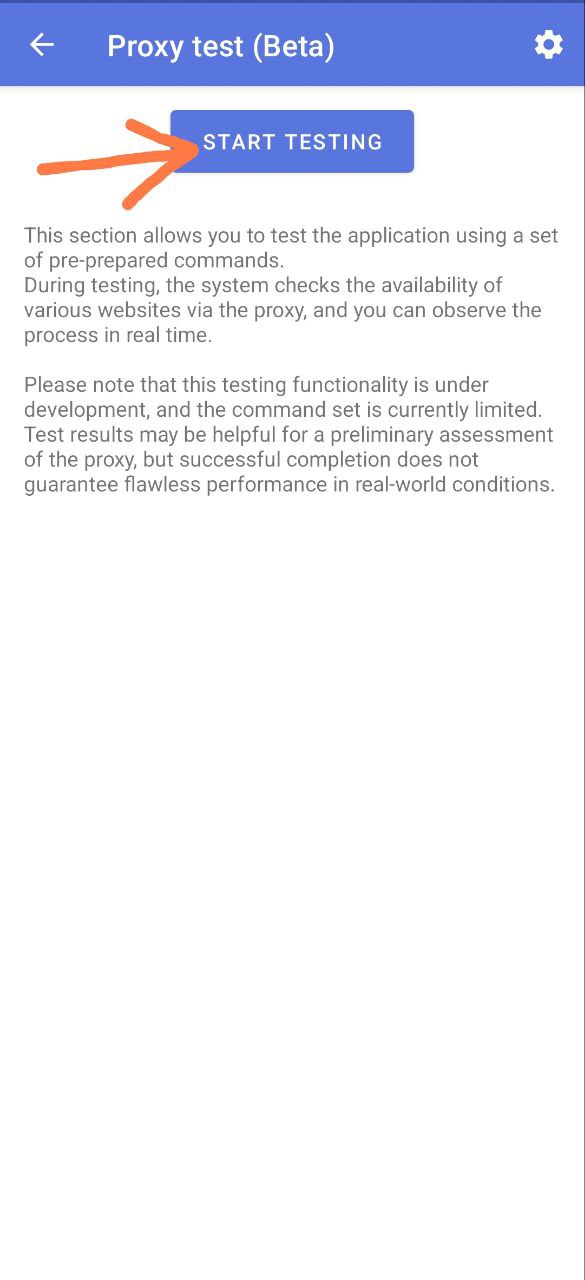
After that, it will start checking the strategies you have inserted into the list
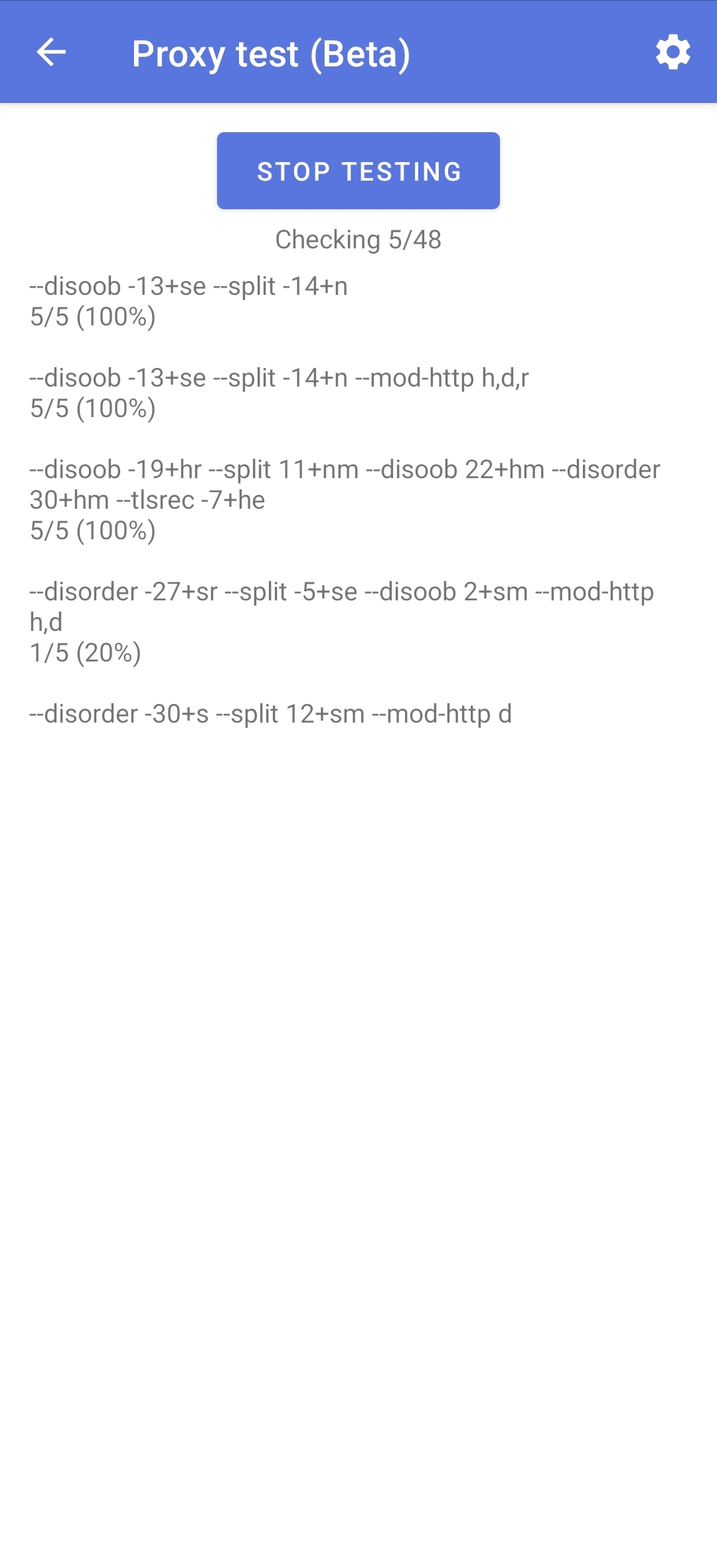
Wait for the selection to complete, then proceed with the standard setup. If there is a crash, the solution is here.
Exporting and importing settings
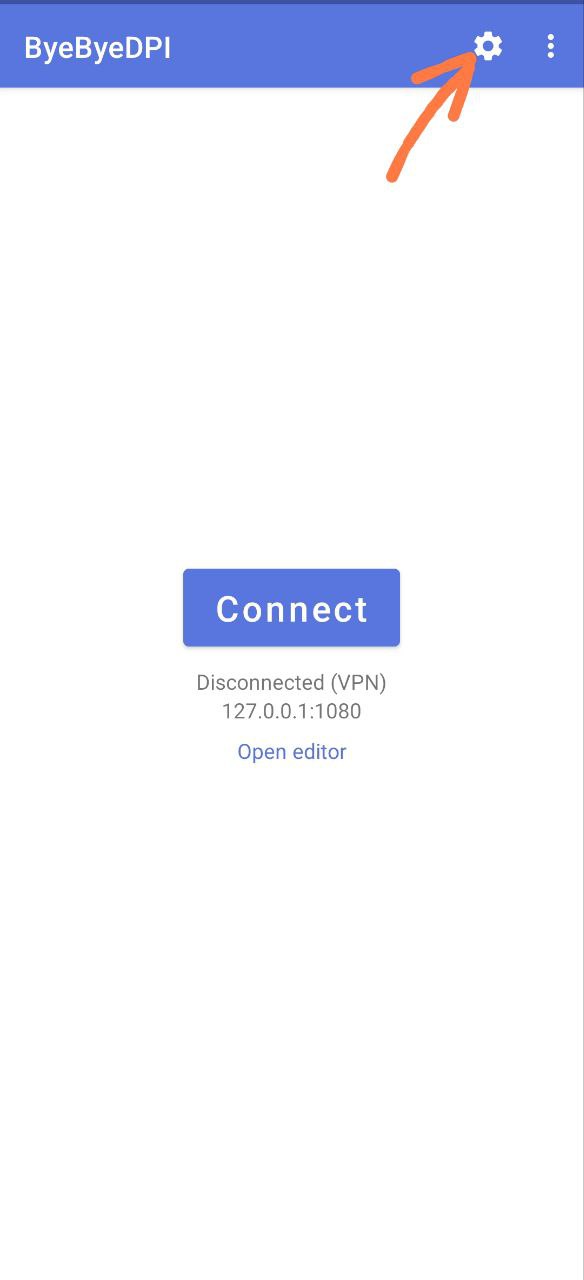
To export or import settings, go to the main settings in ByeByeDPI (gear icon in the top-right):
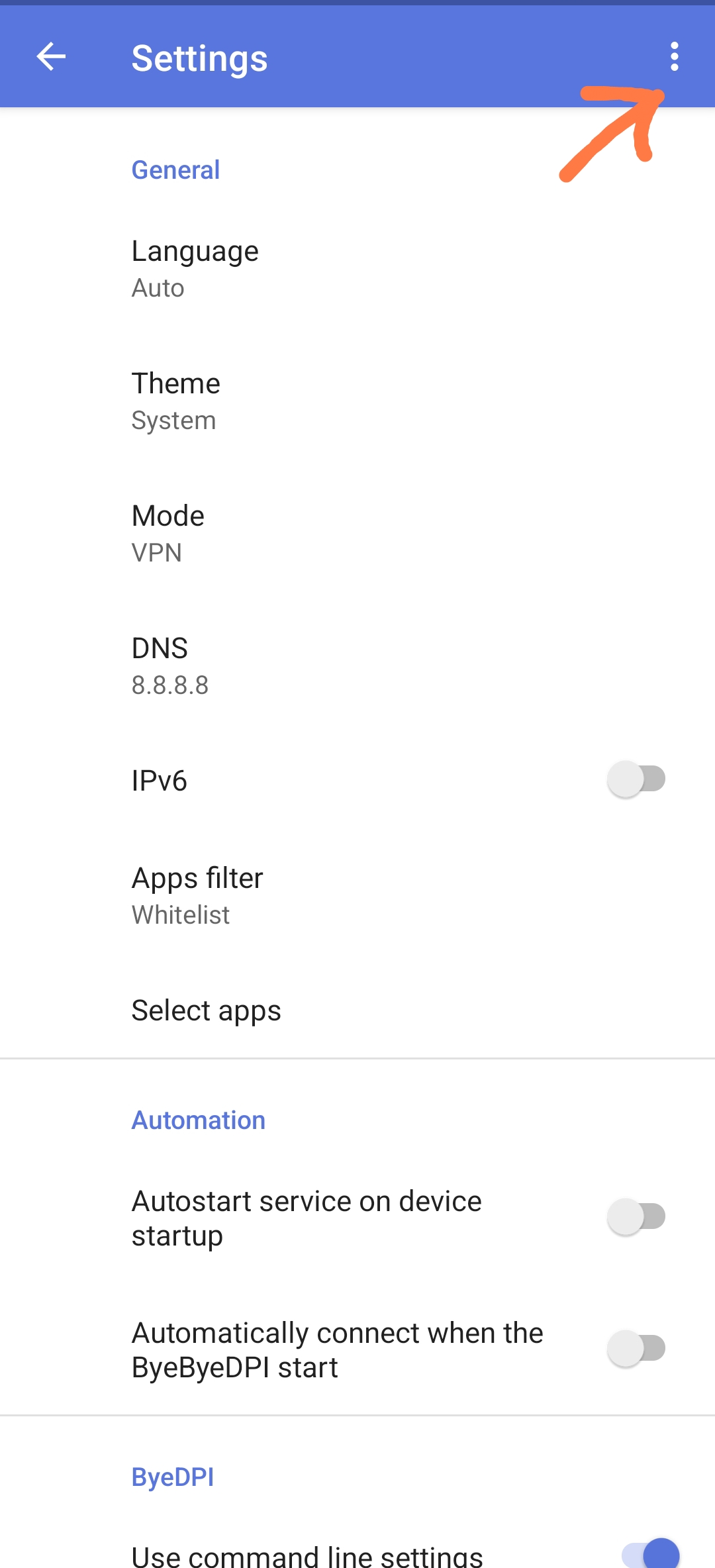
Click on the three dots in the top-right corner.
Warning
You cannot export settings from version 1.4.1 or older and import them into version 1.4.2 or newer.
Select Export or Import, depending on your needs (save settings or load settings). Settings are exported in
jsonformat. When importing, you will need to specify the file.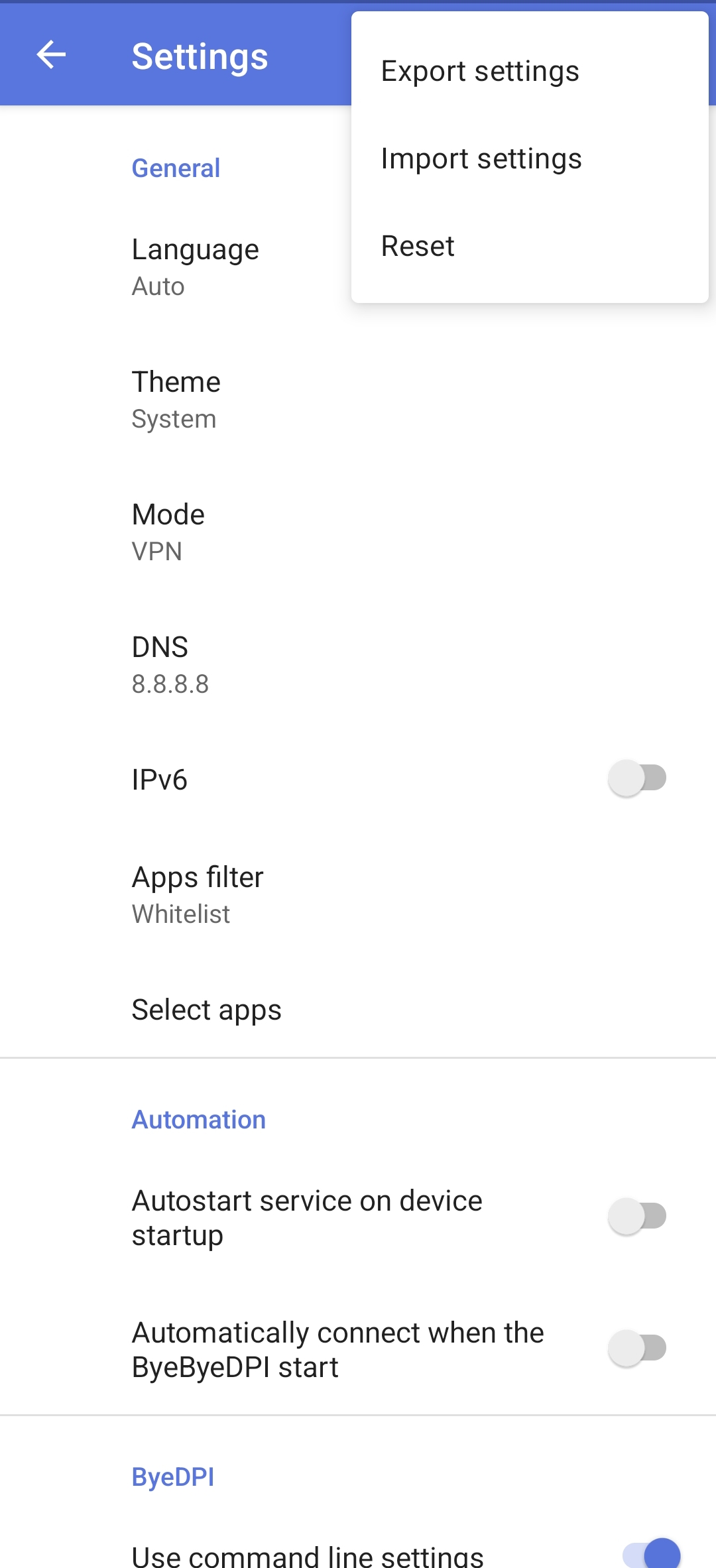
Unlock more services
Go to Selection Settings, disable the ‘Add the nearest GoogleVideo to testing’ option, and enable the ‘Use your domain list’ option. Insert your list of domains to test.
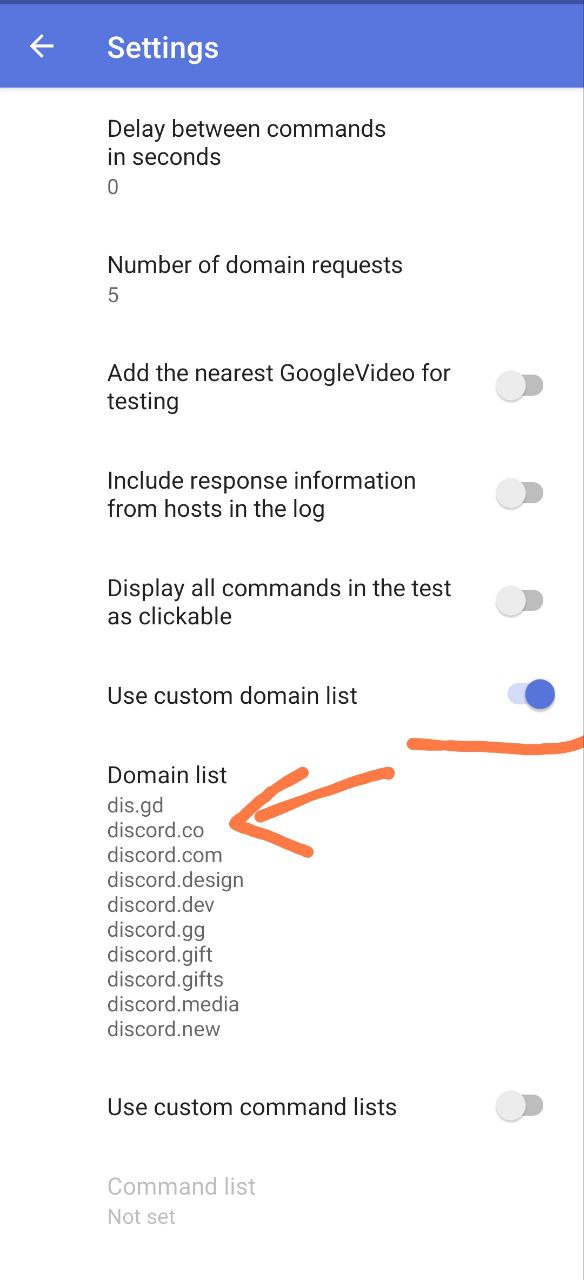
Afterward, search for the strategy in a similar manner as before.
Warning
If all strategies show 0%, the resource is likely blocked by IP, and ByeByeDPI cannot help.
Tip
Large sites and services may require many domains to function correctly.
For example, here are the domains for Discord:
dis.gd
discord.co
discord.com
discord.design
discord.dev
discord.gg
discord.gift
discord.gifts
discord.media
discord.new
discord.store
discord.tools
discord-activities.com
discordactivities.com
discordapp.com
discordapp.net
discordmerch.com
discordpartygames.com
discordsays.com
discordstatus.com
airhorn.solutions
airhornbot.com
bigbeans.solutions
watchanimeattheoffice.com
As you can see, Discord requires more than just discord.com to work properly.
For more domain lists, check this repository .
To identify domains used by a service, you can follow this guide(couldn’t find one in English. If you know something, write in the issue) goes into detail about sniffing traffic on various devices and systems. For Android, I recommend using PCAPdroid. For PC, you can use the browser’s developer tools to inspect network traffic.
Proxy Test is still in development. There may be errors. Strategies are not generated automatically — they are always the same. In the current implementation, the selection process does not actually choose anything. It merely checks the performance of a set of strategies that have been preconfigured by the developer. ↩︎ ↩︎